
Transcript and timeline editor
Wants to arrange interview text, source windows and a long editing timeline side by side. Screen width and readability matter more here than a wide colour gamut.


For oral history editing, an ultrawide monitor is practical if you want to see your transcript, source windows and timeline at the same time; a 27-inch 4K screen is a better fit if you also review high-resolution interview footage. You should also check the viewing position and whether your laptop can handle video and, if needed, charging through the monitor’s ports. A monitor won’t, by itself, make large source files quicker to process: Adobe describes proxy files as part of a workflow for editing demanding source material.
Wants to arrange interview text, source windows and a long editing timeline side by side. Screen width and readability matter more here than a wide colour gamut.
Reviews interview footage as well as the story, and chooses a screen to suit the intended SDR or HDR output.
Wants to connect video, peripherals and, if needed, power through a suitable USB-C port. Whether this works depends on the capabilities of your laptop.
Start with the layout you need while editing: space for a transcript and timeline, or a screen that’s better suited to reviewing footage. Then compare the ports and adjustability with your laptop and workspace.
| What to consider | What should you check? | Who is this important for? |
|---|---|---|
| Workspace and readability | Compare the screen layout with your software. Philips lists a resolution of 3440 × 1440 for the 346B1C/00; ASUS lists 3840 × 2160 for the PA279CRV. | If I want to see my transcript, source windows and a long timeline at the same time, workspace comes first. Around 36% of consumers give workspace top priority. |
| Picture and colour checks | Check the colour mode and settings for your intended output. BenQ lists a Rec.709 mode for the PD2705U; Adobe describes separate colour settings for each editing sequence. | If you review interview footage for a particular output, you’ll want to match the screen mode and editing settings to it. Around 29% of consumers prioritise picture and colour checks. |
| Laptop connections | Check for video over USB-C and the required charging power. Philips requires the connected device to support DP Alt Mode for video; ASUS lists 96 W and Dell up to 90 W for the models mentioned. | If I often connect and disconnect my laptop, I want to know whether the ports can handle video and, if needed, charging. Around 21% of consumers prioritise laptop connectivity. |
| Adjustability and viewing comfort | Check the height adjustment, screen positioning and potential reflections. ASUS lists an adjustable stand for the PA279CRV; Arboportaal identifies small text and glare, among other things, as factors that can affect readability. | For long editing sessions, I want text to be easy to read and the screen to be positioned comfortably. Around 14% of consumers prioritise posture and reading comfort. |
An ultrawide screen can give you room to place windows side by side, but that doesn’t automatically mean more pixels vertically. Philips lists a resolution of 3440 × 1440 for the 346B1C/00; according to ASUS, the PA279CRV has a resolution of 3840 × 2160.
Compare both the screen aspect ratio and resolution with the layout you actually use.
A USB-C port doesn’t guarantee that your laptop can output video or receive enough power from the monitor. Philips states that the connected device must support DP Alt Mode for video over USB-C.
Check the capabilities of the laptop port, monitor and cable separately, and compare the charging power with your laptop’s requirements.
The B Line 346B1C/00 is worth considering if you want to arrange your transcript, source windows and timeline side by side across a wide screen.
The ProArt PA279CRV is a 27-inch 4K option for anyone who also wants to review interview footage while editing.
The PD2705U is a 27-inch 4K model to compare if you’re looking for a colour mode for video editing.
The UltraSharp U2723QE is a 27-inch 4K option to consider if USB-C and hub connections are important to you.
This selection includes ultrawide screens for viewing a transcript and timeline side by side, as well as 27-inch 4K models for anyone who also wants to review footage. If you’re using a laptop, always check that the connections and any charging function are compatible.
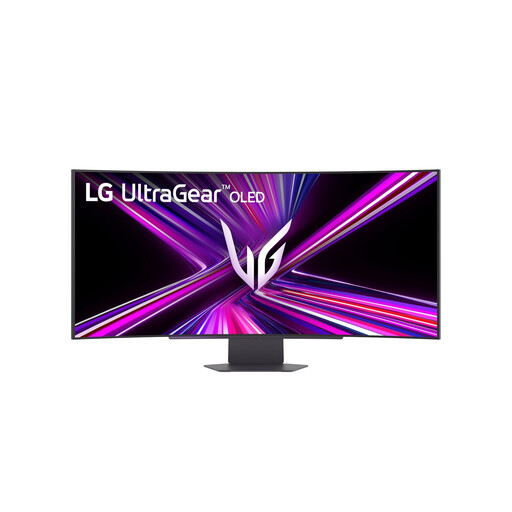 Image unavailable
The wide 3440 × 1440 layout suits anyone who wants to view a transcript, source windows and timeline side by side.
44.5 inches; OLED; 3440 × 1440.
This resolution has fewer vertical pixels than 4K (3840 × 2160), which is worth considering if vertical screen space matters more to you than a wide workspace.
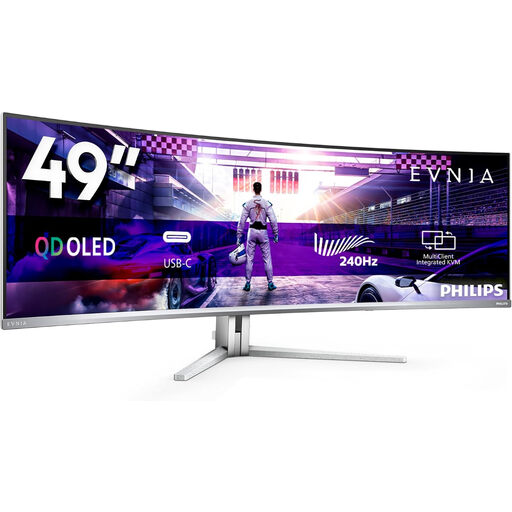 Image unavailable
This wide monitor could be a good fit if you want to view lots of windows side by side; check first that its dimensions suit your desk and workspace.
49 inches; DQHD; 240 Hz; FreeSync Premium Pro; curved QD-OLED screen.
The product information recommends two people for lifting, moving or installing the monitor, and a stable surface that can support its weight.
 Image unavailable
The 3440 × 1440 layout is worth considering if you want to view a transcript and timeline side by side; compare the screen height with your need for vertical screen space.
34 inches; 3440 × 1440; LCD.
Video over USB-C and charging will work only if the connected laptop and cable support the required features.
 Image unavailable
A 27-inch 4K layout suits anyone who wants to review high-resolution footage; compared with an ultrawide screen, there’s less physical screen width for arranging lots of windows side by side.
27 inches; 3840 × 2160; 4K Ultra HD.
 Image unavailable
This 27-inch 4K model is worth comparing if reviewing footage is important; bear in mind that it offers less physical width for viewing multiple windows at once than an ultrawide screen.
27 inches; 3840 × 2160; 4K Ultra HD; LCD.
Before buying, check that the connection and any power delivery are suitable for your laptop.
No. Screen resolution isn’t the same as processing speed. Adobe describes proxy files as lighter versions of source footage that can be used in an editing workflow with high-resolution files; assess your storage and computer performance separately from your monitor choice.
Only when the relevant ports and cable support the required features. Philips states that the connected device must support DP Alt Mode for video over USB-C; you should also check that the monitor’s Power Delivery output is suitable for your laptop.
Position and adjust the screen so text is easy to read, and reduce distracting reflections and light sources in your field of vision. Arboportaal identifies small text, poor contrast and reflections as factors that can affect readability; this doesn’t guarantee that any one monitor will prevent discomfort.
For a consumer purchase, your statutory guarantee applies: according to the Government of the Netherlands, the seller must provide a solution if a product is faulty. For distance purchases, the seller must also tell you about the cooling-off period, which is usually 14 days; check the terms of the specific purchase.
Yes. According to the European Commission, computer monitors are covered by EU energy labelling and ecodesign rules. The energy label helps you compare energy consumption, but it doesn’t on its own confirm whether a particular model meets all applicable requirements.