
Editing with a transcript and timeline
If you edit interviews and want to see the transcript, footage and timeline at the same time, compare the usable screen space. Dell specifies a resolution of 1920 × 1200 for the P2425.


When editing oral history on a small desk, your choice largely depends on what you want to see on screen at the same time. WUXGA in 16:10 gives you extra vertical space, while QHD offers more pixels for using multiple windows. A compact Full HD monitor may be enough if you mainly edit audio and text. Also consider the stand and adjustability, check the USB-C features of both the monitor and your laptop, and choose a model with colour features if you need to assess archival footage carefully.
If you edit interviews and want to see the transcript, footage and timeline at the same time, compare the usable screen space. Dell specifies a resolution of 1920 × 1200 for the P2425.
If you assess the colour of archival footage as well as spoken content, the stated colour features are relevant. ASUS lists sRGB and Rec.709 coverage and factory calibration among the features of the PA248QV.
If you often connect a laptop and want to keep cables to a minimum, check that the video connection and USB-C power delivery of the exact monitor model are compatible with your laptop.
First decide how much screen space you need, then check that the monitor suits your desk and laptop. Factor in colour features if you assess archival footage.
A good fit if: you keep the timeline, transcript and control panels open at the same time during interviews.
Bear in mind: Dell lists the P2425’s USB-C downstream port as data-only, with a maximum output of 15 W. This is not the same as laptop charging.
A good fit if: you want to use multiple windows on one screen and connect a laptop with a single cable.
Bear in mind: how easy text and panels are to read also depends on the scaling setting. Check your laptop’s supported video mode and charging requirements too.
A good fit if: you assess the colour of archival footage or interviews as well as working with audio and text.
Bear in mind: ASUS lists colour coverage and factory calibration for the PA248QV. These manufacturer specifications are not an independent measurement of your individual unit.
A good fit if: a straightforward laptop setup matters more to you than having extra pixels for lots of panels open at once.
Bear in mind: LG lists 65 W USB-C Power Delivery for the 24BA750-B, while BenQ lists 60 W for the BL2485TC. Check the exact version and compatibility.
| What to consider | What should you check? | Who is this important for? |
|---|---|---|
| Workspace for transcript and timeline | Compare the resolution and aspect ratio, and check that your usual window layout remains easy to read at the chosen scaling. | If I want to see the transcript, preview and timeline at the same time, I need enough space without making the text too small to read. Around 29% of consumers say having extra editing workspace is their main concern. |
| Fit and posture | Measure the available width and depth, including the stand and cables; check adjustability and potential reflections. | On a small desk, I want to position and adjust the screen without the stand and cables taking up my workspace. Around 29% of consumers prioritise desk fit and posture. |
| Connecting a laptop with fewer cables | For the exact model, check whether USB-C supports video and whether the charging output is suitable for your laptop. | If I want to connect my laptop with as few separate cables as possible, I check both the video connection and power delivery. Around 24% of consumers say a suitable single-cable setup is their main concern. |
| Assessing the colour of video footage | Consider whether you assess colour, then compare the stated colour space and calibration for the exact model. | When I assess the colour of archival footage, I want to consider colour features rather than just screen resolution. Around 18% of consumers say colour assessment is their main concern. |
A USB-C connection does not automatically provide both video and enough power for a laptop. Dell describes the P2425’s USB-C downstream port as data-only, with a maximum output of 15 W.
Before relying on a single cable, check the features of the ports on both the exact monitor model and your laptop.
You may also need a separate video cable, charger or compatible hub.
The stand, adjustment space and connection cables also take up room. On a compact desk, the monitor may fit differently from what you expect based on its diagonal measurement.
Measure the usable width and depth, then compare them with the dimensions of the model including its stand.
If the stand does not fit, you may need a different desk layout or mounting option.
According to ACM ConsuWijzer, the statutory guarantee is separate from any guarantee offered by the seller or manufacturer.
Keep your proof of purchase and contact the seller if there is a fault. Consider your statutory rights separately from any additional warranty terms.
The Pro 24 Plus P2425 and P2425DE offer two compact options: WUXGA in 16:10, or QHD with a USB-C hub.
The ProArt PA248QV is a compact 24.1-inch, 16:10 option for anyone who also assesses image colour.
The 24BA750-B is a 23.8-inch Full HD model with USB-C and an adjustable stand.
According to BenQ’s European specifications, the BL2485TC is a 23.8-inch Full HD business monitor with USB-C.
These Joybuy products are compact monitors for transcription and editing, with WUXGA, QHD and Full HD resolutions. Check which screen space and connections suit your computer and workspace for each model.
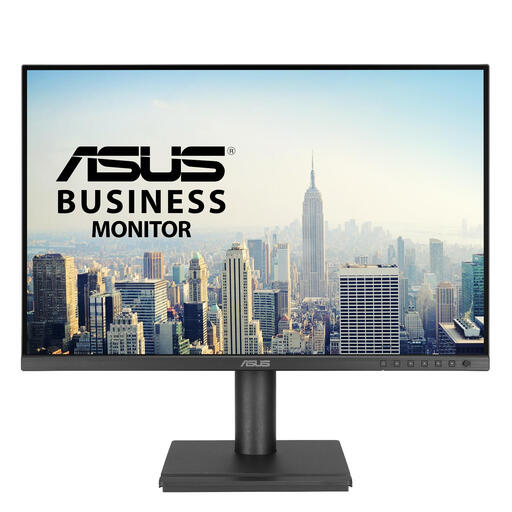 Image unavailable
The 1920 × 1200 WUXGA resolution may suit you if you want to combine a transcript and editing windows on a compact screen.
24.1 inches; 1920 × 1200 pixels; WUXGA.
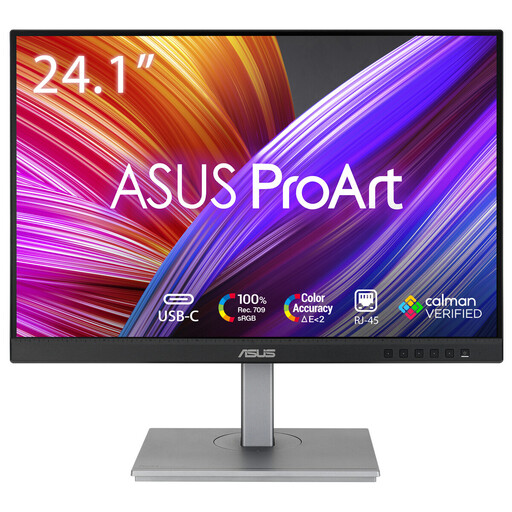 Image unavailable
The 1920 × 1200 resolution may suit a compact editing space where you need extra vertical screen room.
24.1 inches; 1920 × 1200 pixels; 16:10.
 Image unavailable
QHD may suit you if you want more pixels for editing several windows at once on a single compact screen.
2560 × 1440 pixels; QHD; USB-C hub.
 Image unavailable
The QHD resolution may suit you if you want to arrange several editing windows on one screen.
24 inches; 2560 × 1440 pixels; QHD.
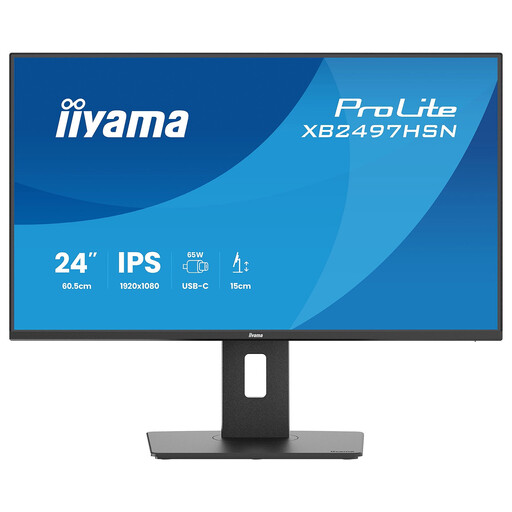 Image unavailable
Full HD may suit you if your editing work does not require extra pixels for lots of panels open at once.
Full HD; 100 Hz; IPS.
Full HD offers fewer pixels than QHD when you want to display lots of editing panels at once.
No, the type of project does not make one essential. Decide how much space you need for the transcript, timeline and preview at the same time. Compact options range from Full HD through 1920 × 1200 to QHD. Adobe describes separate settings in Premiere for the playback resolution of the source and programme monitors; this setting is independent of the physical screen resolution.
No. Check whether the USB-C connection on the exact model supports video and whether its charging output suits your laptop. Dell describes the P2425’s USB-C downstream port as data-only, with a maximum output of 15 W; BenQ lists DisplayPort Alt Mode and 60 W Power Delivery for the BL2485TC.
Measure the space needed for the stand and cables, and check how you can adjust the screen. The Dutch Arboportaal highlights screen height, lighting and reflections when working with screens; rules for employees are not automatically a legal requirement for every freelance editor.
According to ACM ConsuWijzer, for a typical online purchase of goods you have a statutory cooling-off period of up to 14 days after delivery, subject to applicable exceptions. The statutory guarantee is separate from the manufacturer’s warranty. If a fault occurs sooner than you could reasonably expect with normal use, the seller must resolve it in line with the applicable rules.
That depends on your working arrangements. The Arboportaal sets out requirements for screen-based workstations and mentions a specific condition for employees who work with screens for more than 2 hours a day. Do not automatically apply employment rules as universal product specifications for every buyer.