What should you look for?
First measure your workspace, then decide how much of the page you need to see at once. Finally, compare colour features and connectivity with the way you’ll use the monitor.
When choosing a monitor for newsletter design in a student room, weigh up the options below according to your main priority.
| What to consider |
What should you check? |
Who might value this most? |
| Desk space |
Measure the available width and depth, then compare them with the monitor including its stand. BenQ lists the PD2506Q as 570.0 mm wide and 256.9 mm deep including the stand. |
I want to use my keyboard and keep paper beside the screen; around 27% of consumers give desk space top priority. |
| Viewing the page |
Compare the resolution and aspect ratio. Dell lists 1920 × 1200 for the P2425, as does ASUS for the PA248QV; Philips lists 1920 × 1080 for the 24E1N1100A/00. |
When working on long pages, I want to see more text and layout at once; around 27% of consumers prioritise viewing the page. |
| Colour for images |
Decide whether your newsletter will remain digital or be printed, then check the listed colour space and calibration features. |
If I edit photos and illustrations, I want to know what colour features the monitor offers; around 20% of consumers make image colour their top priority. |
| Laptop connectivity |
Check that your laptop, monitor and cable support the video connection you want, and that the charging power is suitable for your laptop. |
I want to connect my laptop for display and, if possible, charge it using the same cable; around 13% of consumers prioritise this connection. |
| Purchase cost |
First decide which features you need, then compare the total cost, including any cable or adapter you may need. |
If I mainly edit text, I don’t want to pay for features I won’t use; around 13% of consumers put the total purchase cost first. |
Joybuy products
These Joybuy product picks are aimed at newsletter design, from extra page space to Full HD screens for text-based work.
 No image available
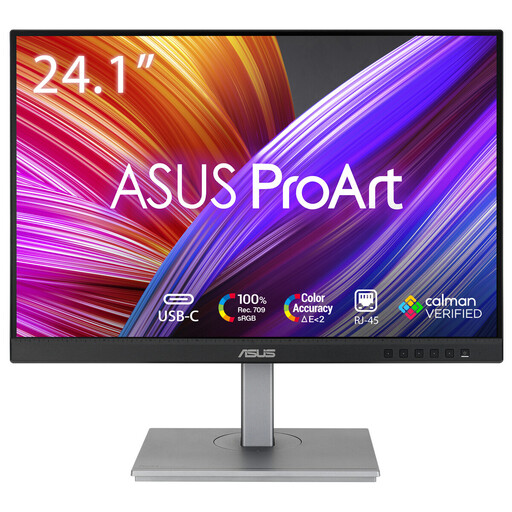
ASUS ProArt PA248CNV 24.1-inch monitor
Worth considering if you’re looking for a 1920 × 1200-pixel resolution for newsletter pages.
The product name lists a 24.1-inch screen, 1920 × 1200 pixels and Full HD+.
View at Joybuy
 No image available
Dell Pro Plus P2425DE 24-inch monitor
Could suit you if you want more screen space for design work; also check that its dimensions fit your desk.
The product name lists 2560 × 1440 pixels and Quad HD.
View at Joybuy
 No image available
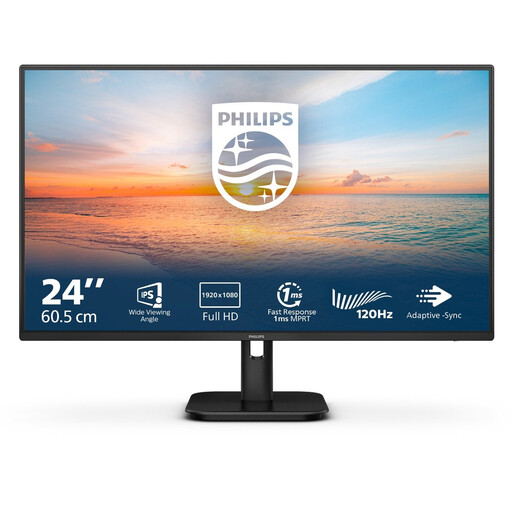
Philips 24E1N1100A 24-inch Full HD IPS monitor
An option to compare if you mainly edit text and are looking for a Full HD IPS screen.
Check the refresh rate of the exact version before ordering.
View at Joybuy
 No image available
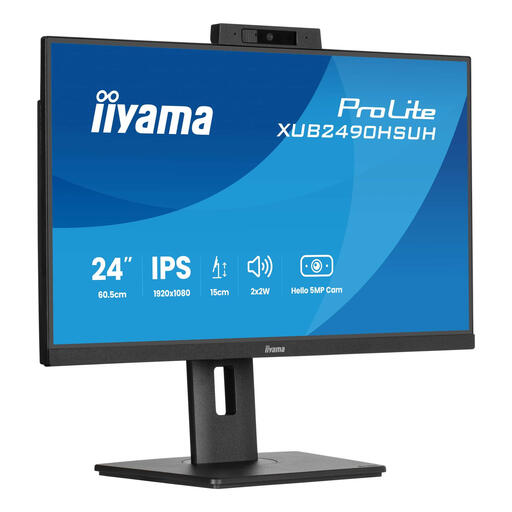
iiyama 24-inch IPS monitor with Windows Hello camera and microphone
Consider this if, alongside screen work, you’d also like to use the camera and microphone mentioned in the product name.
Before buying, check that these features are compatible with your computer and setup.
View at Joybuy
 No image available
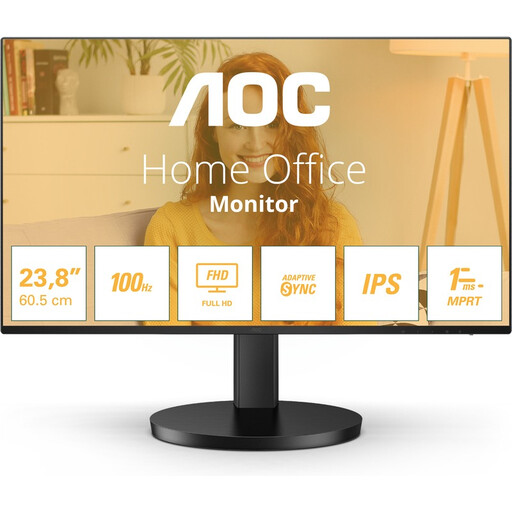
AOC 24B3HA2 23.8-inch Full HD IPS monitor
A possible choice if you’re looking for a compact Full HD screen for text and newsletter design.
The product name lists 1920 × 1080 pixels and 120 Hz.
View at Joybuy
Frequently asked questions
Can I connect any USB-C monitor to my laptop with one cable and charge it at the same time?
No, it depends on the connections and charging capacity of both devices. Check that the monitor, laptop and cable support video over USB-C, and that the power output is suitable for your laptop. BenQ lists DisplayPort Alt Mode, data and 65 W Power Delivery for the PD2506Q; Dell describes the P2425’s USB-C port as supporting downstream data at up to 15 W.
How should you set up a monitor for long design sessions?
Adjust the screen height and your workspace lighting to suit you, and take breaks from prolonged screen work. Arboportaal notes that prolonged screen work can cause health problems. Specific legal obligations for employers and employees don’t automatically apply to a student creating a newsletter at home for personal use.
What if a monitor I bought online doesn’t fit on my desk?
For a standard online consumer purchase in the Netherlands, you generally have a statutory 14-day cooling-off period from delivery. ACM ConsuWijzer explains this cooling-off period; exceptions may apply depending on the type of contract. So measure the monitor including its stand in advance and check the returns policy.
Should I buy an extended warranty?
No, you don’t need paid extra cover to have your statutory guarantee. According to ACM ConsuWijzer, the seller must remedy a fault under normal use free of charge; the appropriate solution depends on the situation. Separately, consider whether additional cover for other risks would be worthwhile for you.


