
Nature photographer who crops precisely
You want to assess your subject and fine details alongside your editing tools, and are looking for the right balance of resolution and screen space.


Start with a screen that lets you assess your subject and crop clearly, and that each user can readjust. Then decide between colour management features and easy connections when switching computers: calibration, colour gamut, USB-C and KVM each meet different needs. Check that the connections are compatible with the computers sharing the desk.
You want to assess your subject and fine details alongside your editing tools, and are looking for the right balance of resolution and screen space.
After cropping, you also assess colour for a specific output and want a monitor you can calibrate.
You switch between computers or share the viewing position, so suitable connections and a screen you can readjust are useful.
First decide whether crop detail, colour assessment, switching between computers or an adjustable workstation matters most to you. Then compare the features that match your priority.
| What to consider | What should you check? | Who is this important for? |
|---|---|---|
| Assessing colour | Compare the stated colour spaces and calibration method with your editing and output workflow. | If I assess colour after cropping for a specific output, I want a suitable colour space and a practical calibration method. Around 31% of consumers in this situation prioritise colour assessment. |
| Crop detail and workspace | Compare screen size and native resolution, and check the preferred display scaling on your computer. | I want to assess the subject, crop and editing panels at the same time without the screen taking up too much space. Around 25% of consumers in this situation prioritise crop detail. |
| Switching between computers | Check video over USB-C, the power delivery required and the connections needed for your intended KVM setup. | When I switch between computers and peripherals at the same desk, I want to know in advance which connections will work with both devices. Around 25% of consumers in this situation prioritise switching between computers. |
| Readjusting the workstation | Check the height and tilt adjustment, the stand dimensions and any potential reflections at the intended location. | If several people use the same desk, I want to be able to adjust the screen to suit the viewing position and lighting. Around 19% of consumers in this situation prioritise adjustability. |
A stated colour gamut, factory calibration and the current display performance of your individual unit are different things.
Choose a colour space that suits your intended output and decide how you’ll calibrate the monitor after setting it up.
Beforehand, check which software and equipment are right for your calibration process.
Video, USB data, KVM and laptop power each have their own compatibility requirements.
Compare the connections and power requirements of every computer that will use the desk.
Depending on your devices, you may need an extra cable, adapter or dock.
Cropping changes the pixels in the photo file; the monitor’s resolution doesn’t change the file.
After cropping, check the pixel dimensions in your editing software and compare them with your intended output.
The SW272U is worth considering if photography, calibration and a shared setup are all priorities.
The ColorEdge CS2740 is a model to compare for colour management in photography.
The Modern MD272UPHG is worth comparing if you switch between devices at a shared desk.
According to ASUS, the ProArt PA279CRV combines a wide colour gamut, factory calibration and USB-C.
The UltraSharp U2723QE is a connection-focused option to include in your comparison for a shared desk.
The 27UP850K-W is worth comparing if 4K, USB-C and adjustability matter to you.
These monitors are relevant when comparing crop detail, screen space and features for a shared workspace. Check that each model’s connections and features suit your computers and workflow.
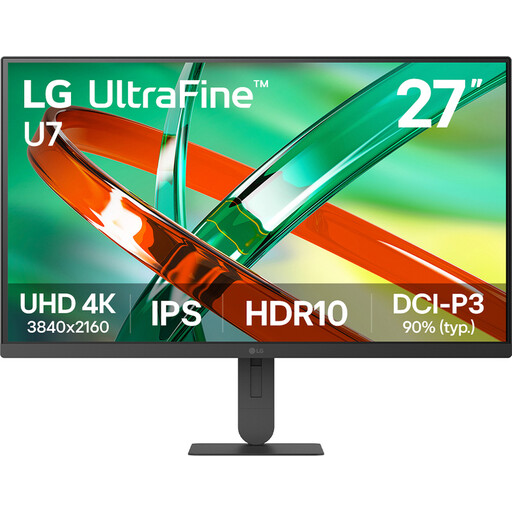 Image unavailable
Worth considering if you’re looking for a 27-inch 4K screen to assess crops and detail.
27 inches; 4K; IPS panel.
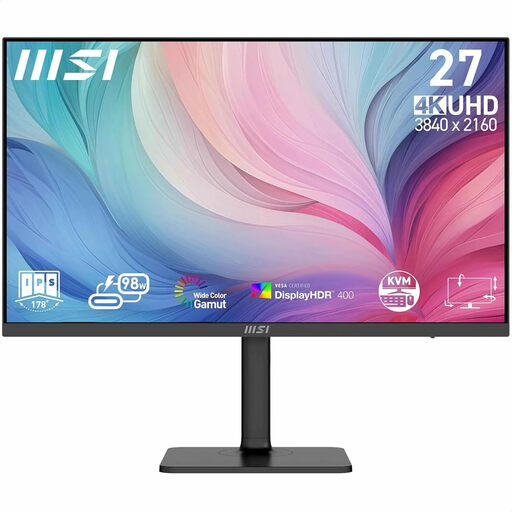 Image unavailable
One to compare if you’re looking for a 27-inch 4K screen for cropping at a shared desk; check that the connections suit your computers.
27 inches; 3840 × 2160 pixels; 4K UHD.
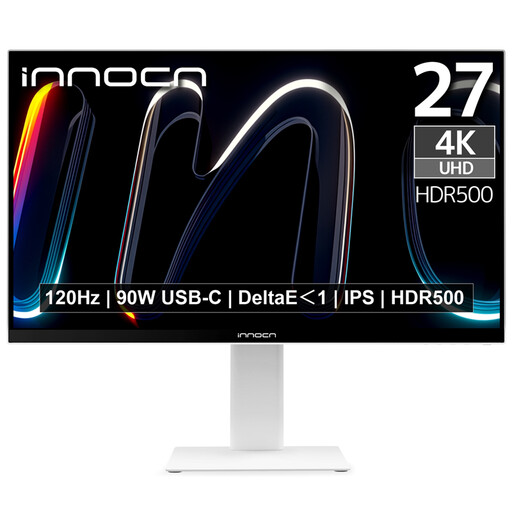 Image unavailable
Worth comparing if you’re weighing up crop detail and adjustability at a shared desk.
27 inches; 3840 × 2160; IPS; USB-C with 90 W Power Delivery.
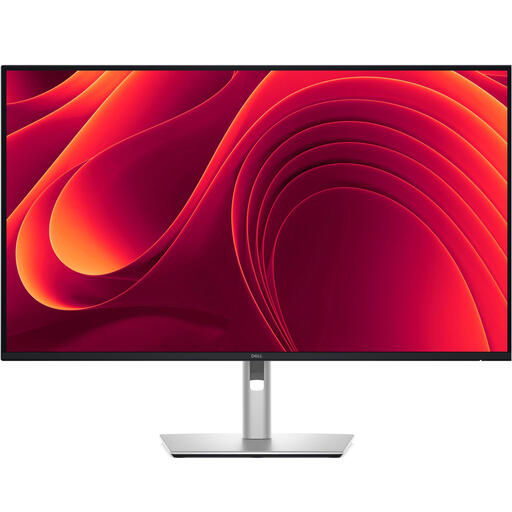 Image unavailable
Worth considering if you want to compare a larger 4K screen for assessing your subject and crop.
31.5 inches; 3840 × 2160 pixels; 4K UHD; LCD.
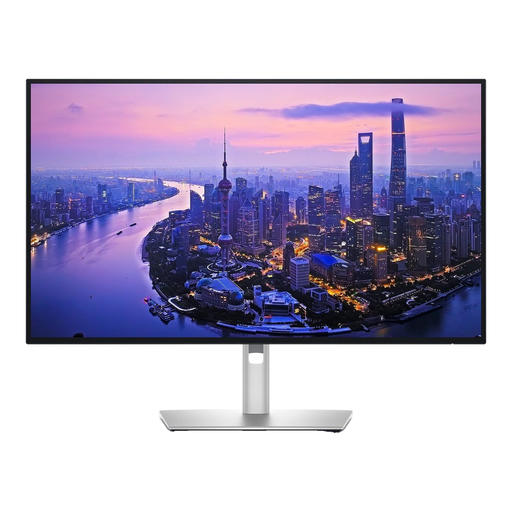 Image unavailable
Worth comparing if you’re looking for a 27-inch 4K screen for a desk with multiple devices.
27 inches; 3840 × 2160 pixels; 4K UHD; LCD.
No. The monitor’s resolution doesn’t change how many image pixels remain in the photo file after cropping. Check the dimensions of the final crop in your editing software.
Adobe recommends calibrating your monitor before working with colour in Lightroom Classic. At a shared desk, keep the screen settings and colour workflow as consistent as possible.
No. Check whether the laptop supports video through the USB-C connection you’re using, and compare its power requirements with the capabilities of the exact monitor model. For KVM, the connections on your computers and peripherals also need to be compatible.
According to the Dutch Government, in many cases you have a 14-day cooling-off period when buying at a distance; check the terms that apply to your purchase. If a product is faulty, the seller is responsible for providing a solution under the statutory guarantee, even if the manufacturer also offers a guarantee.