
Photographer with limited desk space
You want to crop nature photos without the screen and stand taking over your small workspace. So compare more than just the diagonal measurement: check the overall dimensions, including the stand.


Start by checking the monitor’s width and depth, including its stand: a 24.1-inch 16:10 monitor may fit on a smaller desk, while a 27-inch 4K screen needs more physical space. Then choose based on the visible workspace and the colour gamut and calibration options that suit your photo and print workflow.
You want to crop nature photos without the screen and stand taking over your small workspace. So compare more than just the diagonal measurement: check the overall dimensions, including the stand.
You want enough room for both the photo and the editing interface while cropping. Resolution and aspect ratio affect how much you can see at once. Adobe Lightroom Classic also lets you choose a fixed or custom crop aspect ratio.
You want to assess colours for print, so a suitable colour gamut and a practical calibration workflow matter more than simply having a large screen. BenQ and EIZO describe these features for specific models.
First measure the available desk space, then work out how much screen space, colour reproduction and which connections your photography needs.
| What to consider | What to look for | Who should pay particular attention? |
|---|---|---|
| Desk space | Measure the available width and depth, then compare them with the dimensions including the stand. BenQ lists a depth of 262,6 mm for the SW242Q; ASUS gives 21,10 cm for the PA248QV. | If my desk is small, I want to know whether the screen and stand will fit without taking over my workspace. Around 36% of consumers give physical footprint top priority. |
| Workspace for cropping | Compare resolution and aspect ratio: BenQ lists 2560 × 1600 at 16:10 for the SW242Q, while ASUS lists 1920 × 1200 at 16:10 for the PA248QV. Also assess the crop against your desired output dimensions. | If I want to see the photo and editing tools at the same time, I look at how much screen space is available while editing. Around 29% of consumers prioritise being able to see the crop and interface. |
| Colour and calibration | Decide whether you’ll mainly edit for screen or also for print, then compare the stated colour gamut and calibration options for the exact model. ASUS lists 100% sRGB for the PA248QV; BenQ lists 99% Adobe RGB for the SW242Q. These are manufacturer claims. | If I want to assess print colours, I look for a workflow that suits the intended result. Around 21% of consumers give colour checking for print top priority. |
| Connections | Compare your computer’s video output and charging needs with the monitor’s ports. BenQ lists USB-C with 90 W Power Delivery for the SW242Q; ASUS lists HDMI and DisplayPort for the PA248QV. | If I want to connect my computer easily, I check that the port and any power delivery are compatible with my device. Around 14% of consumers give ease of connection top priority. |
The stand also takes up desk depth, and the stated depths differ between the 24.1-inch models mentioned.
Compare the overall dimensions, including the stand, with your desk. If you’re using a monitor arm, check the mount and weight capacity too.
If the supplied stand takes up too much space, you may need a separate monitor arm.
Colour gamut coverage and a calibratable workflow are different things. A manufacturer’s claim alone doesn’t tell you how colour will look across your entire setup.
Choose a colour gamut to suit your intended use, and check what equipment you’ll need to calibrate the exact model.
A calibration workflow may require a compatible measuring device.
The monitor’s resolution and the dimensions of the final photo file answer different questions.
As well as the monitor resolution, check the aspect ratio and output dimensions of the crop you need.
The PhotoVue SW242Q is a 24.1-inch 16:10 option for anyone looking to combine a relatively compact size with 2560 × 1600 resolution.
The ProArt PA248QV is a 24.1-inch 16:10 option for sRGB editing in a compact workspace.
The ColorEdge CS2400S is a 24.1-inch 16:10 option for anyone looking for a calibratable monitor for a print-focused workflow.
The UltraFine 27UP850K-W is a 27-inch 4K option if having more screen pixels matters more to you than keeping your setup as compact as possible.
The UltraSharp U2424H is a 24-inch alternative for a mix of office work and light photo editing, where ergonomics and connections matter.
This selection includes compact 24-inch Full HD monitors and a 27-inch 4K model. Compare their physical size and resolution with the way you crop your photos.
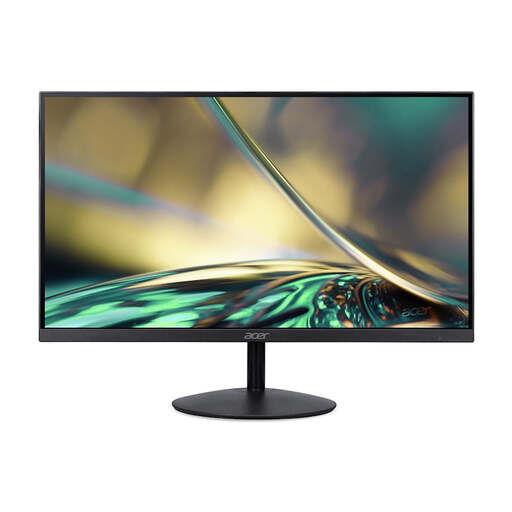 No image available
A 24-inch option to consider if you’re looking for a relatively compact monitor for photo editing.
Full HD, VA panel, 100 Hz and 1 ms according to the product name.
Full HD offers fewer screen pixels than 4K alternatives for showing detail while cropping.
 No image available
A 27-inch 4K option if you want more screen pixels and have enough space for the larger screen.
4K and IPS panel according to the product name.
A 27-inch screen takes up more physical space than a compact 24-inch option.
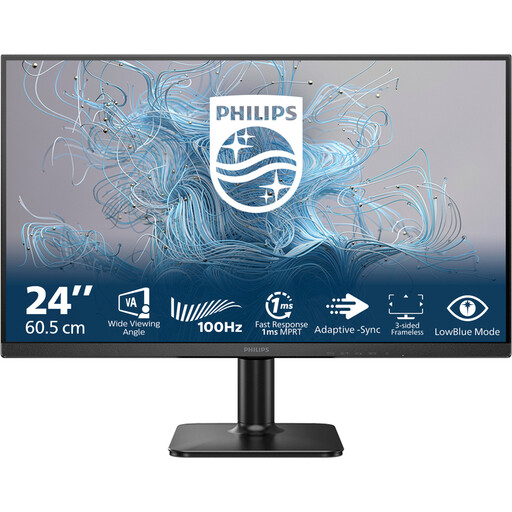 No image available
A 24-inch option to include in your comparison if desk space is limited.
Full HD, VA panel and 100 Hz according to the product name.
Full HD offers fewer screen pixels than 4K alternatives for showing detail while cropping.
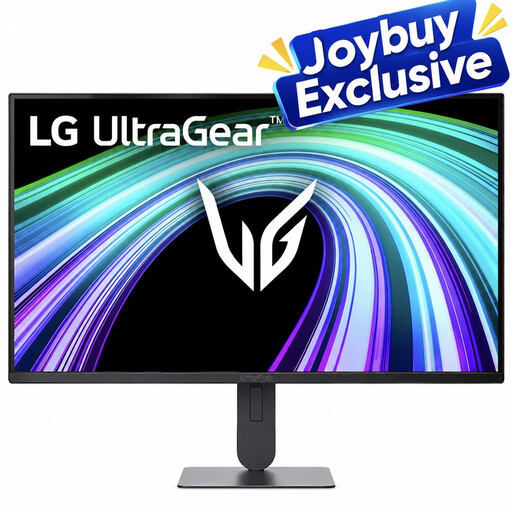 No image available
A 24-inch Full HD option to compare if a compact monitor is your priority.
Full HD according to the product name.
Full HD offers fewer screen pixels than 4K alternatives for showing detail while cropping.
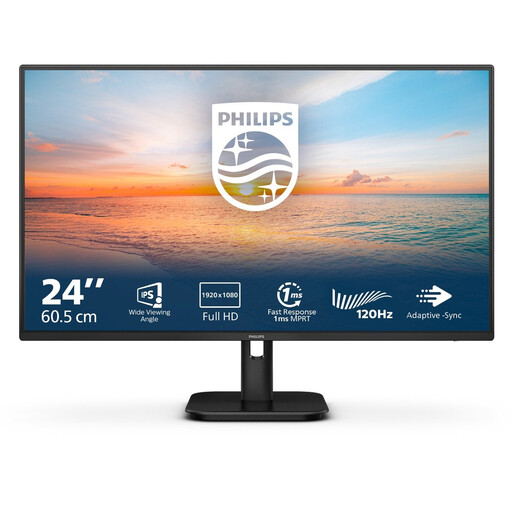 No image available
A 24-inch option to compare if you have a compact workspace and are looking for an IPS panel.
Full HD and IPS panel according to the product name.
Full HD offers fewer screen pixels than 4K alternatives for showing detail while cropping.
No, 4K isn’t essential for everyone. It gives you more pixels on screen, but you’ll need to assess the required output size of the crop separately. Adobe Lightroom Classic lets you set the crop aspect ratio; the monitor doesn’t add pixels to the original photo.
If consistent colour assessment is important, choose a calibration workflow that suits your screen and measuring equipment. EIZO offers ColorNavigator for ColorEdge monitors, and BenQ lists hardware calibration for the SW242Q. A factory specification doesn’t automatically describe the condition of your setup later on.
No. According to ACM ConsuWijzer, you have a legal guarantee in addition to any retailer’s or manufacturer’s warranty. If a product doesn’t perform as you could reasonably expect under normal use, the retailer is responsible for providing an appropriate solution. Check the terms of any additional warranty offered separately.
EU energy labelling rules apply to electronic displays, including computer monitors, so compare the energy label and product information sheet for the exact model. ACM ConsuWijzer says that online consumer purchases generally come with a statutory withdrawal period that ends 14 days after delivery; applicable exceptions may be relevant.