
Score editor who uses side panels
Wants to see both the score and editing panels while laying out music sheets. The MuseScore Studio Handbook explains that closing side panels creates more room for the score view.


Start with a monitor that fits on your desk and lets you read the score alongside the panels you need while editing. Compact Full HD may be enough for viewing one sheet at a time. A larger QHD or 4K screen may suit other needs, but it takes up more space and is not automatically easier to read. Also check the monitor’s adjustability and whether its connections match your laptop.
Wants to see both the score and editing panels while laying out music sheets. The MuseScore Studio Handbook explains that closing side panels creates more room for the score view.
Needs to fit the screen alongside other things and position it comfortably for longer work sessions. Arboportaal advises placing the screen directly in front of you, with the top just below eye level.
Switches between a laptop and a permanent workstation, so needs to check which video connection is suitable. For USB-C, check that both the laptop and monitor support video over that connection and that the charging power is sufficient.
First, consider your desk and how much information you want to see at once. Then check that the connections and adjustability suit your laptop and workspace.
| What to consider | What should you look for? | Who is this important for? |
|---|---|---|
| Notation and workspace | View one of your own sheets at the scale you want, with the panels you use while editing. | If you want to see the score and editing panels at the same time, a clear overview comes first; around 33% of consumers prioritise readability and workspace above all else. |
| Size and positioning | Measure the available space on your desk and check the screen and stand dimensions, as well as the adjustment options. Arboportaal advises positioning the top of the screen just below eye level. | If you share a small desk with a keyboard and sheet music, you’ll want a screen that fits well and can be positioned comfortably; around 25% of consumers prioritise this need. |
| Laptop connection | Compare your laptop’s video output with the inputs on the exact monitor model. For USB-C, check whether it supports video and, if needed, power delivery. | If you connect your laptop regularly, you’ll want to be sure that video works over the connection you choose; around 25% of consumers prioritise a suitable laptop connection above all else. |
| Overall cost of use | Check whether you’ll need an extra cable or adapter, and compare the energy labels of the specific models. The European Commission lists energy label classes from A to G for electronic displays. | If you want to keep your workspace costs under control, consider not only the screen but also any accessories and energy use; around 17% of consumers prioritise manageable costs. |
USB-C does not automatically mean that a monitor can receive a video signal from a laptop. Dell describes the USB-C port on the P2425H as a downstream data port. Philips, by contrast, states that the 24E1N1300AE/00 supports video, data and power over USB-C with a compatible device.
Check whether the USB-C connection on the exact monitor and your laptop carries video, and whether the same cable can also charge your laptop.
Depending on the connections, you may need a different cable or an adapter.
A larger screen takes up more desk space, while extra pixels do not automatically make notes easier to read at the scale you choose.
Measure your available space and view one of your own sheets at the scale you want before comparing compact Full HD with QHD or 4K.
The Dutch government states that there is no fixed statutory warranty period in the Netherlands; what you could reasonably expect from the product under normal use is what matters.
Keep your proof of purchase and report any fault to the retailer. Treat any commercial warranty as separate from your statutory rights.
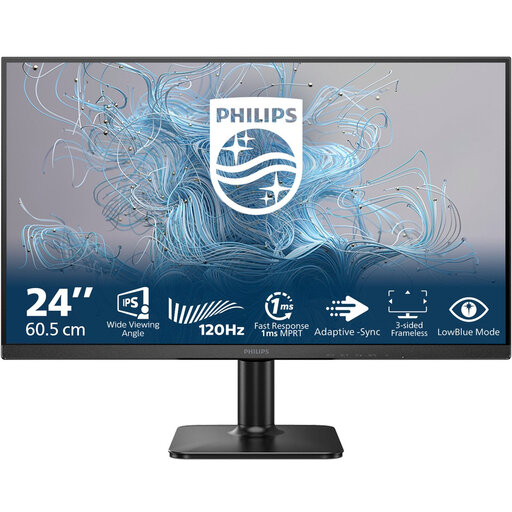
The 24E1N1300AE/00 is a 23.8-inch Full HD option for a compact laptop workspace.
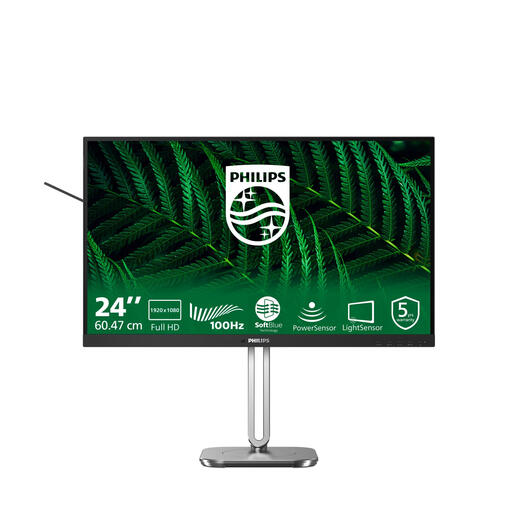
The P2425H is a 23.8-inch Full HD option for anyone looking for adjustability and HDMI or DisplayPort connections.
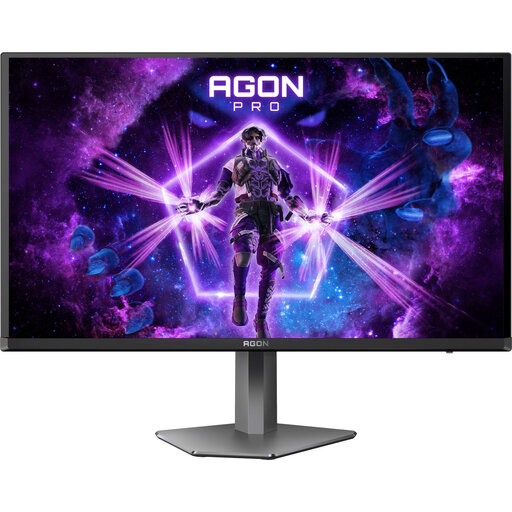
The Q27B36X is a 27-inch QHD option for anyone who wants more room to view a score and panels at the same time.
The 27UP850K-W is a 27-inch 4K option for anyone who also wants to use the monitor for tasks that benefit from a higher resolution.
These monitors cover compact Full HD workspaces, larger QHD or 4K screens, and a wide USB-C setup. The right option for you depends on your desk, laptop connections and how much workspace you need.
 No image available
Suits anyone who also has other tasks that benefit from 4K; 4K is not necessary for creating a music sheet.
27 inch; 3840 × 2160; 60 Hz; 4 ms; HDMI and DisplayPort; height-adjustable stand.
 No image available
Suits a compact desk and work where you usually view one score or sheet at a time.
23.8 inch; Full HD.
Check that this model’s inputs match your computer’s video output.
 No image available
A compact Full HD option to compare if desk space is limited and you usually edit one sheet at a time.
23.8 inch; 1920 × 1080 pixels; Full HD LCD.
Check which adjustment options and connections are included with the version you choose.
 No image available
Suits anyone with enough desk space who wants to view a score alongside editing panels; check readability at the scale you want.
27 inch; QHD 2560 × 1440; HDMI and DisplayPort.
Check that the dimensions and adjustment options suit your study space.
 No image available
Suits anyone looking for a wide workspace and a USB-C dock; bear in mind how much desk space a 34-inch monitor takes up.
34 inch; UWQHD; USB-C dock; LAN; KVM switch; height-adjustable stand.
Check that your laptop supports video over USB-C and that the screen width fits your workspace.
Open one of your own sheets at the display scale you want to use, with the panels you need while editing visible. The MuseScore Studio Handbook explains that closing side panels creates more room for the score. You can also export the score as a PDF to check the finished page.
Place the screen directly in front of you, with the top just below eye level, and tilt it so you’re looking straight at it. This is Arboportaal’s workspace advice; it does not guarantee that you’ll avoid discomfort.
For an online purchase from a business, you generally have a 14-day cooling-off period, according to the Dutch government; exceptions may apply. The Netherlands has no fixed statutory warranty period: what you could reasonably expect from the product under normal use is what matters.
Yes. The European Commission states that computer monitors come under the EU energy label for electronic displays, with classes from A to G. Compare the label for the specific model.
No. The legal obligations described by Arboportaal are aimed at employers and employees. Its advice on screen positioning may also be useful at home, but that does not automatically make it a legal purchasing requirement for every student.