What should you look for in a monitor?
Start by thinking about what you need to assess on screen: keyboard focus and readability, or the colour reproduction of collection images as well. Then consider your workspace and how the monitor connects to your computer. The W3C Web Accessibility Initiative describes keyboard operation, visible focus and reflow in a narrow viewport as website features to test, not monitor performance.
| Consideration |
What should you check? |
Who is this important for? |
| Focus and readability |
Assess text and focus at your preferred scaling level; also test the website using only the keyboard and in a narrow browser window. |
If I want to see whether focus indicators and text are easy to assess, I check the page at my usual scaling level. Around 33% of consumers prioritise focus and readability. |
| Collection images |
Compare the stated colour gamut and colour settings; decide whether calibration is part of your workflow. |
When I prepare or compare collection images, I want to know which colour settings suit my work. Around 27% of consumers prioritise image display. |
| Working posture |
Check the adjustability of the exact model and whether it suits your desk and viewing distance. |
When building and testing for long periods, I want to be able to adjust the screen to suit my workspace. Around 20% of consumers prioritise an adjustable workspace. |
| Connecting your computer |
Check whether your computer outputs video through the port, how much charging power you need and which cable is compatible. |
If I use a laptop, I want to know in advance whether the monitor works with my computer and cables. Around 20% of consumers start by considering the computer connection. |
Monitors at Joybuy
This product selection includes 27- and 32-inch QHD and 4K monitors for visually reviewing museum website pages and collection images. Test keyboard navigation, focus and display in a narrow window separately on the website itself.
 No image available
LG UltraFine 27U711B-B 27-inch 4K IPS monitor
Suitable for visually reviewing museum website pages and collection images; test keyboard navigation and focus separately on the website.
27 inches; 4K; IPS panel. The product information lists wide viewing angles for this model.
View at Joybuy
 No image available
CRUA CR320QB 32-inch curved 4K monitor
An option for viewing larger website pages and collection images on screen; the monitor won’t make the website keyboard-accessible by itself.
32 inches; curved screen with 3000R curvature; 3840 × 2160 resolution.
View at Joybuy
 No image available
Philips 27E1N1800AE/00 27-inch 4K UHD IPS monitor
May be worth considering for visually reviewing pages and collection images; check focus and keyboard navigation on the website itself.
27 inches; 3840 × 2160; IPS panel; height-adjustable stand; HDMI and DisplayPort connections.
View at Joybuy
 No image available
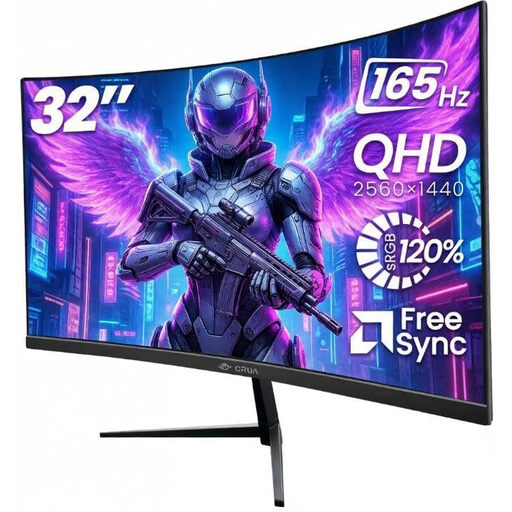
CRUA 32-inch 1500R curved QHD monitor
A QHD option if you want to view website pages on a 32-inch screen; assess the page at the magnification level you use too.
32 inches; 1500R curvature; 2560 × 1440 resolution; 165 Hz.
View at Joybuy
 No image available
MSI Pro MP275Q 27-inch QHD monitor
A 27-inch QHD screen for viewing website pages as you build; assess navigation and focus on the website separately from your monitor choice.
2560 × 1440 resolution; IPS panel.
View at Joybuy
Frequently asked questions
Does a 4K monitor make a museum collection website accessible using only a keyboard?
No. A 4K monitor doesn’t make a website keyboard-accessible or show you automatically whether focus is visible. Test the features using only the keyboard, check focus at higher magnification and review the page separately in a narrow browser window, as described in the W3C guidelines for keyboard operation, visible focus and reflow.
How should I set up a monitor for long development sessions?
Adjust the screen position and text size to suit your workspace, and break up your screen time. Arboportaal highlights reflections and icons that are too small as possible causes of poor readability, and recommends alternating screen work with other tasks or taking a break.
What warranty applies when buying a monitor?
For consumer purchases in the Netherlands, statutory guarantee applies without a fixed Dutch guarantee period; if a product is faulty, the retailer is your point of contact, according to the Dutch government. Any manufacturer’s warranty is in addition to this. If you’re buying on behalf of a museum, don’t assume the same consumer rights apply; check the relevant contractual terms.
Does every Dutch museum collection website have to meet WCAG 2.1 Level A and AA?
Not simply because it’s a museum. DigiToegankelijk outlines requirements for public sector bodies, including organisations that meet the criteria for a body governed by public law. For the websites concerned, DigiToegankelijk specifies the applicable EN 301 549 standard with WCAG 2.1 Level A and AA, as well as an accessibility statement. First establish which organisation is legally responsible for the website.


