
Designer with a small desk
You need space beside the monitor for sketches and materials. Compare the overall dimensions, including the stand, and check how adjustable it is.


Start by measuring the space available on your desk. A 24- or 25-inch monitor may be more practical if you also need room for sketches and materials. If you’re preparing colour-critical work, prioritise a suitable colour space and colour workflow; choose 27-inch 4K mainly if the larger screen will fit on your desk. Stated colour spaces are manufacturer specifications and don’t guarantee that paint on the wall will look the same as it does on screen.
You need space beside the monitor for sketches and materials. Compare the overall dimensions, including the stand, and check how adjustable it is.
You want to prepare digital colour proposals carefully and work out which colour space and colour workflow suit the intended output.
You switch between the overall composition and fine lines or text. Extra pixels can be useful, provided the monitor fits your workspace.
Choose this option: if you need space beside the screen for sketches or tools.
Trade-off: compare the full width and stand depth; ports and resolution vary by model.
Choose this option: if you regularly prepare colour-critical digital references or print proofs.
Trade-off: calibration and a suitable output profile remain part of the workflow; a wide colour gamut doesn’t predict how paint will look on a wall.
Choose this option: if you often switch between the overall composition and fine details, and have enough desk and viewing space.
Trade-off: check the dimensions, including the stand; the stated colour space is a manufacturer specification, not an independent measurement.
| What to consider | What to look for | Most relevant to |
|---|---|---|
| Screen size and desk space | Measure the available width and depth, then compare them with the monitor’s dimensions, including the stand. Also check that its adjustability suits your setup. | If my desk also needs to accommodate sketches and tools, I want to compare the stand’s footprint before deciding based on screen size. Around 36% of consumers say available desk space is their top priority. |
| Colour workflow | Check the relevant colour space, available calibration options and whether a suitable output profile is part of your workflow. Assess physical colour samples separately. | When I want to assess digital colour proposals carefully, I look beyond the stated colour gamut. Around 29% of consumers prioritise their colour workflow. |
| Room for detail | Compare the resolution and panel size, and check that your computer supports the desired resolution through your chosen connection. | If I regularly want to compare fine lines with the overall image, pixels matter—as long as the screen physically fits. Around 21% of consumers give room for detail the highest priority. |
| Laptop connection | Check that your laptop can output video through the USB-C port you plan to use, and that the charging power is suitable for your laptop. Check the ports on the exact monitor variant you’re considering. | For a tidy workspace, I want to know whether one cable can carry video and supply enough power. Around 14% of consumers prioritise a simple laptop connection. |
The stand takes up space too, affecting how much room is left for drawing materials and input devices.
Measure your desk and compare each model’s overall dimensions, including the stand. Don’t base your decision on inches alone.
You may need to rearrange your desk or make extra room for the stand.
A screen’s colour coverage specification doesn’t tell you how paint will look on a particular wall or surface.
Choose a colour space that suits your digital workflow, then assess the physical result separately using colour samples.
Colour management and physical colour tests may add extra steps to your workflow.
Whether a single-cable setup works depends on both the monitor’s USB-C features and your laptop’s capabilities. BenQ lists DisplayPort Alt Mode and 65 W Power Delivery for the PD2506Q, but the monitor’s stated specification doesn’t confirm that it’s compatible with your laptop.
Check whether your laptop’s port supports video and how much charging power it needs before relying on a single cable.
Depending on the ports available, you may need a separate video cable or charger.
The ProArt PA248QV is a 24.1-inch 16:10 option for anyone looking to combine screen space and design work on a compact desk.
The DesignVue PD2506Q combines a 25-inch QHD workspace with stated colour features and USB-C for compatible laptops.
The ColorEdge CS2400S is a 24.1-inch option to consider if colour management is an important part of your workflow.
The UltraFine 27UP850K-W is a larger option if extra 4K detail matters more than keeping your setup as compact as possible.
The UltraSharp U2724D is a 27-inch QHD option to compare if a larger screen and working comfort matter more than keeping your setup as compact as possible.
Joybuy monitor picks for a compact or flexible design workspace. Compare their dimensions, resolution and connections with your own desk and laptop.
 No image available
A portable monitor with a kickstand for a flexible workspace.
16 inch, 16:10, 2560 × 1600, 2.5K, IPS, 100% sRGB and 10-bit.
 No image available
A portable monitor with a built-in stand for flexible positioning.
16 inch, 2560 × 1600, 2.5K, IPS and 123% sRGB according to the stated product specifications.
 No image available
A portable screen with a built-in kickstand for a flexible workspace.
16 inch, 16:10, Full HD, 144 Hz, IPS, USB-C and Mini HDMI. Its stated Full HD resolution offers fewer pixels for fine details than QHD or 4K.
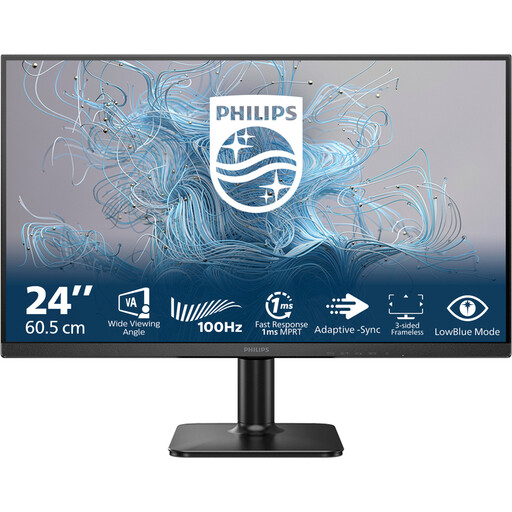 No image available
A 24-inch monitor for anyone looking for a compact screen.
Full HD, 100 Hz and a VA panel. Its stated Full HD resolution offers fewer pixels for fine details than QHD or 4K.
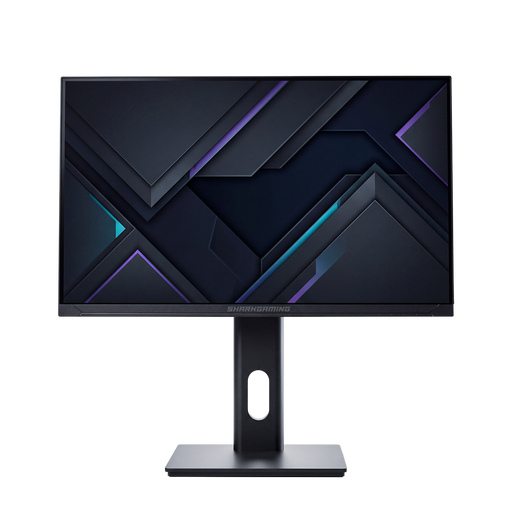 No image available
A 24-inch monitor for anyone looking for a compact screen.
1080P, IPS and 200 Hz. Its stated Full HD resolution offers fewer pixels for fine details than QHD or 4K.
Use your monitor as part of a colour workflow, not as a prediction of the final paint result. For printing, Adobe describes soft proofing with profiles for a specific output device. For a painted wall, also assess your chosen paint and surface using physical colour samples.
No. Check whether your laptop can output video through the USB-C port you’re using and whether the stated charging power is sufficient. BenQ lists USB-C with DisplayPort Alt Mode, data and 65 W Power Delivery for the PD2506Q; that monitor specification doesn’t prove it will work with your laptop.
Employers’ obligations for screen work apply to employees and aren’t automatically purchase requirements for every self-employed mural designer. Arboportaal outlines, among other things, alternating screen work with other tasks or breaks and, under the conditions it describes, rules for setting up a workspace. If your workspace needs to meet those conditions, discuss the setup with your employer.
According to the Dutch government, online purchases often come with a 14-day cooling-off period; check the terms of your specific purchase. You’re also entitled to a product that meets legal quality requirements: the Dutch government says there is no fixed statutory two-year guarantee period in the Netherlands. If a product is faulty, contact the seller.