Which screen is right for you?

Developer working with lots of windows

You want to see as much code, documentation and a website preview at the same time as possible. Focus on how you can arrange your windows and the desk space available. Microsoft explains how to snap windows in Windows.

Festival graphics designer

You want to review posters, photos and website colours alongside the page layout. Stated colour coverage can help when comparing specifications, but it is not a measurement of the colour accuracy of an individual screen. ASUS lists colour modes and colour coverage for the PA279CRV.

Laptop user at a fixed desk

You’re looking for a suitable external workspace and may want to reduce the number of separate connections. Check that your laptop, monitor and cable work together to support the video connection and power delivery you need. Dell and Lenovo describe different USB-C and docking options for their models.

Which buying choices matter?

34-inch ultrawide

Best for: anyone who wants to arrange code, documentation and a browser preview across one wide workspace. LG lists a resolution of 3440 × 1440 pixels and a 21:9 aspect ratio for the 34WR55QC-B.

Bear in mind: LG says the monitor is 809 mm wide with its stand, so check that you have enough space and that each window will remain easy to read.

27-inch QHD with docking

Best for: anyone who wants a less wide screen and values USB-C docking or the option to connect a second screen. Lenovo lists a resolution of 2560 × 1440 pixels, USB-C, ethernet and a DisplayPort output for the ThinkVision T27h-30.

Bear in mind: two windows share the available horizontal pixels. Also check whether your computer supports a second screen.

27-inch 4K for text and images

Best for: anyone who wants a more compact workspace with plenty of pixels, or who needs to assess festival graphics closely. Dell lists a resolution of 3840 × 2160 pixels for the P2725QE; ASUS also lists colour modes and stated colour coverage for the PA279CRV.

Bear in mind: more pixels don’t automatically make text comfortable to read. Check the scaling settings and the usable size of your website preview. ASUS’s specifications are not an independent measurement of an individual screen.

What to consider What should you check? Who is this important for?
Space for windows Compare the aspect ratio and resolution with the windows you use side by side, and measure the available desk width. If I want to see code, documentation and the website preview at the same time, I need to know whether each window will have enough width. Around 36% of consumers give space for multiple windows their top priority.
Readability and working posture Assess text from your usual viewing distance, and check the height adjustment and the space required for the stand. If I spend a long time reading code and documentation, I want to be able to scale text and adjust the screen to suit my workspace. Around 29% of consumers give readability and an adjustable workspace their top priority.
Colour checking Check which colour space your project uses, and distinguish between stated colour coverage and measured colour accuracy. If I’m viewing festival posters and photos alongside the website, I want to know which colour modes suit my image workflow. Around 21% of consumers give image and colour checking their top priority.
Laptop connection Check your laptop’s video output, the power delivery required and which cables are included. If I work from a laptop, I want to know whether a single connection can provide video and the power delivery I need. Around 14% of consumers give laptop docking their top priority.

What to consider before buying

  • Focusing only on the screen size

    The diagonal measurement doesn’t tell you how much desk width the monitor takes up or how much room each window will have. LG lists the 34WR55QC-B as 809 mm wide with its stand.

    Measure your available space and consider your usual window layout and text scaling before choosing a screen.

  • Assuming USB-C guarantees charging and video over one cable

    Ports and power delivery vary by model, and compatibility also depends on your laptop and cable.

    Check that your laptop, monitor and cable work together to provide the video connection and power delivery you need.

  • Taking colour coverage as proof of colour accuracy

    The percentages and colour modes ASUS lists for the PA279CRV are product specifications, not an independent measurement of the screen you receive.

    Choose features that suit your image workflow, and don’t rely solely on stated colour coverage for important colour assessments.

Brands to consider

LG

The 34WR55QC-B is an ultrawide option for anyone who wants to arrange multiple windows across one wide workspace.

  • LG lists a resolution of 3440 × 1440 pixels, 65 W USB-C and height adjustment for this model.
  • LG says the model is 809 mm wide with its stand, and it has no built-in speakers or KVM.

Dell

The Pro 27 Plus 4K USB-C Hub Monitor P2725QE is a 27-inch option for a 4K workspace and laptop connectivity.

  • Dell lists a resolution of 3840 × 2160 pixels, 100 Hz, height adjustment and 90 W USB-C power delivery for this model.
  • Whether the connection supports video and charging over one cable also depends on your laptop and cable.

Lenovo

The ThinkVision T27h-30 is a 27-inch QHD option for anyone considering USB-C docking and potentially using multiple screens.

  • Lenovo lists a resolution of 2560 × 1440 pixels, USB-C, ethernet, a DisplayPort output and an adjustable stand.
  • This 27-inch QHD model doesn’t provide a wide ultrawide workspace. Also check that your computer supports a second screen.

ASUS

The ProArt PA279CRV is worth considering if you want to assess festival graphics and colour modes as well as build websites.

  • ASUS lists a 27-inch 4K screen, 100% sRGB, 99% DCI-P3 and 96 W USB-C for this model.
  • These are stated product specifications, not an independent measurement of the colour performance of an individual unit.

Philips

The 346B1C/00 is a 34-inch ultrawide option with USB-C and an ergonomic stand.

  • Philips lists a resolution of 3440 × 1440 pixels for this model.
  • Philips’s claims about reducing eye strain and saving energy are manufacturer claims, not guaranteed outcomes for your use.

Joybuy product picks

The Joybuy picks below focus on wide workspaces for multiple windows and 27-inch 4K screens for a more compact layout of text and images.

Dell Pro P3426WEV 34.1-inch Curved WQHD USB-C Hub Monitor

Dell Pro P3426WEV 34.1-inch Curved WQHD USB-C Hub Monitor

A wide workspace option for placing multiple browser windows side by side.

34.1 inches, 21:9 and 3440 × 1440 pixels. The product information lists a USB hub, webcam, KVM, adjustable stand and USB-C power delivery up to 90 W. USB-C charging requires a compatible laptop with USB Power Delivery and DisplayPort Alt Mode.

View at Joybuy

MSI Modern MD272UPHG 27-inch 4K monitor

MSI Modern MD272UPHG 27-inch 4K monitor

A 27-inch option for anyone who wants to view code, documentation and festival graphics on a more compact workspace.

3840 × 2160 pixels. The product information lists colour coverage, USB-C power delivery up to 98 W, KVM, PIP/PBP and an adjustable stand. Check that the colour features and laptop connection suit your needs.

View at Joybuy

Dell UltraSharp U4924DW 49-inch 5120 × 1440 monitor

Dell UltraSharp U4924DW 49-inch 5120 × 1440 monitor

An extra-wide workspace for anyone who wants to organise lots of windows at once and has enough desk space.

49 inches, 32:9 and 5120 × 1440 pixels. The product information lists KVM and USB-C power delivery up to 90 W. The stated product width is 121.49 cm.

View at Joybuy
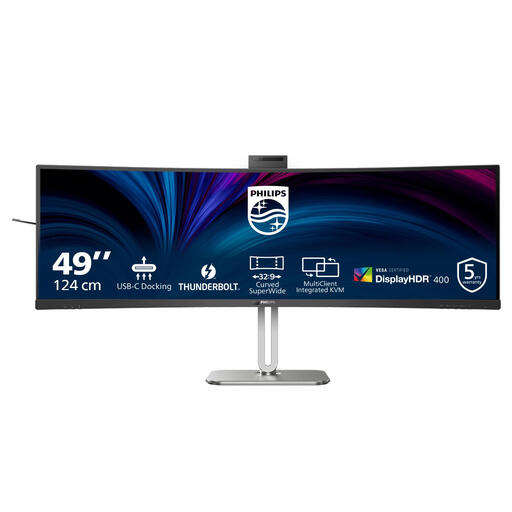
Philips 49B2U6903CH/00 49-inch Dual QHD monitor

Philips 49B2U6903CH/00 49-inch Dual QHD monitor

A wide workspace for anyone who wants to combine multiple windows with laptop connectivity and workspace features.

32:9 and 5120 × 1440 pixels. The product information lists Thunderbolt 4, power delivery up to 100 W, a webcam, USB hub and height adjustment. The stated width with the stand is 1193 mm.

View at Joybuy

Dell UltraSharp U2725QE 27-inch 4K monitor

Dell UltraSharp U2725QE 27-inch 4K monitor

A 27-inch 4K option for anyone who wants a more compact workspace with plenty of pixels and needs to assess festival graphics.

3840 × 2160 pixels. The product information lists 99% DCI-P3 and Display P3, along with a 120 Hz refresh rate; these are stated product specifications.

View at Joybuy

Frequently asked questions

Do I need an ultrawide monitor to use multiple browser windows at once?

No, an ultrawide isn’t essential. In Windows, you can also snap windows side by side or into corners on a standard screen. Choose a screen width based on how much content you need to see in each window at your chosen text scaling.

How should I set up my screen for longer working sessions?

Adjust your screen and workspace to suit your body, keep text easy to read, reduce reflections and take breaks from screen work. Arboportaal provides these set-up tips for employees and other screen users; specific employer obligations do not automatically apply to every private buyer.

What should I check before connecting a USB-C monitor to my laptop?

Compare your laptop’s video and charging capabilities with those of the monitor, and check that the cable is suitable. The 90 W listed by Dell for the P2725QE and the 65 W listed by LG for the 34WR55QC-B are model specifications; they don’t guarantee that every laptop will work with a single cable.

What are my rights when buying a monitor online in the Netherlands?

According to ACM ConsuWijzer, for a standard online purchase you generally have 14 days from delivery to change your mind, with some exceptions. This is separate from your statutory guarantee: ACM states that the seller is responsible for free repairs or replacement if a product doesn’t meet requirements. Check the terms that apply to your order before buying, too.

Does my monitor have to be height-adjustable by law?

There is no general legal requirement for every private buyer to choose a height-adjustable monitor. Arboportaal describes rules for employers and screen workstations, subject to specific conditions. For your own purchase, height adjustment is mainly a practical choice for setting up your workspace.
