
Editor of lengthy minutes
Reads and corrects text for long periods and wants to position the document comfortably, without prioritising gaming display specifications.


If you mainly work in a single document, choose a screen that fits your desk well and is easy to adjust. If you want to view minutes and source material side by side, a larger or sharper screen may be more practical; also check that the stand or a suitable arm lets you position it as you need. A USB-C hub or higher resolution isn’t essential for everyone who takes minutes, and USB-C power delivery needs to be compatible with your laptop.
Reads and corrects text for long periods and wants to position the document comfortably, without prioritising gaming display specifications.
Often keeps the minutes, agenda and notes open at the same time, so needs a clear overview and useful screen space above all.
Switches between a laptop and a home workstation and wants to check in advance that the display, peripherals and, if needed, charging will work with the available connections.
Start with the screen space your documents need, then check the adjustment options and whether the connections are compatible with your laptop.
| What to consider | What should you check? | Who is this important for? |
|---|---|---|
| Readability and space for text | Consider screen size and resolution together. Think about whether you usually read the minutes on their own or use windows side by side. | If I read lengthy minutes and sometimes open the agenda or notes alongside them, I want to view the text and windows clearly. Around 36% of consumers give readability and space for text top priority. |
| Screen position and reflections | Check which ways the stand can be adjusted, whether VESA mounting is available and whether the screen will fit on your desk. | For long working sessions, I want to adjust the screen to suit my workspace and reduce distracting reflections. Around 29% of consumers prioritise adjustability. |
| Laptop connection | Check that your laptop can output video through the port you plan to use. If charging via USB-C, compare the power your laptop needs with the monitor’s output and check the cable. | When I connect my work laptop, I want to know whether the display and, if needed, charging will work through my chosen connection. Around 21% of consumers make laptop connectivity their top priority. |
| Features and costs | Choose the resolution, connections and adjustability you’ll use, and factor in an arm or cable if needed. | I don’t want to choose features I don’t need, and I want to know whether a simpler model will meet my needs. Around 14% of consumers start by keeping costs down and avoiding unused features. |
Monitors can differ in the features and power output of their USB-C connections. The presence of a USB-C port alone doesn’t guarantee that it will work with your laptop.
Compare the port specifications for your laptop and monitor, and check how much charging power your laptop needs.
You may need a separate charger, a compatible cable or a different connection.
A VESA mount doesn’t mean that the stand supplied with the monitor is height-adjustable.
Check the stand’s adjustability and mounting options for the exact model. Also measure the space on your desk.
You may need a separate monitor arm or stand to get the position you want.
Specifications describe display features, but don’t prove that you’ll save time editing minutes.
First choose the text space and display that suit your documents and desk; treat extra display features as an additional consideration.
The P2725DE is a 27-inch QHD USB-C hub monitor for a laptop workstation.
The GW2790QT is a 27-inch QHD monitor for a home workstation.
The models reviewed include a compact 23.8-inch Full HD monitor and a separate 27-inch QHD Business Monitor.
The 27UP850K-W is a 27-inch 4K monitor with USB-C and an adjustable stand.
These models range from compact Full HD screens to 27-inch QHD and 4K monitors, as well as a 34-inch Philips monitor. Choose based on the space you need for documents, your desk and the laptop connections you require.
 No image available
An option if you’re looking for high resolution at 27 inches; check that it’s compatible with your computer and display settings.
27 inches, 4K UHD (3840 × 2160), IPS, 60 Hz, 4 ms and a height-adjustable stand.
 No image available
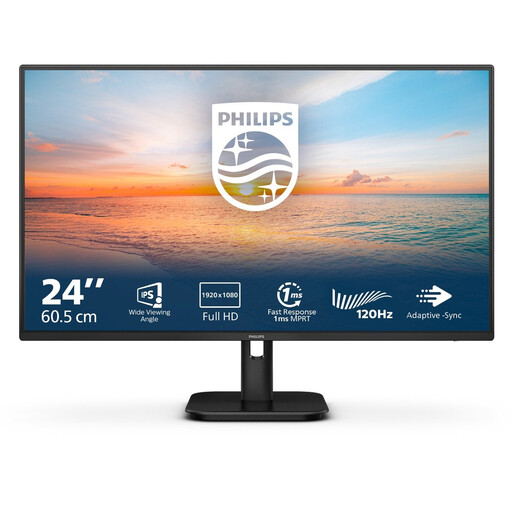
A more compact screen option if you mainly edit one document and don’t need a large display area for multiple windows.
24 inches, Full HD, IPS, 100 Hz and built-in speakers.
 No image available
A good fit if you often want to view minutes alongside an agenda or notes and connect your laptop to the monitor.
Dell specifies 2560 × 1440 pixels at 100 Hz, USB-C power delivery up to 90 W and Ethernet. Check that the power output suits your laptop.
 No image available
An option if you specifically want higher resolution on a 27-inch screen; think in advance about how you want to display documents and text.
27 inches, 3840 × 2160 pixels, 4K Ultra HD and LCD.
 No image available
The larger size may suit a workspace where you often use several documents or sources at once; check that the screen will fit on your desk.
34 inches, 3440 × 1440 pixels, Wide Quad HD+ and LCD.
Not necessarily. If you prefer to view long passages of text vertically, check whether the exact model has a pivot function and whether the rotated monitor will fit on your desk. If you mainly work with documents side by side, also consider the space it takes up in landscape mode.
Only if your laptop can output video through that USB-C connection and the monitor supports the features you need. If you also want to charge your laptop, check whether the stated Power Delivery output is suitable; USB-C alone doesn’t guarantee a single-cable setup.
Set up your workspace to suit you, position the screen so reflections don’t distract you and adjust the lighting to the surroundings. Take breaks from screen work and vary your posture; a new monitor doesn’t replace a good working routine.
Employers must provide a suitable and safe home-working environment. Arboportaal states that when working at a screen for more than 2 hours a day, the screen and keyboard must not be attached to each other; laptop users must be able to use a separate screen or keyboard. This is not a general minimum requirement for everyone buying a monitor for personal use.
Compare the EU energy label and product information sheet for the exact models. The European Commission states that electronic displays, including computer monitors, are labelled on a scale from A to G; screen size or resolution alone won’t tell you how much energy a monitor uses.