What should you look for when choosing?
27-inch QHD without a laptop dock
Right for you if: you want to have several documents open side by side and can connect your computer another way.
Bear in mind: this size takes up more desk space than a compact screen; check the connections on the specific model.
27-inch QHD with USB-C docking features
Right for you if: you want to connect and possibly charge a compatible laptop through the monitor.
Bear in mind: video support, power delivery and connections vary between laptops and specific monitor versions.
Compact 23.8-inch Full HD
Right for you if: available desk space matters more than keeping several documents visible side by side.
Bear in mind: the Full HD model mentioned here has fewer pixels than the 27-inch QHD models listed here.
First, work out how much space you need on screen and on your desk. Then check adjustability and whether you need to connect a laptop.
| What to consider |
What should you check? |
Who is this important for? |
| Room for documents |
Compare the stated resolution and screen size with your desk and the text size you use. |
If I want to see assignments, criteria and feedback at the same time, I prioritise screen space. Around 40% of consumers put room for documents at the top of their list. |
| Adjustable workspace |
Check the height adjustment and tilt, and see how light falls on the screen in your workspace. |
If I mark work for long periods, I want to position the screen to suit my workspace and assess the whole setup. Around 30% of consumers make workspace adjustability their top purchasing priority. |
| Connecting and powering a laptop |
Check that your laptop supports video over USB-C and compare its power requirements with the monitor’s power delivery. |
If I want to connect my laptop through the monitor, I check that both devices support the video and power requirements. Around 20% of consumers put laptop connectivity or charging at the top of their list. |
| Compact size |
Measure the available space and decide which connections you’ll actually use. |
If space is limited on my desk, I weigh up a more compact screen against room for several documents and features I won’t use. Around 10% of consumers give a compact, straightforward screen their top priority. |
Monitors on Joybuy
This selection of Joybuy products includes screens for working with documents, from compact Full HD models to larger QHD and 4K screens. Check the connections and adjustability of each version to make sure they suit your workspace.
 No image available
Philips Evnia 27M2N3500NF 27-inch QHD
This 27-inch QHD version could be a good fit if you’d like a larger screen for marking work digitally.
27 inch; QHD; IPS; 144 Hz; HDMI 2.0 and DisplayPort 1.4.
View at Joybuy
 No image available
Philips 27E1N1800AE/00 27-inch 4K UHD IPS monitor
This 27-inch 4K UHD version could be a good fit if you want a higher stated resolution for marking work.
3840 × 2160; 60 Hz; HDMI and DisplayPort; height-adjustable stand.
View at Joybuy
 No image available
INNOCN 2751S PLUS 27-inch QHD Mini LED monitor
The 27-inch QHD format could be a good fit if you want to view assignments and feedback on a more spacious screen.
QHD 2K; 275 Hz; HDMI and DisplayPort; height adjustable.
View at Joybuy
 No image available
Dell Pro Plus P2425D 24-inch QHD monitor
This 24-inch QHD model could be a good fit if you’re looking for a smaller screen with a stated QHD resolution.
2560 × 1440 pixels.
View at Joybuy
 No image available
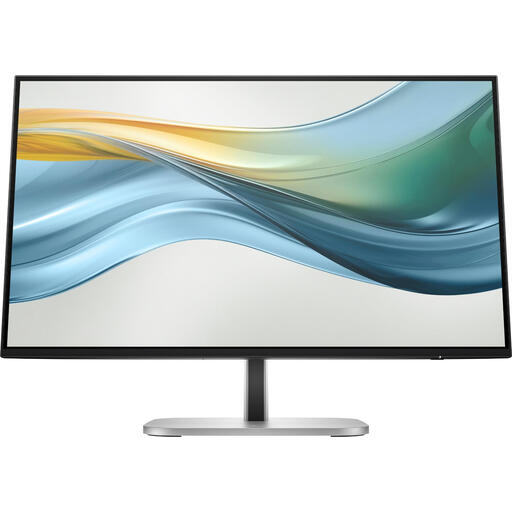
HP Series 5 Pro 524pu 23.8-inch Full HD USB-C monitor
This compact Full HD version could be a good fit if desk space is a priority and you want to use USB-C.
1920 × 1080 pixels; USB-C.
The product information states that the mains adaptor or charger isn’t included as standard and must be bought separately.
View at Joybuy
Frequently asked questions
Should I use a separate monitor for marking work at home?
That depends, among other things, on your working situation and how long you spend working at a screen. Arboportaal outlines rules for employees and states that if you work at a screen for more than two hours a day, the screen and keyboard must not be attached to each other. Consider the applicable rules alongside your workspace setup.
How should I set up a monitor for marking work digitally?
Adjust the screen to suit your workspace and reduce distracting reflections. Arboportaal also highlights adequate lighting and alternating screen work with other tasks or a break as considerations for employees; the monitor model alone can’t guarantee a particular outcome.
Can my laptop display video and charge through a single USB-C cable?
Only if your laptop supports video output over USB-C and the monitor provides enough power. BenQ lists DisplayPort Alt Mode and 65 W power delivery for the GW2790QT; Dell lists 90 W power delivery for the P2725DE. Check your laptop and cable specifications too.
What are my rights after buying a monitor online?
For online consumer purchases, you’ll often have 14 days to change your mind, although there are exceptions. The Dutch Government explains the terms and exceptions. Your statutory rights are separate from any manufacturer’s warranty; ACM explains that the seller is responsible for faulty consumer products.
How do I compare monitor energy consumption?
Compare the energy label and product information for the exact version. EU rules for electronic displays include requirements for energy labelling and product information, with exceptions for certain types of screen. Don’t judge energy consumption by screen size alone.


