
Writers comparing passages
If you want to view your main text, sources and cross-references side by side while editing, a screen layout with plenty of horizontal space can make all the difference.


An ultrawide monitor is a good choice for comparing passages and sources side by side. A 27-inch 4K screen may be more suitable if you’d prefer a less wide screen with sharp text. Also check that the monitor will fit on your desk, is easy to adjust and works with your computer’s video and charging capabilities. A monitor won’t create cross-references in your document for you.
If you want to view your main text, sources and cross-references side by side while editing, a screen layout with plenty of horizontal space can make all the difference.
If you spend long periods reading and proofreading, look for a readable text size, minimal glare and a screen position that suits your workspace. Arboportaal highlights small symbols and screen glare as factors that can affect readability.
If you regularly move your screen or work in different places, compare the adjustment options and check in advance that your laptop can output video through the connection you’ve chosen.
Choose this if: you often want to view text and source material side by side while writing.
Bear in mind: the screen’s width and the space available on your desk.
Choose this if: you’re looking for a less wide screen that displays details clearly.
Bear in mind: text scaling and font size. More pixels don’t automatically mean larger or more comfortable-to-read text.
| What to consider | What should you check? | Which consumers? |
|---|---|---|
| Space for side-by-side text | Compare the screen’s width with the space on your desk and consider how many windows you want to view at once. | If I want to keep passages and sources side by side, I mainly consider how much space there is for windows. Around 36% of consumers prioritise space for text and cross-references. |
| Readability of long texts | Check the text size and scaling settings on your own computer, and look out for glare. Arboportaal highlights small symbols and screen glare as factors to consider. | When I’m reading and proofreading for a long time, I want to view text without losing the magnification I usually use. Around 29% of consumers say readability during extended text work is their main concern. |
| Screen position | Check the adjustment range and, if you’re using a clamp-mounted arm, make sure it can be attached to your desktop. | If I want to adapt my workspace for different tasks, having the screen in the right position matters. Around 21% of consumers prioritise an adjustable workspace. |
| Connecting to a laptop | Check whether your laptop supports video over USB-C and whether the specific monitor’s power delivery suits your needs. | If you want to connect your laptop easily, check that the port you’ve chosen supports video output and provides enough power. Around 14% of consumers prioritise a suitable laptop connection. |
A high resolution doesn’t tell you how large text will appear with your scaling settings. Small symbols and glare can also affect readability.
Consider resolution alongside screen size, text scaling and the light in your workspace.
To output video over USB-C, your computer must support DisplayPort over USB-C. The stated power delivery also varies between monitor models.
Check your laptop port’s specifications, the cable you need and the power delivery of the exact monitor model.
An ultrawide screen needs plenty of desk width. A C-clamp arm must be able to attach securely to your desktop.
Measure the space available and, if you’re using a clamp, check the attachment point and the clearance needed behind your desk.
The models reviewed range from a wide ultrawide screen to a 27-inch QHD screen with an integrated webcam.
The P2725QE is an example of a 27-inch 4K USB-C hub monitor for anyone considering a less wide screen.
The 27UN880P-B is a 27-inch 4K model with an adjustable arm, making it a good option if you want to change the screen position.
The FlexScan EV2740X is a 27-inch 4K office monitor with USB-C docking.
These Joybuy products are ultrawide monitors for anyone who wants to view text and source material side by side while writing. Before buying, check the space available on your desk and the connections on your computer.
 No image available
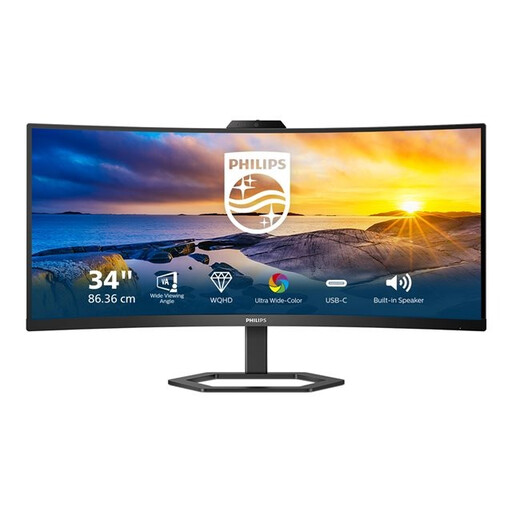
This ultrawide model is a good fit if you want to view several text windows side by side while writing.
According to the product name: 34.1 inches, curved WQHD, IPS, USB-C hub, webcam, 100 Hz and 90 W Power Delivery. Check that the wide screen will fit on your desk and that the USB-C connection is compatible with your computer.
 No image available
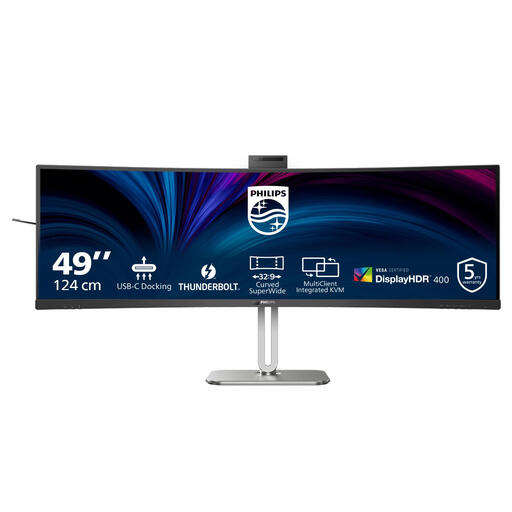
This wide model may suit you if you want plenty of screen space for viewing content side by side. Measure the space available on your desk first.
According to the product name: 49 inches and 5120 × 1440 pixels. The product name also lists USB-C with 90 W Power Delivery.
 No image available
The wide aspect ratio is designed for anyone who wants to view several windows at once; bear in mind how much desk space you’ll need.
According to the product name: 49 inches, 5120 × 1440 pixels and Dual QHD. Check the connections on the model and the computer you plan to use it with.
 No image available
This 34-inch ultrawide model is ideal if you want to keep text and reference material side by side while writing.
According to the product name: 3440 × 1440 pixels and Wide Quad HD+. Check that the screen’s width will fit on your desk and that its connections are suitable for your computer.
 No image available
The wide screen layout may suit you if you want to view text and sources side by side while writing, and also make video calls.
According to the product name: 3440 × 1440 pixels, a 21:9 aspect ratio and a webcam. Check that the screen’s width is right for your workspace.
No. A monitor can display text and source passages, but cross-references are created and updated in your document software.
Your computer’s port must support video over DisplayPort via USB-C. Check your computer’s documentation and the cable you need; a USB-C connection alone isn’t enough.
Set the text to a readable size, reduce glare and break up screen time with activities that don’t involve looking at a screen. These are some of the points highlighted by Arboportaal; a different monitor won’t replace a suitable set-up or regular breaks.
Employees are subject to specific screen-work requirements under the applicable Dutch workplace health and safety rules. Arboportaal states that if you work at a screen for more than 2 hours a day, the screen and keyboard must not be attached to each other. This is not a general legal specification for every monitor bought for personal use.
For an eligible online consumer purchase, ACM ConsuWijzer generally provides a statutory 14-day cancellation period from the day after delivery; check whether any exceptions apply. Your statutory guarantee is separate from any commercial or manufacturer’s warranty. If a product is faulty, the seller is responsible for resolving the issue.