
Student working with several code windows
This student wants to keep the editor, test output and timer example in view at the same time. The preferred window layout and text size help determine how much of the screen is useful.


Choose a monitor based on how much code, test output and timer information you want to see clearly at once, your preferred text size and the space available on your desk. A compact Full HD screen takes up less room, QHD offers a different balance, an ultrawide screen gives you more horizontal space, and a 3:2 screen gives you more vertical space. Check the connection and exact model variant too. A monitor cannot run a timer offline by itself: that depends on your computer and software.
This student wants to keep the editor, test output and timer example in view at the same time. The preferred window layout and text size help determine how much of the screen is useful.
This programmer has limited room for the screen and stand, and wants to follow a local project without giving up more desk space than necessary.
This laptop user wants to connect their laptop appropriately and position the screen comfortably. The video connection and any charging power must be suitable for their laptop.
First decide which windows you want to see at the same time. Then measure the space on your desk and check that the connection is compatible with your computer.
| What to consider | What to look for when buying | Who should prioritise this? |
|---|---|---|
| Workspace for code | Try out your editor layout and text scaling; compare the resolution and aspect ratio. | If I want to keep code, test results and timer output readable at the same time, the window layout matters most. Around 31% of consumers prioritise this workspace. |
| Desk footprint | Measure the available width and depth, including the stand, and check that your windows remain readable. | At a small desk, I want to leave room for my other things and switch between windows when needed. Around 25% of consumers prioritise a suitable size. |
| Screen position and lighting | Check the adjustability of the exact model and assess reflections and ambient light in your workspace. | If I work with code and text for long periods, I want to position the screen to suit my workspace and minimise distracting reflections. Around 25% of consumers prioritise positioning and lighting conditions. |
| Connection to your computer | Compare your computer's video output with the monitor. For USB-C, also check video support and charging requirements. | With a laptop, I want to know whether the chosen connection carries a video signal and, if I want to charge my laptop through it, provides enough power. Around 19% of consumers prioritise the connection. |
A monitor displays the picture; whether the timer runs locally depends on your computer and the software you use.
Choose a screen that suits your workflow, and check separately that your project works locally.
Philips lists 120 Hz for the 24E1N1100A/00; a Joybuy listing for the 24E1N1100A without the same suffix states 100 Hz.
Compare the full model number and technical specifications before treating retail listings as the same variant.
LG lists the 34WR55QC-B as 809 mm wide, including the stand. Extra horizontal pixels do not automatically give you more vertical screen space.
Measure the space available for the screen and stand, and try out your windows at a readable text size.
Video connection and laptop charging depend on the capabilities of your computer, cable and monitor. Dell and BenQ list 90 W USB-C power for the models mentioned; LG lists 65 W.
Check your laptop's video support and charging requirements against the specifications for the exact monitor model.
Depending on the connections available, you may need a suitable cable or a separate laptop charger.
The Pro Plus P2725DE is a 27-inch QHD model with USB-C hub features, designed for a laptop workstation.
The 24E1N1100A/00 is a compact 23.8-inch Full HD variant.
The 34WR55QC-B is an ultrawide option for wide window layouts.
The RD280U has a 3:2 aspect ratio, offering more vertical screen space.
The ThinkVision P27h-30, variant 63A1GAT1EU, is a 27-inch QHD screen with USB-C and hub features.
These Joybuy monitor picks are suited to a study space where you want to view code, documentation or test output locally. Look for a screen layout, desk footprint and connection that work for your computer.
 No image available
The 16:10 layout may suit anyone who wants to view code and documentation with extra vertical space.
The product title lists a resolution of 2560 × 1600 pixels, 144 Hz, two USB-C connections, Mini HDMI and a built-in kickstand.
 No image available
This 27-inch screen is an option for arranging code and test output on one monitor. Check whether the text scaling is comfortable and easy to read for you.
The product title lists a resolution of 3840 × 2160 pixels, 60 Hz, HDMI and DisplayPort. The product description mentions a height-adjustable stand.
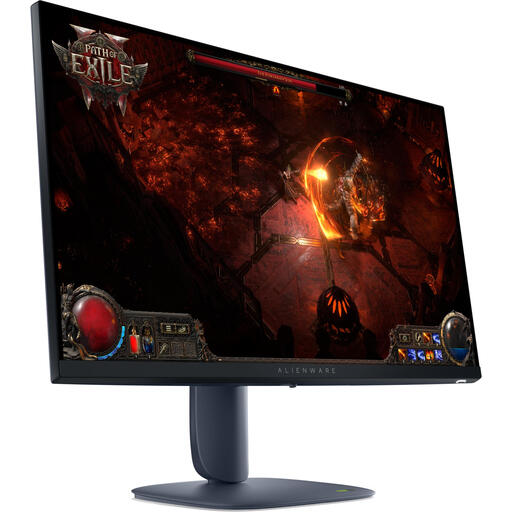 No image available
The stated QHD resolution gives you a starting point for placing code and test output side by side.
The product title lists a resolution of 2560 × 1440 pixels. The product description mentions HDMI 2.1, DisplayPort 1.4 and an adjustable stand.
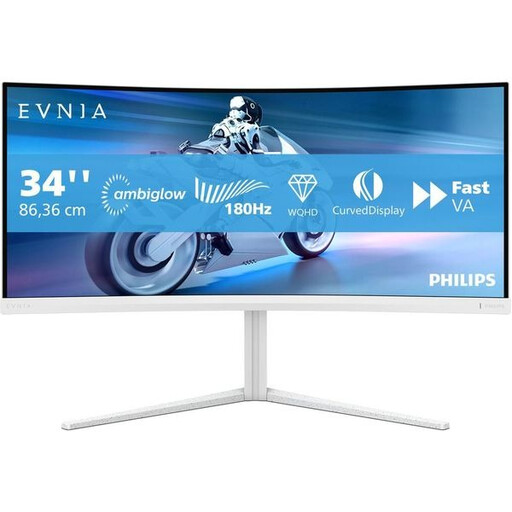 No image available
The wide screen layout may suit you if you want to place several windows side by side and have enough desk space.
The product description lists a resolution of 3440 × 1440 pixels, HDMI, DisplayPort, USB-C, and height, swivel and tilt adjustment. The product title states 180 Hz.
 No image available
The wide layout may suit you if you want to have lots of windows open side by side, provided you have enough desk space.
The product title lists a resolution of 5120 × 1440 pixels, a 32:9 aspect ratio, HDMI 2.1 and DisplayPort 1.4. The product description gives a visible width of 108,8 cm, so measure the space available on your desk.
No, you don't need a special monitor. Choose one based on readability and connectivity; whether the timer runs locally depends on your computer and timer software.
Only if your laptop and cable support the required video function and the charging power is suitable for your laptop. Dell and BenQ list 90 W for the models mentioned, while LG lists 65 W. A USB-C connection alone doesn't confirm that your laptop is compatible.
Check that the screen's adjustability suits your desk, and assess its position, reflections and lighting in your workspace. For employees, Arboportaal also sets out guidance on screen work; this does not automatically apply to every student's personal circumstances.
According to Arboportaal, employees should regularly alternate screen work with other tasks or a break. The government guidance also specifies requirements for the workstation and laptop use when screen work exceeds 2 hours a day; this is not a general legal purchase threshold for every student.
For eligible online consumer purchases, the Dutch government says you will often have 14 days to change your mind. Separately, you are entitled to a product that works properly; if it is faulty, contact the seller to find a solution. Check the terms that apply to your purchase.