Who is this choice relevant to?

No spare plug socket

You want to view a budget chart alongside your laptop without needing a second mains plug. Lenovo says the ThinkVision M15 receives both picture and power through a single cable from a compatible laptop; ASUS specifies USB-C with DP Alt Mode for the ZenScreen MB16ACV.

One plug socket for your workspace

You want to view larger spreadsheets at a fixed workspace and check whether a monitor can also power your compatible laptop. Dell specifies up to 90 W of power delivery via USB-C for the P2425E.

Room for spreadsheets and charts

You want to see several columns and charts at once, so screen space is your priority. Dell specifies a 16:10 screen for the P2425E; Philips lists a 27-inch QHD screen for the 27E1N5600HE/01.

What should you consider when choosing?

Portable monitor powered by your laptop

A good fit if: there’s no extra plug socket available, your laptop can output video through the right USB-C port, and a smaller second screen will meet your needs.

Bear in mind: the screen draws power from your laptop. Using it on battery may reduce battery life.

Fixed USB-C monitor with laptop power delivery

A good fit if: you have a plug socket for the monitor and your laptop supports both the video connection and the required charging power.

Bear in mind: the monitor needs mains power. So, having a single cable to your laptop doesn’t mean you can use the setup without a plug socket.

What to consider What should you check? Who is this most important to?
No extra mains plug Check that your laptop port supports video and can power the screen. Lenovo and ASUS describe USB-C connections for their portable models; also check that the screen size suits your desk. If all the plug sockets are in use, I want a second screen that doesn’t need its own mains plug. This is the top priority for around 31% of consumers.
One plug socket for your workspace Compare the power delivery of the exact monitor with your laptop’s charging requirements. Dell specifies up to 90 W for the P2425E; Dell Support explains that USB-C video requires DP Alt Mode or Thunderbolt. If I have one plug socket for my workspace, I want to know whether the monitor and a compatible laptop can both be powered from the mains through that single connection. This is a priority for around 31% of consumers.
Room for spreadsheets and charts Compare the screen size, resolution and aspect ratio with your spreadsheet layout. Dell lists the P2425E as 24 inches with a 16:10 aspect ratio; Philips specifies 27 inches and 2560 × 1440 pixels for the 27E1N5600HE/01. If I want to view budget columns alongside charts, usable screen space matters most. Around 23% of consumers prioritise room for spreadsheets.
Energy use Compare the EU energy label and consumption in kWh per 1,000 hours for specific models. The European Commission explains the rules for electronic displays; Energielabel.nl provides more information about the label. If I use my monitor frequently, I want to take its stated energy consumption into account when choosing. Around 15% of consumers prioritise energy use.

Things to look out for when buying

  • Assuming one USB-C cable means you don’t need mains power

    A portable screen can draw power from your laptop, while a fixed hub monitor needs to be plugged into a socket itself.

    Before you buy, work out how power will flow: from your laptop to a portable screen, or from a plug socket to a fixed monitor and then on to your laptop.

  • Assuming every USB-C port outputs video

    A USB-C port that only supports data or power won’t automatically output video. The monitor’s power delivery also needs to meet your laptop’s charging requirements.

    Check the capabilities of the exact laptop port, the video mode required, the cable and the monitor’s power delivery.

  • Comparing only screen size or energy label rating

    Screen size and resolution can help you work out how to arrange spreadsheets and charts; the model information on the energy label is also relevant when comparing energy use.

    Compare specific models by screen size, resolution and consumption per 1,000 hours, and make sure the power setup suits your laptop and workspace.

Brands to consider

Lenovo

The ThinkVision M15 is a portable option for a second screen that can receive picture and power from a laptop through a compatible USB-C connection.

  • Lenovo specifies a 15.6-inch FHD screen and two USB-C ports with power pass-through.
  • Check that your laptop can power the screen and that its size gives you enough room for your spreadsheets.

ASUS

The ZenScreen MB16ACV is a portable USB-C screen designed to work as a compact second display.

  • ASUS specifies a 15.6-inch screen, 1920 × 1080 pixels and USB-C with DP Alt Mode.
  • The specifications don’t mention height adjustment; also check laptop compatibility and which cables are included with your version.

Dell

The Pro P2425E is a fixed 16:10 USB-C hub monitor for a setup with a plug socket for the monitor and a compatible laptop.

  • Dell specifies up to 90 W of power delivery via USB-C and an adjustable stand.
  • The monitor needs its own mains power; check that its stated power delivery is suitable for your laptop.

Philips

The 27E1N5600HE/01 is a fixed-screen option if having room for spreadsheets and charts is a priority.

  • Philips specifies a 27-inch screen with 2560 × 1440 pixels and USB-C with power delivery.
  • Check the power delivery of the exact version before assuming the monitor can replace your laptop charger.

MSI

The PRO MP165 E6 is a portable 15.6-inch FHD screen with USB-C and HDMI connections.

  • MSI specifies two USB-C ports with DP Alt Mode and 15 W Power Delivery, plus HDMI.
  • Don’t assume the stated 15 W is enough to charge your laptop without checking first.

Joybuy monitors for this setup

This selection includes portable monitors for use alongside your laptop, plus one fixed USB-C monitor for a workspace with a plug socket. For portable models, check that your laptop port can output video and that the power setup suits your configuration.

TECLAST V16H portable monitor

TECLAST V16H 16-inch portable monitor

A portable option if you want to use a second screen alongside your laptop.

16 inches, FHD and a 16:10 aspect ratio. The product information lists two USB-C ports for power and video, plus mini-HDMI.

Joybuy

TECLAST V16Q portable monitor

TECLAST V16Q 16-inch portable monitor

A portable second screen that gives you extra space to view budget spreadsheets.

16 inches, 16:10 and 2560 × 1600 pixels. The product information lists two USB-C ports for power and video, plus a mini-HDMI connection.

Joybuy

UPERFECT 15.6-inch touchscreen monitor

UPERFECT 15.6-inch touchscreen monitor

A portable second screen if you’d also like to control it by touch.

15.6 inches and 1080p. The product information lists USB-C for video and power.

Joybuy
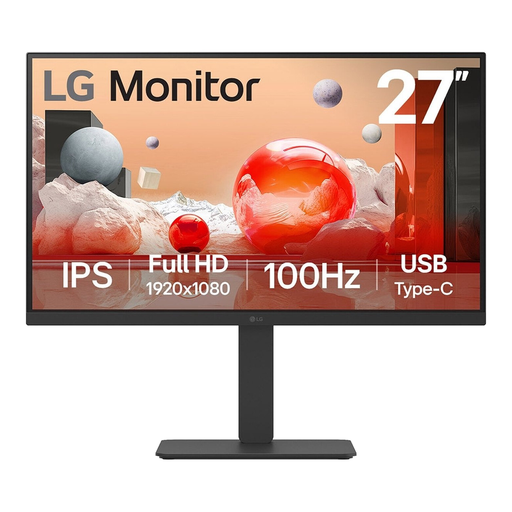
LG 27BA750-B computer monitor

LG 27BA750-B 27-inch monitor

A fixed USB-C monitor for a workspace with a plug socket and a need for a larger screen.

27 inches and Full HD. The product specifications list up to 65 W Power Delivery via USB-C and an adjustable stand. The monitor needs its own mains power; whether 65 W can replace your laptop charger depends on your laptop.

Joybuy
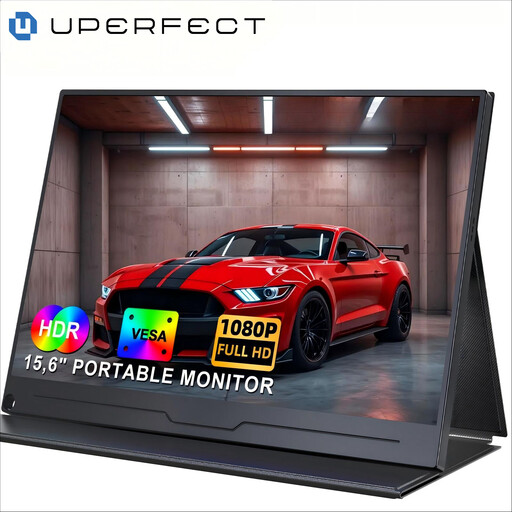
UPERFECT 15.6-inch portable monitor

UPERFECT 15.6-inch portable monitor

A portable second screen if you want Full HD alongside your laptop.

15.6 inches, 1920 × 1080 pixels and IPS. The product information lists USB-C for picture and power.

Joybuy

Frequently asked questions

Will every USB-C connection on my laptop output video to a monitor?

No. Check your laptop’s documentation to see whether the port supports the required video mode, such as DisplayPort Alt Mode. A port that only supports data or power won’t output video this way. Also check that the power delivery is suitable for your chosen monitor.

How can you use two screens to manage your household budget?

Connect the monitor according to the instructions for both devices, then choose screen extension in your operating system if you want to view your budget spreadsheet and chart side by side. Adjust the screen position and resolution to suit your workspace.

How can you compare monitors’ energy use?

Compare the stated consumption in kWh per 1,000 hours on the energy label for the exact models. To estimate your own costs, you’ll also need your usage hours and electricity tariff.

What warranty and cancellation period apply to an online purchase in the Netherlands?

According to the Dutch government, there is no fixed statutory warranty period in the Netherlands: you’re entitled to a product that meets reasonable expectations, and the retailer is your point of contact if something goes wrong. Many online distance purchases come with a 14-day cancellation period, subject to legal exceptions; check which terms apply to your purchase.

Does a monitor need an energy label in the Netherlands?

The European Commission says that energy labelling rules apply to electronic displays, including computer monitors, with exceptions for certain types of screen. Check the applicable EU label and model details for the specific product.
