Start by measuring the available width and depth of your desk, then choose a resolution to suit your editor, preview window and preferred text size. A 23.8-inch QHD monitor packs plenty of pixels into a compact screen; a 16:10 display offers extra vertical space, while colour work and laptop connectivity call for different specifications. Measure your space and check the readability and connections of the exact model before making your choice.
Who is this buying guide for?
Level designer with limited desk space
You want to see editor panels and a preview window at the same time, while keeping an eye on the space taken up by the screen and stand. Dell and BenQ list models with QHD resolution; measure your complete setup before choosing a model.
Creator of colour-critical game assets
As well as assessing level layouts, you work with colour, so you’ll want to check the stated colour gamut and calibration of the exact model. ASUS and BenQ publish manufacturer specifications for this; they are not independent measurements of the unit supplied.
Laptop user with a compact workspace
You want to connect your monitor, transfer data and, if needed, power your laptop with as few separate connections as possible. BenQ and Dell offer USB-C options on specific models; check that the ports and charging capabilities are compatible with your laptop.
What should you look for when choosing?
| What to consider |
What should you check? |
Who should prioritise this? |
| Usable editor space |
Compare 2560 × 1440, 1920 × 1200 and 1920 × 1080 with your window layout, and check that text and controls remain readable at your chosen scaling setting. |
If I want to see editor panels and a preview window at the same time, I consider both the pixel count and text size; around 36% of consumers make editor space their main purchasing priority. |
| Desk space |
Measure the available width and depth, including the monitor stand and the space needed for your keyboard and mouse. If you’re using an arm, check the VESA size and make sure the desk and mount are suitable. |
When I need to fit a screen, stand and input devices on a small desk, the dimensions of the complete setup are crucial; around 29% of consumers focus primarily on how it will fit. |
| Colour for assets |
Check which colour gamut your work requires, and distinguish stated coverage or factory calibration from a measurement of the unit supplied. |
If I assess colour-critical assets as well as levels, I want to know which colour specifications are listed for the exact model; around 21% of consumers put colour work first. |
| Connections |
Check whether your laptop supports video output through the chosen USB-C port, and compare the required charging wattage with the monitor’s power output. |
When I want to use my laptop with as few separate connections as possible, I check video, data and power for each port; around 14% of consumers make connection convenience their main priority. |
Avoid common buying mistakes
-
Measuring only the screen size
The stand can add considerably to the depth your setup needs. For example, BenQ lists a depth of 256,9 mm with the stand for the PD2506Q; remember to leave room for your keyboard, mouse and cables too.
Measure your available workspace and compare it with the dimensions including the stand. If you’re using a monitor arm, check the mount and make sure both the desk and arm are suitable.
You may need a different monitor arm or to rearrange your desk.
-
Assuming the P2425D and P2425DE have the same connections
Dell describes the P2425DE as a separate USB-C hub monitor. Sharing a QHD resolution doesn’t mean the two models have the same connections.
Check the full model code and port list against your computer’s connections before ordering.
You may need a separate hub or a different cable if the connection you choose isn’t right for your setup.
-
Relying on general retailer copy as definitive proof
Details about connections or warranties may differ from information for the exact model or from the consumer rules that apply. The Government of the Netherlands states that there is no fixed statutory two-year warranty period for all products in the Netherlands.
Check the ports with the manufacturer using the full model number, and consult the Government of the Netherlands for information about your statutory warranty rights.
Brands worth considering
Dell
The P2425D and P2425DE are 23.8-inch QHD models; the P2425DE is the separate USB-C hub version.
- Dell specifies 2560 × 1440 at 100 Hz for both models.
- Don’t assume the P2425D has a hub because of the P2425DE name or specifications.
ASUS
The ProArt PA248QV is a 24.1-inch 16:10 monitor with 1920 × 1200 pixels, designed for tasks including graphic design.
- ASUS lists 100% sRGB, factory pre-calibration and an adjustable stand for the PA248QV.
- ASUS lists the PA248QV at 75 Hz; the PA248QFV is a different model, listed at 100 Hz. Check the full model code.
BenQ
The PD2506Q is a 25-inch QHD model from BenQ’s creative monitor range.
- BenQ lists 100% sRGB, 95% P3, USB-C with 65 W Power Delivery and a factory calibration report.
- The listed stand depth is 256,9 mm and the refresh rate is 60 Hz. Bear these dimensions and specifications in mind when space is limited.
LG
The 24BA560-B is a 23.8-inch Full HD monitor with an adjustable stand.
- LG lists 1920 × 1080 and 100 Hz for this model.
- Full HD offers fewer pixels than the QHD models mentioned. The discontinuation of an LG QHD variant says nothing about the availability of this Full HD range.
Philips
The 24E1N1100A/00 is a 23.8-inch Full HD option with a higher stated refresh rate.
- Philips lists 1920 × 1080 and 120 Hz for this model.
- These specifications don’t establish QHD workspace or measured colour accuracy.
Joybuy monitors for level design
These monitors offer a range of options for level design in a compact workspace, from portable use and QHD to Full HD and colour-focused models.
 No image available
TECLAST V16Q Portable Monitor 2.5K 144Hz
The portable design and built-in kickstand suit a workspace where you want the flexibility to position the screen.
16 inches, 2560 × 1600 pixels, 16:10, IPS and 144 Hz.
The description lists 100% sRGB, 10-bit, FreeSync, 2 USB-C connections and Mini HDMI.
View at Joybuy
 No image available
Dell Pro Plus P2425DE
An option for combining a QHD display with a USB-C hub in a laptop setup; check that the connections suit your computer.
23.8 inches, 2560 × 1440 pixels and IPS.
The product description lists a USB-C hub with up to 90 W Power Delivery and an adjustable stand.
View at Joybuy
 No image available
Dell Pro Plus P2425D
A QHD option for arranging your editor and preview window on a compact screen.
23.8 inches, 2560 × 1440 pixels and 100 Hz.
The product description lists height, tilt, swivel and pivot adjustment. This model is not the P2425DE hub version.
View at Joybuy
 No image available
ASUS ProArt Display PA24ACRV
A QHD option if you assess colour-critical assets as well as levels; check which colour mode suits your work.
23.8 inches and 2560 × 1440 pixels.
The product description lists 95% DCI-P3 and factory-calibrated sRGB and Rec.709 modes, plus height, tilt, swivel and pivot adjustment.
View at Joybuy
 No image available
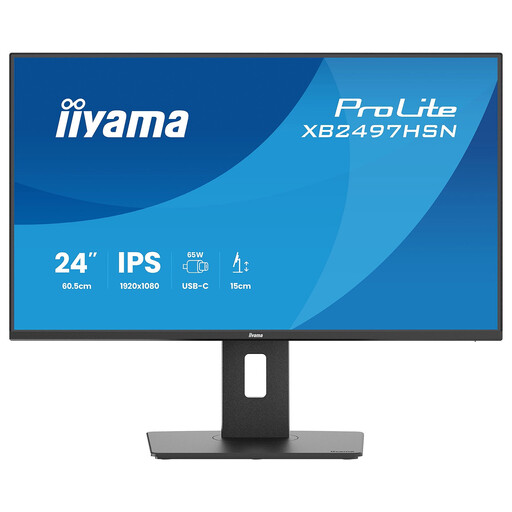
iiyama ProLite XB2497HSN-B1
A Full HD option with USB-C docking for a laptop workspace; consider whether the lower resolution gives you the editor layout you need.
24 inches, Full HD 1920 × 1080, IPS and 100 Hz.
The product description lists USB-C docking with up to 65 W Power Delivery and an adjustable stand.
View at Joybuy
Frequently asked questions
Is QHD always better for a level editor on a screen of around 24 inches?
No, not necessarily: QHD gives you more pixels, but the right choice also depends on your window layout and text scaling. Dell lists 2560 × 1440 pixels at 23.8 inches for the P2425D; ASUS lists 1920 × 1200 pixels for the PA248QV. Check that text and controls remain readable with your settings.
How can I check whether a monitor arm will fit on my small desk?
Check the VESA size and weight of the exact monitor, then compare them with the arm’s load capacity, mounting options and range of movement. ASUS lists VESA 100 × 100 mm and 3,9 kg without the stand for the PA248QV; BenQ lists VESA 100 × 100 mm and 4,4 kg without the stand for the PD2506Q. These figures alone don’t prove that a particular arm or desk edge is suitable.
What can help when working at a screen for long periods?
Adjust your screen and workspace to suit you, and break up long periods of screen work. Arboportaal outlines rules for employees who work with screens, and TNO discusses the risks of prolonged screen use. A monitor’s eye-comfort claim is no substitute for a suitable setup or taking breaks.
What can I do if I’m unhappy with a monitor bought online, or it’s faulty?
For applicable consumer purchases made at a distance, the Government of the Netherlands says you will generally have a 14-day cooling-off period; check the terms that apply to your purchase. You may also have statutory rights if a product is faulty. The Government of the Netherlands states that there is no fixed statutory two-year warranty period for all products in the Netherlands.
Do I have to return my old monitor when I buy a new one?
According to the Government of the Netherlands, when you buy a similar new appliance, a retailer must take back an old one free of charge; this also applies to online purchases. Different conditions apply to businesses, according to this information.


