
Level designer using a test window
You switch between editing and playing while prototyping, and want to arrange both windows so they’re easy to read. Unity’s Game view shows how an application looks and lets you choose an aspect ratio for testing.


An adjustable 27-inch QHD monitor is a practical starting point if you want to use an editor and test window on a shared desk. Choose a 34-inch ultrawide if you often work with windows side by side and have enough desk space; for working with lots of code, a screen with more vertical space may be a better fit. Check each computer’s video output, USB-C features and charging requirements, and test your game at the intended aspect ratio.
You switch between editing and playing while prototyping, and want to arrange both windows so they’re easy to read. Unity’s Game view shows how an application looks and lets you choose an aspect ratio for testing.
You share a desk and switch between computers, so check the display settings, connections and USB-C capabilities of each laptop. Arboportaal highlights height adjustment and avoiding reflections as important considerations for screen-based work.
You may value extra vertical screen space more than a wider workspace. The BenQ RD280U is an example of a 3:2 monitor, but that aspect ratio alone doesn’t prove you’ll be able to code faster.
A good fit if: you’re looking for a main screen for your editor and regularly open a playtest window, especially if desk space is limited.
Trade-off: you’ll have less horizontal space than on a 34-inch ultrawide. Dell specifies a resolution of 2560 × 1440 pixels and a refresh rate of 100 Hz for the P2725DE.
A good fit if: you often want to keep your editor, documentation and a test window side by side, and have a desk wide enough to accommodate it. LG lists a resolution of 3440 × 1440 pixels and a 21:9 aspect ratio for the 34U650A-B.
Trade-off: the screen takes up more width and doesn’t offer the same vertical space as a 3:2 screen. A widescreen monitor is no substitute for testing your game at its intended aspect ratio.
A good fit if: scripts, inspector panels or long documents make up a large part of your day-to-day work, and vertical space is a priority.
Trade-off: according to BenQ, the RD280U has a resolution of 3840 × 2560 and a 3:2 aspect ratio; this doesn’t guarantee that a wide playtest window will fit alongside your editor.
| What to consider | What to look for | Who should pay particular attention? |
|---|---|---|
| Keeping an overview while building and testing | Try arranging the editor, Game view and documentation, then compare the screen width and height you need with the resolution. | I want to keep the editor and test window readable at the same time without making the layout impractical. Around 36% of consumers also give keeping an overview while building and testing their top priority. |
| Connecting and switching between computers | Check each computer’s video outputs, video over USB-C and required charging power; also check which cables are included. | I switch between computers at the same desk and want to know whether the monitor will work with each device. Around 29% of consumers prioritise easy connections when switching between computers. |
| Adjustability and reflections | Check whether the model is height-adjustable and consider the screen’s position in relation to windows and lighting in the workspace. | I share the screen with others and want to be able to adjust it for different users. Around 21% of consumers pay most attention to workspace adjustments and reducing reflections. |
| Code and image detail | Compare the text scaling you normally use and test the game at the aspect ratio you’re developing for. | I read a lot of code or work with fine details, and want to know how much vertical space is available for this. Around 14% of consumers prioritise text and detail legibility over extra window width. |
You can arrange the editor across a wide screen, while the game itself may be designed for a different aspect ratio.
Test the prototype separately at the aspect ratios you want to check. Choose your screen width based on the space you need while developing.
The monitor’s capabilities need to be compatible with those of every connected laptop.
Check each computer’s video output, video over USB-C, charging requirements and available cables.
Depending on the computers, you may need a compatible power adapter, a different cable or an extra connection. Check in advance.
Philips specifies 120 Hz for the 27E1N1600AE/00, while a Joybuy product listing states 100 Hz and says the product is unavailable.
Compare the full model number with the details of the version on offer; don’t base your choice on the conflicting refresh rates.
The Pro Plus P2725DE is an example of an adjustable 27-inch QHD monitor with a USB-C hub, suited to a shared workspace.
The 34U650A-B shows how a 34-inch ultrawide can provide a single, wide workspace.
The RD280U is an example of a code-focused layout for anyone who values vertical screen space.
The 27E1N1600AE/00 is an example of a 27-inch QHD monitor with USB-C.
This selection includes 27-inch screens for a layout with an editor and test window, as well as ultrawide models for working with windows side by side. Check the connections and power requirements for each computer; for the exact version, also check the relevant product documentation and marking.
 No image available
Suited to a wide layout if you want to work with several windows side by side.
3440 × 1440 pixels and 21:9. USB-C supports video, data and power delivery up to 90 W; listed connections also include HDMI, DisplayPort and RJ45. A USB hub, KVM and webcam are listed.
 No image available
Suited to a wide workspace where you want to arrange windows side by side and switch between the specified display modes.
34 inches and 21:9. The listed Dual Mode offers 5120 × 2160 at 120 Hz or 2560 × 1080 at 240 Hz; these are separate combinations. USB-C power delivery up to 140 W, KVM and a USB hub are listed.
 No image available
Suited to anyone looking for a 27-inch screen to arrange an editor and test window.
3840 × 2160 pixels, 16:9 and 120 Hz. USB-C power delivery up to 90 W, HDMI, DisplayPort, PIP and PBP are listed. The product description says the stand is height-adjustable.
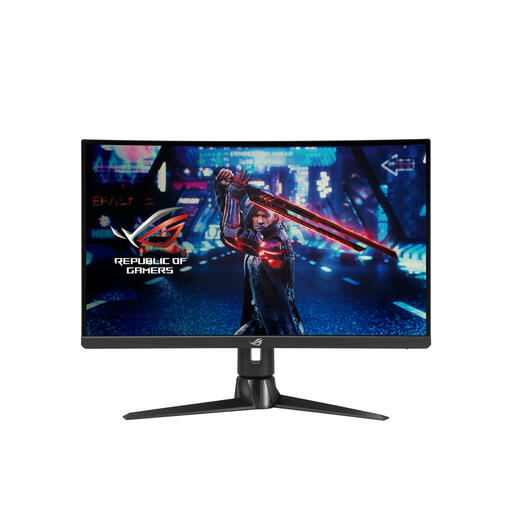 No image available
Suited to anyone who wants to use a standard widescreen layout for an editor and test window.
2560 × 1440 pixels and 170 Hz. The stand is described as offering up to 110 mm of height adjustment; a matte anti-reflective finish is also listed.
 No image available
Suited to anyone who wants to work with several windows side by side and connect computers in a shared workspace.
3440 × 1440 pixels and 21:9. A USB-C dock, KVM, RJ45 and power delivery up to 95 W are listed. The product description says the stand is height-adjustable by 15 cm.
No. A monitor’s physical width doesn’t determine which aspect ratios you should test for players. Unity lets you check the aspect ratio in the Game view; choose a wider screen to suit your own editor layout.
Readjust the screen height for each user and watch out for reflections from windows or lighting. Arboportaal highlights height adjustment, screen quality and avoiding reflections as important considerations for the relevant screen-based workplace.
No. Check whether the USB-C port on each laptop supports video output and whether the power offered is sufficient. Dell lists power delivery up to 90 W for the P2725DE, but that specification doesn’t confirm which features another laptop supports.
Business.gov.nl, the Dutch government’s business information service, explains that applicable EU safety requirements, CE marking and an EU Declaration of Conformity are obligations for manufacturers of electrical and electronic equipment placed on the market in the Netherlands. Check that the documentation and marking apply to the exact version on offer.
For many consumer purchases made remotely from a business, a 14-day cooling-off period applies, according to the Dutch government. Don’t assume this applies to a business purchase made by the office; check who the buyer is and which terms apply.