What should you look for when choosing?
First, decide whether you can plug the monitor itself into the mains. Then choose the screen space and refresh rate that suit your level design work.
Portable monitor connected to your laptop
Suitable when: you can’t use a separate monitor plug and your laptop, monitor and cable support video and power together.
What to bear in mind: the monitor draws power from your laptop, so check the connection and keep the battery in mind.
Desktop USB-C hub monitor
Suitable when: there’s a power socket for the monitor and you want to connect and charge your laptop via a compatible USB-C connection.
What to bear in mind: the monitor still needs mains power, so make sure its power delivery is suitable for your laptop.
| What to consider |
What should you check? |
Who is this important for? |
| Power without an extra plug |
Check whether your laptop port supports video and provides enough power. Also check which cable the exact model requires. |
I don’t have a spare power socket for a second screen and want to know whether my laptop can provide video and power. Around 36% of consumers prioritise avoiding an extra monitor plug. |
| Room for your editor and preview |
Compare both screen size and resolution, and measure your desk to make sure the screen will fit. |
If I want to view my editor and preview at the same time, I need enough screen space without overlooking the size of my desk. Around 29% of consumers prioritise this workspace. |
| Moving scenes |
Check the specified refresh rate and which resolution and frequency your computer and connection can support together. |
When testing movement, I want to know whether my chosen monitor and computer can handle the display mode I want. Around 21% of consumers prioritise viewing moving scenes. |
| Portability |
Check the dimensions, weight and stand, and consider whether you need to adjust the viewing height. |
When I view my prototype at different workspaces, I want to be able to take the screen with me and set it up comfortably. Around 14% of consumers prioritise portability. |
Joybuy product picks
This selection includes portable second screens and desktop monitors for level editing and moving previews, including an ultrawide model.
 Image unavailable
TECLAST V16Q portable monitor
A portable second screen to take with you to another prototyping workspace.
16 inches, 2560 × 1600 pixels, 16:10 and a specified refresh rate of 144 Hz. The product name lists two USB-C ports and mini-HDMI; check that your laptop and connection support the video and power setup you need.
View at Joybuy
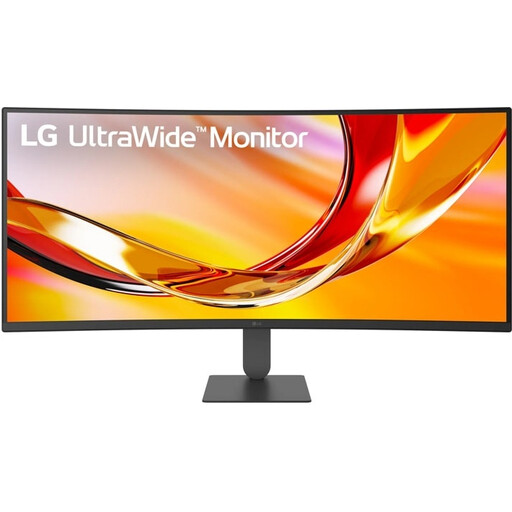 Image unavailable
LG UltraWide 34U640B-B
A wide screen for viewing your editor and preview side by side, if you have enough desk space.
34 inches, 3440 × 1440 pixels, 21:9 and a specified refresh rate of 144 Hz. LG specifies 65 W USB-C Power Delivery; check that this meets your laptop’s charging requirements.
View at Joybuy
 Image unavailable
ASUS ProArt PA278CGV
A 27-inch option for level editing at a permanent workspace.
2560 × 1440 pixels and a specified refresh rate of 144 Hz. The product information lists 90 W USB-C Power Delivery; check compatibility and your laptop’s charging requirements.
View at Joybuy
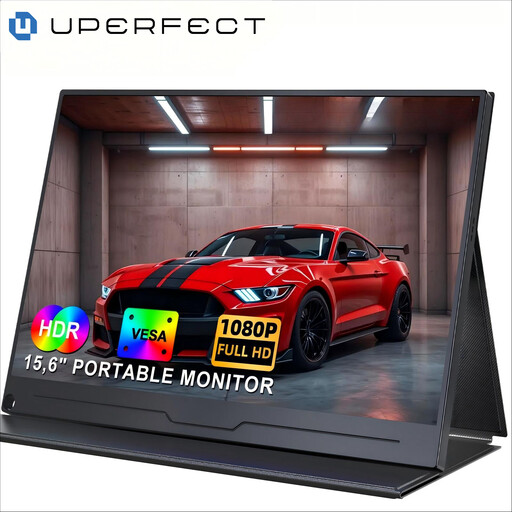 Image unavailable
UPERFECT 15.6-inch portable monitor
A portable Full HD option for a second screen when working on levels.
15.6 inches, 1920 × 1080 pixels and IPS. The product description says that one USB-C cable provides video and power when used with a compatible laptop; check that your laptop meets this requirement.
View at Joybuy
 Image unavailable
Lenovo L16 portable monitor
A portable second screen for using your laptop at different workspaces.
16 inches, WUXGA, 16:10 and a specified refresh rate of 60 Hz. The product description lists USB-C with DisplayPort Alt Mode and up to 65 W Power Delivery for compatible laptops.
View at Joybuy
Frequently asked questions
Can a USB-C monitor automatically save you a power socket?
No, it depends on the type of monitor. A portable monitor can receive video and power from a compatible laptop without needing its own monitor plug. A desktop hub monitor needs mains power, but can charge your laptop through a suitable USB-C connection. Check video support and the power requirements.
How should you position your screen when working on a level for a long time?
Adjust the viewing height, lighting and position in relation to windows to suit your needs. The Dutch Arboportaal states that for employees who work with screens for more than two hours a day, the screen and keyboard must not be attached to each other. This rule applies to employees and isn’t necessarily a requirement for a home hobby setup.
What power information can you compare?
Check the energy label and compare monitors on the same basis of use. The European Commission states that electronic displays, including computer monitors, have an energy label scale from A to G. USB-C Power Delivery, such as 65 W, is the specified charging power for a laptop and is not the same as the monitor’s power consumption.
What are your rights when buying a monitor online in the Netherlands?
For a typical online consumer purchase, ACM ConsuWijzer says you generally have a statutory cooling-off period of up to 14 days after delivery, with some exceptions. Your statutory guarantee is separate from a manufacturer’s warranty: if a product doesn’t perform as you could reasonably expect under normal use, the seller must offer an appropriate solution.
How can you connect equipment safely when there are few power sockets?
Brandweer Nederland advises fully unwinding cable reels and plugging high-power appliances directly into a socket where possible. This doesn’t mean that every monitor needs its own wall socket; check the load and instructions for your own setup.


