
People using a shared desk
You share a workspace with colleagues and want to adjust the screen position to suit your posture and the lighting.


Choose a monitor that each user can adjust comfortably and that works with the laptops in use. Then compare resolution and power options. QHD may suit you if you want to view slides and editing panels at the same time, while 4K is worth considering if extra detail matters. USB-C is useful for video and charging only if the laptop supports those functions over USB-C and the power output is sufficient.
You share a workspace with colleagues and want to adjust the screen position to suit your posture and the lighting.
You review small text and slide layouts while keeping toolbars or notes visible, so screen space and readability matter.
You want to connect a laptop and possibly peripherals at a shared desk. The laptop’s video connection and charging options determine whether USB-C will work with your setup.
Arboportaal recommends readjusting your workstation when you sit somewhere new. So, as well as the monitor, check your chair, screen position and lighting.
| What to consider | What should you check? | Who is this important for? |
|---|---|---|
| Adjustability | Check the height adjustment and tilt, and make sure there’s enough space on the desk. | If I sit down at the desk after a colleague, I want to be able to adjust the screen to suit my posture. Around 36% of consumers prioritise adjustability. |
| Readability and workspace | Compare screen size and resolution, and assess slides at the display scale you want to use. | When I’m editing slides with small text, I want to be able to view the content and editing panels comfortably. Around 29% of consumers prioritise readability and workspace. |
| Connections | For each laptop, check the video output, USB-C video support and charging requirements, then compare these with the monitor’s ports and Power Delivery output. | If I use different laptops at the same desk, I want to know in advance which connections will work. Around 21% of consumers prioritise easy connectivity. |
| Running costs and service | Compare the EU energy label for the exact model, and check who the buyer and seller are and which service terms apply. | If I use the monitor at a workstation for long periods, I want to compare energy information and the arrangements in case of a fault. Around 14% of consumers prioritise running costs and service. |
The laptop’s video output and the power it needs determine whether a USB-C setup will work.
Check the specifications of every laptop that will be used at the shared desk before relying on a single cable.
You may still need a separate video connection or power adapter.
A screen that isn’t adjusted properly for the user won’t automatically fix poor posture or bothersome lighting.
Check the adjustment options of the exact model and readjust the workstation whenever the user changes.
ACM distinguishes between an additional commercial warranty and the seller’s responsibility for a faulty product.
Check who the monitor is being bought from and who the seller is. Also look at any additional manufacturer’s warranty or service terms for a business purchase.
According to Philips Netherlands, the Philips 27E1N5600AE/00 is a 27-inch QHD model with USB-C.
According to BenQ, the BenQ GW2790QT combines a 27-inch QHD screen with USB-C and an adjustable stand.
The Dell S2725HS and S2725QC offer different connections and resolutions. These features apply to those models, not to every Dell monitor.
HP describes the E27k G5 as a 27-inch 4K USB-C docking monitor.
Lenovo describes the ThinkVision T27QD-40 as a business QHD monitor with USB-C docking and an adjustable stand.
This selection includes QHD monitors with HDMI or DisplayPort connections, as well as 4K models, including USB-C versions. For each laptop, check that its video connection and charging requirements are compatible with the monitor you choose.
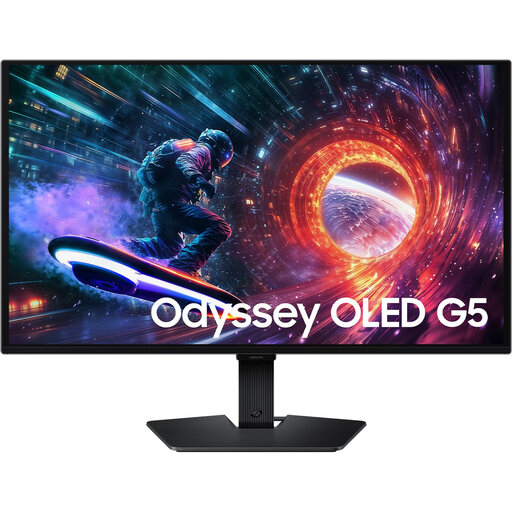 No image available
An option if you want to view slides on a 27-inch QHD screen and use an HDMI or DisplayPort connection.
27 inches; QHD 2560 × 1440; OLED; 180 Hz.
HDMI 2.0 and DisplayPort 1.2; tilt from −2° to 15°.
 No image available
An option if you want to view slides and editing panels on a 27-inch QHD screen.
2560 × 1440 pixels; 180 Hz.
Two HDMI 2.0 ports and one DisplayPort 1.4 port.
 No image available
An option if extra detail in slides matters and the connected computer supports the display settings you want.
27 inches; 4K, 3840 × 2160 pixels; IPS.
 No image available
An option if you want to compare 4K resolution and height adjustment for a shared desk.
3840 × 2160 pixels; USB-C with DP Alt Mode and up to 98 W Power Delivery; height, tilt and swivel adjustment.
For video over USB-C, the laptop must support DP Alt Mode. Compare the stated power output with the laptop’s charging requirements.
 No image available
An option if you want to compare 4K detail and an adjustable stand for reviewing slides.
27 inches; 3840 × 2160 pixels; IPS; USB-C with up to 90 W Power Delivery; 150 mm height adjustment and tilt.
For video over USB-C, the laptop must support the required video signal transmission. Compare the power output with the laptop’s charging requirements.
Readjust the workstation before you start. Arboportaal recommends, among other things, placing the screen directly in front of you, positioning the top just below eye level and tilting the screen so you can look straight at it. The exact setup may vary from person to person.
No. First check whether the laptop supports video over USB-C, then compare its charging requirements with the monitor’s power output. BenQ specifies DisplayPort Alt Mode and up to 65 W Power Delivery for the GW2790QT, but that doesn’t mean it’s compatible with every other laptop.
Employers have obligations regarding workstation setup for display screen work. Arboportaal explains that if you work at a screen for more than two hours a day, the screen and keyboard must not be attached to one another. It also outlines the conditions under which exceptions to the rules may apply. This relates to a workplace covered by the relevant employment rules, not automatically to every personal purchase or lesson activity.
Compare the EU energy label for the exact model. The European Commission states that computer monitors are covered by the rules for electronic displays, and that the label shows an efficiency class on a scale from A to G, along with screen information. To work out your costs, you’ll also need your usage time and electricity tariff.
For a personal online purchase, you generally have 14 days from delivery to change your mind, with some exceptions, according to ACM ConsuWijzer. If a product is faulty, the seller is responsible for the statutory guarantee; a manufacturer’s warranty does not replace this consumer right, according to the Netherlands Authority for Consumers and Markets. If you’re buying on behalf of an organisation, check the agreed terms.