
Teacher with limited desk space
You plan lessons among books, notes and your keyboard. The space available for the screen and stand will help determine which set-up works for you.


Start by measuring the available width and depth of your desk, leaving room for your keyboard and teaching materials. For long lesson plans, Dell says a 16:10 screen such as the Dell P2425 has more vertical pixels than a 1920 × 1080 Full HD screen. If desk space is the deciding factor, a compact fixed monitor may be a better fit. A portable second screen is worth considering if you move between workspaces, but always check the stand dimensions, screen positioning and compatibility with your laptop.
You plan lessons among books, notes and your keyboard. The space available for the screen and stand will help determine which set-up works for you.
You spend a lot of time on lesson plans and want a comfortable layout for your text and documents, without assuming that a larger screen will fit on your desk.
You move between your laptop and different workspaces, or want to spend less time handling cables. In that case, connectivity and screen positioning are important factors to consider.
Best for: a desk where width is limited, and you usually work on one lesson document at a time.
Trade-off: a smaller screen offers less physical space for multiple windows. Lenovo's ThinkVision T22i-30 is a 21.5-inch example with a height-adjustable stand.
Best for: reading and editing long lesson plans, if a screen of around 24 inches will fit on your desk.
Trade-off: extra vertical pixels don't reduce the amount of desk space you need. Dell specifies a resolution of 1920 × 1200 pixels for the P2425.
Best for: regularly connecting a laptop, when the monitor's video and charging features are compatible with it.
Trade-off: check your laptop's video capabilities and the power it needs to charge. According to Dell, the USB-C port on the Dell P2425 is a data downstream port providing up to 15 W; don't confuse it with the separate P2425E.
Best for: moving between workspaces or putting the screen away after lesson planning.
Trade-off: a portable stand won't necessarily offer the same adjustment options as a fixed monitor. The Philips 16B1P3302D/00 requires DP Alt mode for video over USB-C; ASUS says the MB16ACE needs a DisplayLink driver for video over USB-A.
| What to consider | What to check before buying | Who is this important to? |
|---|---|---|
| Space for the screen and stand | Measure the available width and depth; compare the dimensions including the stand. | I want to keep my books and keyboard on the same work surface. Around 28% of consumers prioritise keeping the remaining desk space free for materials. |
| Reading space for lesson plans | Compare the resolution and aspect ratio with the physical screen size. | I often work with long lesson documents and need enough vertical space to view them. Around 22% of consumers give this space top priority. |
| Screen positioning | Check for height adjustment and tilt; consider where the screen will sit in relation to the window. | I want to position the screen to suit my workspace and the available light. Around 22% of consumers start by looking at adjustment options. |
| Connecting and charging a laptop | Check the port's video capabilities, charging power and compatibility with your laptop. | I want to connect my laptop and, if needed, charge it through the monitor. Around 17% of consumers prioritise laptop connectivity. |
| Taking it with you or putting it away | Check its size when in use, the stand and compatibility with your laptop. | I want to be able to take the screen with me or put it away after use. Around 11% of consumers prioritise this flexibility. |
The stand takes up space too, and you'll also need room for your keyboard and teaching materials.
Measure the available work surface and compare the width and depth of the complete set-up before choosing a screen.
According to Dell, the Dell P2425 has a USB-C downstream port for data at up to 15 W. This is different from the USB-C features of the separate P2425E.
Check the full model number, the function of the specific port and your laptop's requirements.
If the connections aren't compatible, you may need a different cable, an adapter or a separate charger.
A folio stand or tilt support won't necessarily offer the same adjustment options as a fixed monitor with height adjustment.
Choose a portable screen mainly if you really do move between workspaces, and consider whether you can position it comfortably alongside your laptop.
The ThinkVision T22i-30 is a fixed 21.5-inch option for anyone who also values adjustability on a small desk.
The P2425 offers 16:10 document space; the separate P2425E is designed for those who also want a USB-C hub.
The GW2490 is a fixed 23.8-inch Full HD option for comparing screen size and straightforward video connections.
The ZenScreen MB16ACE is a portable second-screen option for people who move between workspaces.
The 16B1P3302D/00 is a portable 15.6-inch option with a tilt-adjustable stand and two USB-C ports.
This selection includes fixed monitors for a desk and portable screens for anyone who wants to be able to put a second screen away.
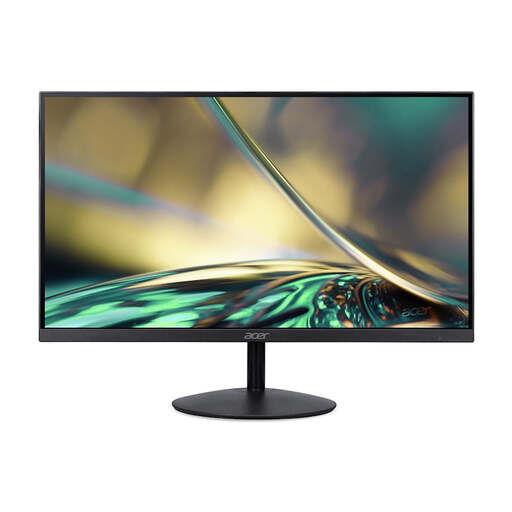 No image available
A fixed monitor to consider if you have room for a screen of around 24 inches.
23.8 inches; 1920 × 1080; 100 Hz; 1 ms; HDMI and VGA.
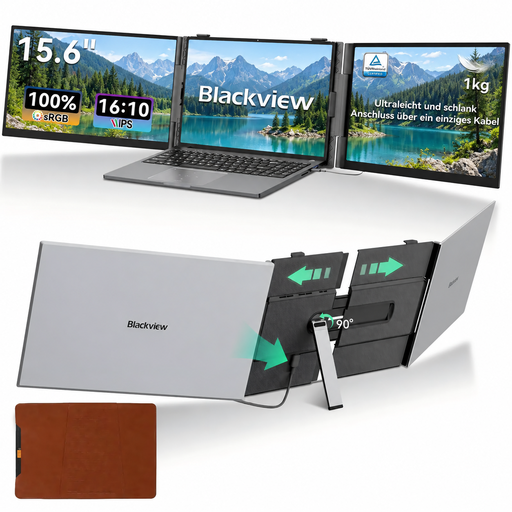 No image available
A portable second-screen option if you move between workspaces and the screen size suits your laptop.
14 inches; Full HD (1920 × 1080); according to the product description, suitable for 13–17.3-inch laptops.
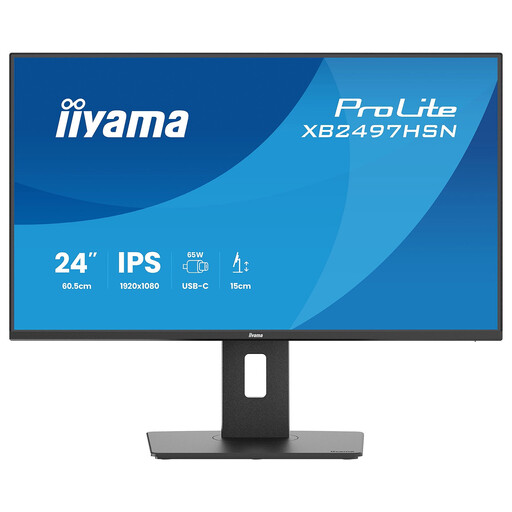 No image available
A fixed monitor to consider if you're looking for an adjustable set-up and USB-C docking features.
23.8 inches; 1920 × 1080; height-adjustable stand; USB-C with up to 65 W, HDMI, DisplayPort and RJ45. USB-C video and charging require a compatible laptop.
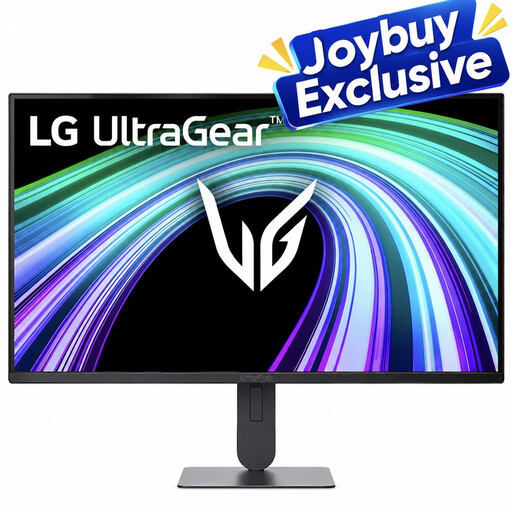 No image available
A fixed monitor to compare if you're looking for a height-adjustable stand.
23.8 inches; 1920 × 1080; IPS; DisplayPort 1.4; stand with height and tilt adjustment.
 No image available
A portable second screen to consider if you want to put it away after use.
15.6 inches; 1920 × 1080; USB-C for video and power; mini-HDMI; VESA mounting; smart cover that doubles as a stand.
No, it depends on the capabilities of the laptop and monitor. Philips requires DP Alt mode for video over USB-C on the 16B1P3302D/00; ASUS says the MB16ACE needs a DisplayLink driver for video over USB-A. Check your laptop's connection and the manual for the exact screen model.
Leave room for your keyboard and documents, and avoid reflections. The Arbocatalogus PO recommends positioning the screen at right angles to the window and using a document holder if needed. The best arrangement will depend on your desk and the light in the room.
For employees who spend more than 2 hours a day doing screen-based work, Arboportaal states that the screen and keyboard must not be attached to each other. Discuss the set-up of a workstation for which your employer is responsible with them; this won't automatically apply in the same way to every private user.
For a standard online consumer purchase, ACM ConsuWijzer says you generally have a statutory 14-day cooling-off period after delivery, with some exceptions. Check the returns information before buying, and don't assume the same rules apply to a business purchase.
No, paid-for extended cover isn't a condition of your statutory rights. ACM ConsuWijzer says you can ask the seller for a free remedy if a product breaks sooner than you could reasonably expect during normal use. Any additional manufacturer's or seller's guarantee is separate from this.