What should you look for when buying?
First, check that the monitor fits on your desk and can be adjusted comfortably for both desk positions. Then decide how many documents you want to view at once and whether your laptop needs docking connections.
| What to consider |
What should you check? |
Who is this important for? |
| Screen position when sitting and standing |
Check the height adjustment, tilt and stand dimensions. See whether you can position the screen comfortably in both working positions. |
If I switch between sitting and standing, I want to be able to position the screen properly each time. Around 36% of consumers say that setting up their workstation is their top priority. |
| Room for sources and lesson plans |
Compare the screen size and resolution with your desk and preferred text layout. An ultrawide needs more width than a compact screen. |
If I want to view historical sources and my lesson plan side by side, I consider the available screen space. Around 29% of consumers say viewing documents at the same time is their top priority. |
| Connecting to your teaching laptop |
Check the video output through your laptop port, the charging power required and the cable. Compare these with the features of the exact monitor model. |
If I regularly connect my laptop, I want to know whether the chosen connection supports the display, peripherals and charging. Around 21% of consumers say connecting their laptop is their top priority. |
| Limited desk space or budget |
Measure the available width and depth, and check that the monitor stand will fit. Consider features you won’t use when comparing models. |
If my desk has limited space or I want to stay within budget, I compare compact models and focus only on the features I need. Around 14% of consumers say space or budget is their top priority. |
Monitors at Joybuy
These models suit compact workspaces, adjustable QHD monitors and wider screens for viewing multiple documents. Before buying, check that the dimensions and connections suit your desk and laptop.
 Image unavailable
Dell Pro Plus P2425DE
A compact QHD option if you’re looking for an adjustable monitor for a sit-stand desk.
24 inches; 2560 × 1440 pixels; adjustable stand; USB-C with 90 W Power Delivery and RJ45. Display and charging via USB-C depend on your laptop connection, cable and required charging power.
View at Joybuy
 Image unavailable
Dell Pro Plus P2725D
An adjustable 27-inch QHD screen for viewing documents side by side.
27 inches; 2560 × 1440 pixels; height, tilt, swivel and pivot adjustment.
View at Joybuy
 Image unavailable
Dell Pro Plus P3425WE
An ultrawide for viewing multiple windows at once, provided you have enough desk width.
34.1 inches; 3440 × 1440 pixels; height-adjustable stand; USB-C with 90 W Power Delivery and RJ45. Check the space available. USB-C display and charging depend on your laptop connection, cable and required charging power.
View at Joybuy
 Image unavailable
Dell UltraSharp U4924DW
A very wide screen for displaying multiple sources and your lesson plan at once, if you have enough desk space.
49 inches; 5120 × 1440 pixels; USB-C with 90 W Power Delivery; KVM function. The listed width is approximately 121.49 cm. Check your laptop connection, cable and required charging power.
View at Joybuy
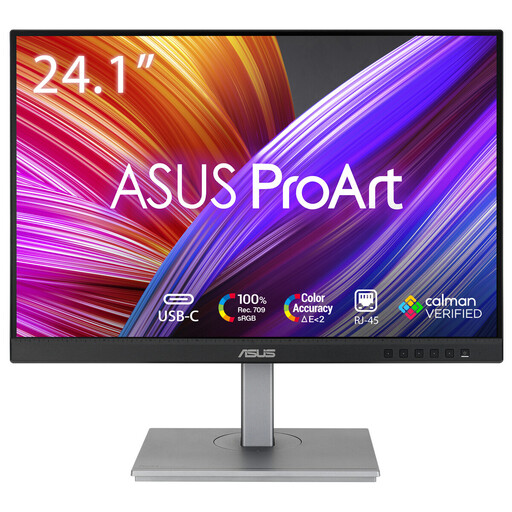 Image unavailable
ASUS ProArt PA248CNV
A compact monitor with an adjustable stand for a workstation where laptop docking is also useful.
24.1 inches; 1920 × 1200 pixels; height, tilt, swivel and pivot adjustment; USB-C with 90 W Power Delivery and RJ45. USB-C display and charging depend on your laptop connection, cable and required charging power.
View at Joybuy
Frequently asked questions
Is a height-adjustable monitor enough for a sit-stand desk?
No, you also need to be able to position the monitor comfortably for your own sitting and standing positions. Dutch workplace guidance emphasises an adjustable workstation and alternating between positions; the monitor specifications alone don’t confirm that the whole workstation is set up appropriately.
Can every USB-C laptop display video and charge through one cable?
No, having a USB-C port alone doesn’t guarantee this. Check whether the laptop outputs video through that connection, how much charging power it needs, and whether the cable and monitor support the required features. AOC lists DisplayPort Alternate Mode for the Q27P4CV’s video connection.
How should you adjust the monitor after buying it?
Readjust the screen position whenever you change the desk height, and break up screen-based work with other tasks or rest. Follow the instructions for the exact model when connecting and cleaning it.
Do you need to buy additional warranty cover for a monitor in the Netherlands?
No, your legal rights when buying as a consumer apply even without paid additional warranty cover. According to the Dutch Government, there is no fixed statutory warranty period in the Netherlands; contact the retailer if a product is faulty. If you buy additional cover, check what extra protection it offers.
Does Dutch law specify a monitor size for preparing lessons?
Guidance from Arboportaal sets out responsibilities for safe and healthy screen-based work and requirements for the workstation, but does not specify a required monitor size or model. What applies depends on the working and usage situation, so a particular screen size is not automatically a general legal requirement when buying.


