
Anyone who creates long lesson handouts
If you mainly edit text, extra vertical document space could be important. Dell Netherlands and Lenovo Netherlands list a resolution of 1920 × 1200 pixels for the 16:10 models mentioned.


For long lesson handouts, a 16:10 screen with a resolution of 1920 × 1200 pixels is a good choice if you want more vertical document space. Dell Netherlands and Lenovo Netherlands list this resolution for the models mentioned, compared with 1920 × 1080 for the 16:9 models mentioned. If you regularly switch between laptops, look for a USB-C hub, but check that your laptop supports the required video connection and charging power. At a shared desk, the adjustment options of the exact model also matter.
If you mainly edit text, extra vertical document space could be important. Dell Netherlands and Lenovo Netherlands list a resolution of 1920 × 1200 pixels for the 16:10 models mentioned.
If several people want to connect their laptops to the screen, check that the monitor and laptop both support the USB-C features you need for the way you work. Dell Netherlands lists different USB-C features for the P2425E and P2425H.
If several people use the same desk, the adjustment options on the screen and stand are important. Arboportaal advises placing the screen directly in front of the user and adjusting its position to suit the workstation.
A good fit if: you want more vertical document space while editing handouts. The Dell P2425 and Lenovo ThinkVision T24d-30 models mentioned have a resolution of 1920 × 1200 pixels.
Bear in mind: if you also want to power your laptop through the monitor, check that the version you choose supports this feature.
A good fit if: you regularly connect a compatible laptop and want hub functionality. Dell lists a resolution of 1920 × 1200 pixels and power delivery of up to 90 W via USB-C for the P2425E.
Bear in mind: check your laptop’s video connection and charging requirements before relying on the hub.
A good fit if: adjusting the screen position is more important than having extra vertical pixels. Dell lists height adjustment, tilt, swivel and pivot for the P2425H.
Bear in mind: the P2425H has a resolution of 1920 × 1080 pixels. Dell describes its USB-C downstream port as providing data and power of up to 15 W, not as a laptop dock.
First decide how much document space you need. Then consider how the screen can be adjusted at a shared workstation, and finally check which connections your laptop requires.
| What to consider | What should you check? | Who is this important for? |
|---|---|---|
| Document space | Compare the resolution and aspect ratio: the 16:10 models mentioned have a resolution of 1920 × 1200 pixels, while the 16:9 models mentioned have a resolution of 1920 × 1080. | If I want to see more lines of a handout at once while editing, I focus on vertical document space; around 33% of consumers say document space is their top priority. |
| Switching between laptops | Check for video over USB-C, the required charging power, the hub ports and which cables come with the exact model. | If I regularly connect a different laptop, I want to know whether the USB-C connection is suitable for that; around 25% of consumers say switching laptops quickly is their top priority. |
| Screen position | Check the adjustment options on the supplied stand and whether you can position the screen properly at the shared workstation. | When several people use the same space, I want to be able to adjust the screen position for each user; around 25% of consumers say adjustability is their top priority. |
| Connections | Compare the video inputs with your computer and check what each USB port does. | If my computer can already be connected in a suitable way, I don’t want to choose a docking function I don’t need; around 17% of consumers say a simple connection without an unnecessary docking function is their top priority. |
USB-C features vary by model. Dell lists a downstream port for data and power of up to 15 W on the P2425H, while the P2425E has a USB-C hub with power delivery of up to 90 W.
Check what the USB-C port is designed for on the exact monitor model, whether it supports video and how much power it provides. Compare this with your laptop’s requirements.
If the connection isn’t suitable for your laptop, you may still need a separate connection or dock.
The 1920 × 1200 screens mentioned have 120 more vertical pixels than the 1920 × 1080 screens mentioned.
Compare the resolution and aspect ratio of the exact models, not just the screen size.
A fixed screen position may not suit every user. Arboportaal advises placing the screen directly in front of the user and adjusting its position to suit the workstation.
Check which adjustments are available on the stand and whether you can position the screen properly on the desk.
If the supplied stand isn’t suitable for your workstation, you may need a different stand or a suitable monitor arm.
The Dell Pro Plus models mentioned illustrate differences in aspect ratio, adjustability and USB-C features.
The ThinkVision T24d-30 is a 24-inch 16:10 model for document work at an adjustable workstation.
The Business Monitor 24B2U4301/00 is a 23.8-inch Full HD option with USB-C, which you can compare with document-focused 16:10 models.
These Joybuy monitors are options to compare for document work at a shared desk. Check that the screen size, connections and adjustment options suit your workstation.
 No image available
A 27-inch option if you’d like a larger screen for office work.
2560 × 1440; Fast IPS; 120 Hz OC; tilting stand; VESA 100 × 100 mm.
 No image available
An option to compare if you’re looking for a 27-inch screen for work or study.
3840 × 2160; IPS; 60 Hz; HDMI and DisplayPort; height-adjustable stand.
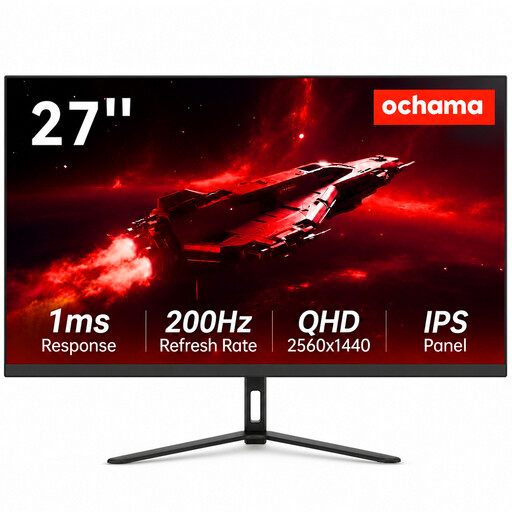 No image available
The product name describes this 27-inch monitor as suitable for both gaming and office work.
2K resolution and a 200 Hz refresh rate. Check that the connections and adjustment options suit your workstation.
 No image available
A 27-inch option to consider if you want to compare a high stated resolution with a range of connectivity features.
4K 160 Hz/FHD 320 Hz; Type-C 65 W; KVM; tilt, swivel and height adjustment; VESA. Check that the Type-C features and KVM suit your laptop and other equipment.
 No image available
A 24-inch option for document work if you’re looking for QHD resolution.
2560 × 1440 pixels.
Position the screen directly in front of you, and adjust it when another user takes over the workstation. Arboportaal advises adjusting the screen position to suit the user, so check that the stand offers enough adjustment options.
Arboportaal states that for employees who work with display screens for more than 2 hours a day, the screen and keyboard must not be attached to each other. Whether these workplace rules apply in a particular setting depends on the working arrangements; this isn’t a product specification for every buyer.
No. Dell lists a USB-C downstream port for data and power of up to 15 W on the P2425H, and a USB-C hub with power delivery of up to 90 W on the P2425E. Also check which features your laptop’s port supports and how much power your laptop needs.
For a consumer purchase in the Netherlands, the seller is your point of contact for the statutory guarantee, not the manufacturer. According to the Dutch government, there is no fixed statutory guarantee period; what you can expect depends, among other things, on the product and the information provided. Check any manufacturer’s warranty and the terms of the specific purchase separately.
For an applicable distance purchase by a consumer, the Dutch government states that a 14-day cooling-off period applies in many cases, subject to exceptions. Check the seller’s information for the specific order.