
Photo editors with a small desk
You want to check straight lines and image edges without the monitor stand taking up too much work surface. So compare the full dimensions, including the stand, with your desk.


Start by checking how much desk space you have, then decide how many pixels you need to view your photo, image edges and correction panels at the same time. A 24–25-inch monitor may fit more easily than a 27-inch model, while print work calls for extra attention to colour gamut and calibration. Lens distortion is corrected in editing software; your monitor helps you assess the result.
You want to check straight lines and image edges without the monitor stand taking up too much work surface. So compare the full dimensions, including the stand, with your desk.
You want to view the photo and editing panels at the same time. Adobe describes lens correction as a feature of editing software; resolution and screen layout determine how much workspace you have on screen.
After correcting the geometry, you also assess colours for print. Check the stated colour gamut and look for a calibration method that suits your workflow.
First measure the space available for the screen and stand. Then decide whether extra pixel space, colour management or a straightforward laptop connection matters most for your work.
| What to consider | What to check before buying | Who should pay extra attention? |
|---|---|---|
| Will the monitor fit on your desk? | Measure the available width and depth, then compare them with the dimensions including the stand. BenQ lists a stand depth of 256,9 mm for the PD2506Q; ASUS describes the PA248CRV as having a compact stand. | I want to leave enough room for my keyboard and workspace. Around 36% of consumers put desk fit first. |
| Room for your photo and panels | Compare the resolution, aspect ratio and readability at your usual scaling. 16:10 offers more vertical pixels than 1920 × 1080, but a 27-inch 4K screen takes up more physical space. | I want to see image edges and correction panels at the same time without taking up more desk space than necessary. Around 29% of consumers prioritise visible detail and room for panels. |
| Colour management for print | Check the stated sRGB and AdobeRGB coverage, and confirm whether a suitable external sensor for hardware calibration is included with the version you choose. EIZO specifies more than 99% AdobeRGB for the CS2400S. | I want to assess colours for print as well as geometry. Around 21% of consumers make colour management their top buying priority. |
| Connecting to a laptop | Check whether your laptop supports video output through the monitor connection and whether the charging power is sufficient. ASUS lists 96 W Power Delivery for the PA248CRV; BenQ lists 65 W for the PD2506Q. | I want to connect my laptop appropriately and, where possible, use the same cable for video and power. Around 14% of consumers prioritise video and power connectivity. |
Even a 25-inch model can take up a fair amount of desk depth once you include the stand.
Measure the available width and depth, then compare them with the full product dimensions. If you use a monitor arm, also check the mounting system and weight capacity.
Lens correction is a software feature; colour gamut matters when assessing colour and is a separate part of your photo workflow.
First choose a screen that lets you assess lines, angles and cropping clearly. Give colour management extra priority if you need it for your output, such as print.
A USB-C port on a monitor does not guarantee that every laptop supports video output through it or can be charged at the available power level.
Compare your laptop’s video output and charging requirements with the specifications of the exact monitor model.
Depending on your laptop, you may need an extra video cable or a separate power supply.
A difference in the model code may relate to the stand supplied or other parts of the configuration.
Check the full model code, the stand supplied and the rest of the box contents before comparing versions.
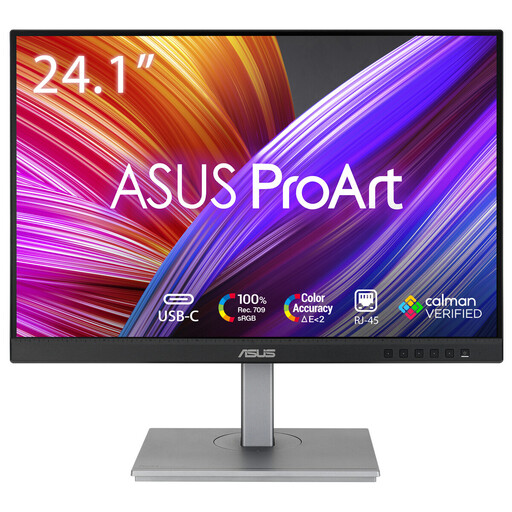
The ProArt PA248CRV is aimed at anyone looking for a 24.1-inch 16:10 screen with a compact stand and laptop connectivity.
The DesignVue PD2506Q is a 25-inch option for anyone looking for more pixels in a relatively compact screen size.
The ColorEdge CS2400S is designed for a compact photo and print workflow with a focus on colour management.
The UltraFine 27UP850K-W is designed for anyone with room for a 27-inch screen who wants 4K detail.
The UltraSharp U2424H is an adjustable 23.8-inch work monitor for anyone who finds Full HD sufficient.
This selection ranges from a portable 16-inch screen and a 24.1-inch model to 27-inch monitors. Compare the dimensions with your desk and weigh the available pixel space against the screen size you want.
 No image available
The portable 16-inch size is an option when desk space is limited.
2560 × 1600 pixels, 16:10, IPS and 2.5K.
The product name lists a built-in stand, two USB-C ports and Mini HDMI.
 No image available
A 24.1-inch option for anyone looking for a compact screen with extra vertical pixel space.
1920 × 1200 pixels and a 16:10 aspect ratio.
The product listing mentions USB-C with 90 W Power Delivery; check that this suits your laptop’s video and charging requirements.
 No image available
This 27-inch model is an option if your desk has enough room for a larger screen.
3840 × 2160 pixels and an IPS panel.
 No image available
A 27-inch option for anyone looking for 4K resolution and with enough desk space for it.
3840 × 2160 pixels and 60 Hz.
The product name lists HDMI, DisplayPort and a height-adjustable stand.
 No image available
This 27-inch model is an option if you want QHD pixel space and have room for a larger screen.
2560 × 1440 pixels.
The product description lists 100% sRGB and factory calibration; the 16:9 aspect ratio does not provide the extra vertical pixels of 16:10.
No, lens distortion is corrected in editing software; the monitor displays the result. Adobe describes lens profiles for barrel and pincushion distortion, among other things, as well as separate perspective corrections. Check whether your software has a profile for your lens and file type.
Check the crop before exporting your photo. Adobe warns that strong perspective correction can crop parts of an image and that corrections can leave empty edges, so compare the available transform methods.
Not just to correct lens distortion. If you want to measure and adjust the colour output of a ColorEdge monitor using hardware calibration, EIZO describes using an external sensor with ColorNavigator 7. Check what is included with the version you choose.
When buying online from a business, you will often have 14 days to change your mind; check the terms that apply to your purchase. You are also entitled to a product that is fit for purpose. According to the Dutch government, there is no fixed statutory warranty period in the Netherlands; contact the seller if the product is faulty.