What should you consider when choosing?
First measure the available desk space, then decide how much data you want to see at once and which connections your laptop supports.
Adjustable Full HD office monitor
Best for: viewing one lending system, report or table at a time, with an adjustable setup as a priority.
Consider: Full HD has fewer pixels than QHD. Also check that the stand and viewing position suit your desk.
Compact QHD monitor with hub
Best for: viewing lots of columns, reports or charts, using a laptop that can output video through a suitable connection.
Consider: extra pixels are only useful if the text is still readable at a comfortable size. Also check your laptop’s USB-C features.
16:10 monitor for documents
Best for: anyone who mainly reads reports or long tables on a compact screen.
Consider: the aspect ratio doesn’t remove the need to measure the stand and the available desk depth.
| What to consider |
What should you check? |
Who should pay particular attention? |
| Workspace |
Measure your desk and the clear worktop space, then compare this with the monitor’s dimensions, including the stand. |
If I use a keyboard, mouse and perhaps documents on the same small desk, I want to know how much space the complete setup will take up. Around 36% of consumers prioritise keeping their worktop space. |
| Adjustability |
Check height adjustment, tilt and swivel, and consider where your light sources are. |
During long analysis sessions, I want to adjust my viewing position and take distracting reflections into account. Around 29% of consumers give adjustability their top priority. |
| Viewing data |
Compare Full HD and QHD with your lending system and the text size you find comfortable to read. |
If I view lots of columns or reports, I want to see how much data is visible at once without making the text uncomfortably small. Around 21% of consumers prioritise being able to see more data. |
| Connection |
Check video output via USB-C, the charging power required and the cable you’ll need. |
If you want to connect a laptop with as few cables as possible, first check that both the laptop and monitor support that connection. Around 14% of consumers give a suitable one-cable connection top priority. |
Monitors on Joybuy
This selection of Joybuy products includes screens for compact table and document work, from a portable model to office-sized monitors. Check that the complete setup fits your desk, that you have the connections you need and that the text is easy to read.
 No image available
TECLAST V16Q 16-inch portable monitor, 2.5K, 16:10, 144 Hz, IPS
The 16:10 format is worth considering for documents and long tables. Check that the portable size suits your workspace.
Specifications in the product name: 2.5K, 144 Hz, IPS and 16:10.
View on Joybuy
 No image available
Dell Pro Plus P2425DE 24-inch QHD USB-C monitor
An option if you want to view lots of data in lending tables. Check that the text remains readable at your preferred size and that your laptop supports video via USB-C.
The product title lists 61 cm (24 inches), 2560 × 1440 pixels and LCD. The product description mentions a USB-C hub and up to 90 W Power Delivery.
View on Joybuy
 No image available
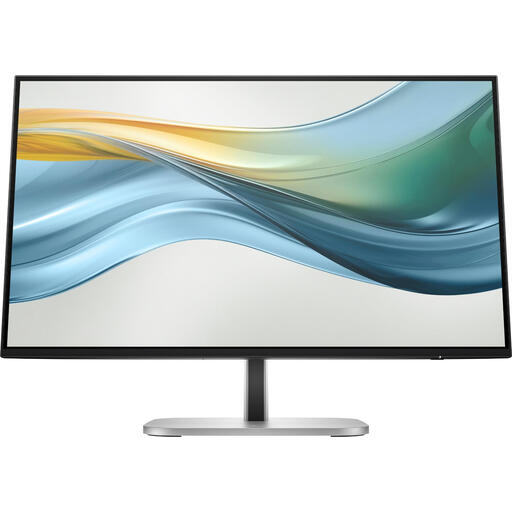
HP Series 5 Pro 23.8-inch FHD USB-C monitor, 524pu
A Full HD option if you view one report or table at a time and want to use USB-C. Check that the connection and power delivery are compatible with your laptop.
The product information lists a 23.8-inch screen, Full HD, USB-C with up to 100 W Power Delivery and Ethernet. The power adapter is not included as standard.
View on Joybuy
 No image available
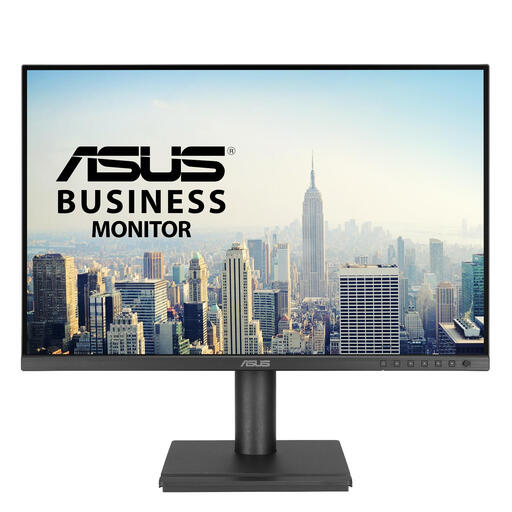
ASUS BE248CFN 24.1-inch WUXGA monitor
The 16:10 format can make it easier to view long reports. Measure the stand and check that the viewing position suits your desk.
The product information lists 1920 × 1200 pixels, WUXGA, a matt screen surface and height adjustment of up to 13 cm.
View on Joybuy
 No image available
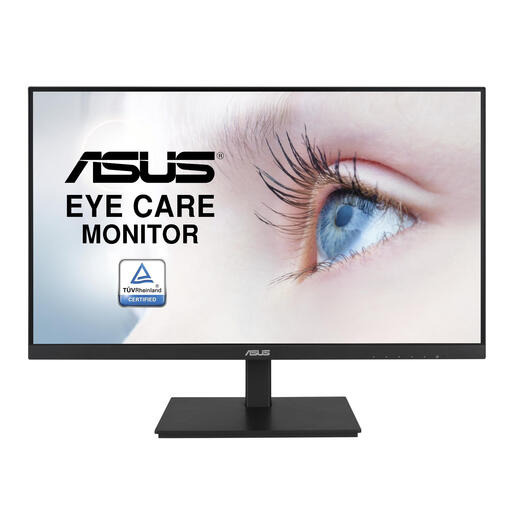
ASUS VA24DQSB 23.8-inch Full HD monitor
An option if you view one application or report at a time and want to adjust the viewing height. Check how much space the stand takes up.
The product title lists 60.5 cm (23.8 inches), 1920 × 1080 pixels and Full HD. The product description mentions a USB hub, built-in speakers and a height-adjustable stand.
View on Joybuy
Frequently asked questions
Do I need QHD to analyse lending tables?
No, not for every type of work. The 23.8-inch models reviewed include both Full HD and QHD. Choose based on how much data you want to see at once and what text size you find comfortable to read.
Can every laptop send video to a monitor through a single USB-C cable?
No. Check the specifications to see whether your laptop’s USB-C port supports video output, and compare the required charging power with that of the monitor. The presence of a USB-C port alone isn’t enough.
How should I set up a monitor for long analysis sessions?
Adjust your viewing position and lighting, and reduce distracting reflections. For computer workstations, Arboportaal also highlights the importance of varying your activities. This is not the same as a legally required break duration for every individual user.
What Dutch rules apply to an employee’s workplace?
According to Arboportaal, if an employee spends more than two hours a day working at a screen, the screen and keyboard must not be attached to each other. An employee using a laptop must then be able to use a separate screen or keyboard. These requirements for employees are not product specifications for all individual buyers.
What can I do if a monitor I bought privately develops a fault too soon?
For a consumer purchase in the Netherlands, the retailer is responsible if the product does not perform as you could reasonably expect under normal use. ACM ConsuWijzer lists repair, replacement or a refund as possible solutions. An additional manufacturer’s warranty does not replace your statutory rights.


