Start by adjusting the text size and display scaling on your computer. Then consider how much of the guide and source material you want to see at once. A 27-inch QHD monitor is worth considering if you want to view enlarged text alongside other windows. Full HD offers fewer pixels and 4K offers more, but neither makes text larger automatically. Also check the adjustability of the exact model and, if you’re using a laptop, make sure the connection and charging power meet your needs.
Who might find this monitor guide useful?
Writers who need large print
You want to write and proofread your guide using a text size that’s comfortable for you to read. Try adjusting the text size or display scaling on your computer before choosing a monitor: a higher resolution won’t automatically make text larger. Microsoft Support explains how to change text size in Windows.
Writers who need to view sources alongside their guide
You want to keep notes or source material on screen while you write. Consider how much workspace remains at a text size you find comfortable, rather than looking at screen size alone.
Writers using a shared service desk workstation
You want to be able to adjust the screen position to suit the user and the setup. If you’re using a laptop, the connection may also be a factor. Workplace requirements for employees depend on the working situation; Arboportaal explains the circumstances.
What to look for in a monitor for large text
First, set your preferred text size on your computer, then see how much of the guide and source material remains visible at once. Next, compare the screen’s adjustability and, if you use a laptop, check that the computer’s connections are compatible with those on the exact monitor model.
| What to consider |
What to look for when buying |
Who is this most relevant for? |
| Readability |
Try the text size and display scaling on your own computer. Microsoft Support warns that setting the screen resolution below the recommended level can make text look blurry. |
If I need to write and check longer sections of a guide at a comfortable size, I want to be able to enlarge the text without unnecessarily lowering the resolution. Around 36% of consumers put readability first. |
| Room for the document and sources |
Open the guide and a source window side by side at your preferred scaling. The 27-inch QHD models mentioned have 2560 × 1440 pixels; scaling settings also affect how much text remains visible. |
If I want to keep source material alongside the guide, the available workspace at my chosen text size matters. Around 29% of consumers prioritise workspace. |
| Adjustable workstation |
Check whether the stand offers height adjustment, tilt, swivel or pivot, and whether it fits on the desk. For employees who spend more than two hours a day working with a screen, Arboportaal notes, among other things, that the screen and keyboard must not be attached to each other. |
If the monitor is used by different people, I want to be able to adjust the screen position to suit the workstation. Around 21% of consumers prioritise workstation adjustability. |
| Computer connection |
Compare your laptop’s video output and charging requirements with the connections and charging power of the exact model. Dell lists 90 W for the P2725DE; LG lists 65 W for the 27BA65QB-B. |
If I connect a laptop, I want to know whether it can send a video signal through the chosen connection and receive enough power. Around 14% of consumers prioritise connectivity. |
Pitfalls when choosing and connecting a monitor
-
Assuming a higher resolution automatically means larger text
Resolution and your text or interface size settings are two separate things. Microsoft Support warns that setting the resolution below the recommended level can make text look blurry.
Before choosing a monitor, try your preferred text size and scaling on your own computer at the recommended resolution.
-
Assuming a tilting stand offers full height adjustment
The LG 27U411A-B is listed as tilting; LG also lists height, swivel and pivot adjustment for the LG 27BA45QB-B.
Check the adjustment options for the exact model and make sure the screen sits at a suitable height on your desk.
-
Assuming every USB-C port provides full laptop docking
A USB-C listing alone doesn’t tell you whether the laptop supports video through that connection or will receive enough power. The listed features and charging power vary by model.
Check your laptop’s video support and charging requirements against the monitor specifications.
Brands to consider
LG
The LG models discussed here vary in resolution and stand adjustment options. The features listed apply to each model, not to the entire range.
- LG Netherlands lists height, swivel and pivot adjustment for the 27BA45QB-B.
- The 27U411A-B is listed as tilting, so check the adjustment options for the specific variant.
Dell
The Dell P2725DE discussed here is a QHD model with a USB-C hub; the S2725QC is a separate 27-inch 4K monitor.
- Dell lists 90 W USB-C power delivery for the P2725DE and 3840 × 2160 pixels for the S2725QC.
- Ports and resolution vary by model. Check the details of the variant you’re considering.
Philips
The Philips 27E1N5600AE/00 discussed here is a 27-inch QHD monitor that Philips says can connect to a notebook via USB-C.
- Philips describes video, data and charging over USB-C for compatible devices.
- Check that the video and charging features suit your notebook. This is a manufacturer specification, not an independent test of your setup.
AOC
The AOC Q27P4U discussed here is a 27-inch QHD work monitor with a USB hub and height-adjustable stand.
- AOC lists 2560 × 1440 pixels, height adjustment and a retractable USB hub.
- A USB-C port on the hub doesn’t automatically mean the monitor offers the same laptop docking features as a model specifically designed for that purpose.
Joybuy products for writing with enlarged text
This Joybuy selection includes monitors for writing and checking a guide, from 27-inch QHD and 4K models to an ultrawide model with 5120 × 2160 pixels. Set text enlargement separately, and check laptop compatibility for models with USB-C.
 No image available
INNOCN 40C1U 40-inch monitor
The wide display may be worth considering if you want to view the guide alongside other material; see how the layout works with your text scaling.
40 inches, 21:9; 5120 × 2160 pixels; PIP and PBP; USB-C with up to 65 W Power Delivery; height-adjustable, tiltable and swivelling.
View at Joybuy
 No image available
Dell UltraSharp U2724D 27-inch QHD monitor
A 27-inch QHD model to consider if you want to view the guide on a separate screen; set the text size and scaling separately.
27 inches; 2560 × 1440 pixels; QHD.
View at Joybuy
 No image available
Dell Pro Plus P2725DE 27-inch QHD monitor
Could suit a workstation with a compatible laptop and a need for USB-C. Check that your laptop supports video through this connection and that the charging power is sufficient.
27 inches; 2560 × 1440 pixels; USB-C with up to 90 W power delivery; RJ45 network connection; height, tilt and swivel adjustment.
View at Joybuy
 No image available
Dell S2725QC 27-inch 4K monitor
Consider this model if you want to make use of the extra pixels offered by 4K; set text enlargement separately.
27 inches; 3840 × 2160 pixels; height-adjustable stand; USB-C with up to 65 W Power Delivery.
View at Joybuy
 No image available
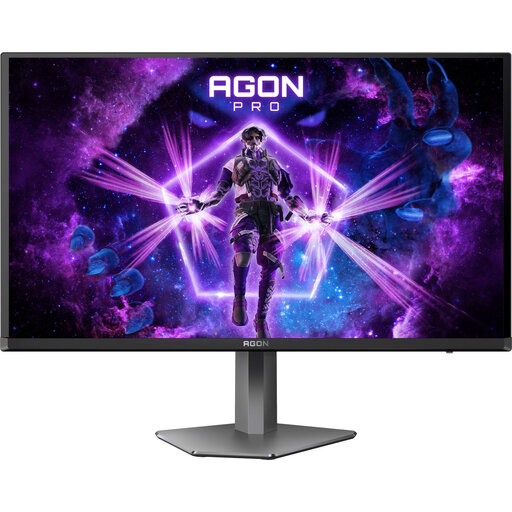
AOC AGON PRO AG276QZD2 27-inch QHD monitor
The range of adjustments may matter if you need to change the monitor position at a shared workstation.
27 inches; QHD, 2560 × 1440 pixels; height, pivot, swivel and tilt adjustment.
View at Joybuy
Frequently asked questions
Do you need to lower the resolution to make text larger?
No. If you’re using Windows, adjust the text size or display scaling instead. Microsoft Support warns that setting the screen resolution below the recommended level can make text look blurry.
Can you connect your laptop to a monitor with a single USB-C cable?
Only if your laptop supports the required video connection and the charging power is suitable for it. Dell lists 90 W for the P2725DE and LG lists 65 W for the 27BA65QB-B; check your laptop’s specifications and the exact monitor model.
What workplace rules apply if you use this monitor at a library service desk?
For an employee who spends more than two hours a day working with a screen, Arboportaal states that the screen and keyboard must not be attached to each other. Whether this applies to your workstation depends on the working and usage situation.
Do you need a 4K monitor to write a guide in large print?
Not necessarily: text size and screen resolution are separate settings. Choose the resolution and screen layout based on the space you need at your preferred text size, and try those settings on your own computer.


