
Photo editors with limited desk space
If you want to see your photo and editing panels at the same time, compare the screen size, aspect ratio and stand footprint with the space available on your desk.


Start by measuring the available desk width and depth, then choose an aspect ratio and colour gamut to suit your editing and output workflow. For viewing images on screen, a compact sRGB monitor may be enough; for a colour-managed print workflow, a wide-gamut model is worth considering. HDR isn’t needed to merge exposures, but it matters if you also want to view and edit the result in HDR.
If you want to see your photo and editing panels at the same time, compare the screen size, aspect ratio and stand footprint with the space available on your desk.
For checking prints, colour gamut, monitor profiles and calibration options are all relevant criteria; screen size alone doesn’t tell you enough.
Merging HDR shots and assessing the result in HDR are two different steps. You’ll also need a compatible screen and system for HDR viewing.
Best for: editing photos for standard screen viewing, with room for both the image and editing panels.
Things to consider: check the stand depth and connections; sRGB coverage alone doesn’t tell you about AdobeRGB coverage.
Best for: assessing prints as part of a colour-managed workflow with suitable profiles and calibration.
Things to consider: measure the depth, including the stand or hood, and check that the resolution suits your preferred workspace.
Best for: using HDR optimisation to view and edit your merged photo in HDR.
Things to consider: an HDR10 label alone doesn’t prove that a screen meets Adobe’s HDR recommendation for Windows.
| What to consider | What should you check? | Who should consider this? |
|---|---|---|
| Desk space | Measure the width and depth, then compare them with the dimensions including the stand or hood. BenQ lists the SW242Q as 533.2 mm wide and 262.6 mm deep with the stand; the stated depth with the hood is 311.4 mm. | If my desk has limited space, I want to know whether the screen will fit with its stand or hood. Around 36% of consumers prioritise physical space. |
| Workspace and detail | Compare both the resolution and aspect ratio. BenQ lists the 16:10 SW242Q as having 2560 × 1600 pixels; ASUS lists the 16:10 PA248QV as having 1920 × 1200 pixels. | If I want to see the photo and editing panels at the same time, I look at the available pixels and vertical workspace. Around 29% of consumers prioritise image detail and workspace. |
| Colour for your final output | Check the colour gamut for the exact model and how the screen is profiled or calibrated. ASUS lists 100% sRGB for the PA248QV, BenQ lists 99% Adobe RGB for the SW242Q, and EIZO lists more than 99% AdobeRGB for the CS2400S. | If I’m assessing prints, I want the colour gamut and colour management to suit my output workflow. Around 21% of consumers prioritise colour for printing. |
| Connections | Check the video connections on both your computer and monitor, and consider whether you need USB-C video and power delivery. BenQ lists USB-C with DisplayPort Alt Mode and 90 W for the SW242Q; ASUS lists HDMI and DisplayPort for the PA248QV. | If I want to keep the number of cables on my desk to a minimum, I check that my computer and screen support the connection I need. Around 14% of consumers prioritise connectivity and cable management. |
The stand and any hood also take up desk depth. This means a screen may need more space than its diagonal measurement suggests.
Measure the available width and depth, then compare them with the dimensions of the model, including the parts you’ll be using.
You may need to change the monitor’s position or mounting if the stand doesn’t fit properly on your desk.
Merging exposures and viewing the result in HDR are two different steps. Adobe specifies a supported HDR screen and system for HDR optimisation; for Windows, Adobe recommends DisplayHDR 1000 or higher. The HDR10 listing for the BenQ SW242Q doesn’t, by itself, show that the screen meets this recommendation.
First decide whether you need HDR output. Then check that the screen, operating system and graphics setup are all compatible.
A monitor profile describes how a screen displays colour. Adobe warns that an incorrect profile can lead to misleading colour assessments, even when a colour gamut is specified.
Compare the stated colour gamut with your output workflow and check how you can profile or calibrate the exact screen.
The SW242Q is a compact 16:10 photo monitor with USB-C and hardware calibration.
EIZO positions the ColorEdge CS2400S for photography and retouching, with a wide colour gamut and hardware calibration.
The ProArt PA248QV is a 24.1-inch 16:10 option for photo editing, with sRGB as its starting point.
The UltraSharp U2424H is a compact general-purpose monitor option if a specific photo-editing setup isn’t your main priority.
This selection from Joybuy includes models from 23.8 to 27 inches, as well as a portable 16-inch monitor. Compare the screen size and aspect ratio with your available desk space. For printing or HDR use, also check the relevant colour or HDR support for the exact model.
 Image unavailable
A portable 16-inch option if you’re looking for a smaller screen; check beforehand that the dimensions and stand suit your setup.
The product name lists a 16:10 screen, 2.5K resolution, IPS, 100% sRGB, two USB-C connections and Mini HDMI.
 Image unavailable
A 23.8-inch model to compare if you’re looking for a screen for photo editing; bear in mind its 16:9 aspect ratio if extra vertical workspace is important to you.
The product name lists 2560 × 1440 pixels, Quad HD and an LCD screen.
 Image unavailable
The 27-inch size could be a good fit if you want more screen space, but measure your desk carefully if space is limited.
The product name lists a 16:9 IPS screen with 3840 × 2160 pixels and USB-C with 90 W power delivery.
 Image unavailable
This 27-inch model is worth comparing if screen space matters more to you than a compact size; bear in mind its 16:9 aspect ratio.
The product name lists 2560 × 1440 pixels and a Quad HD LCD screen.
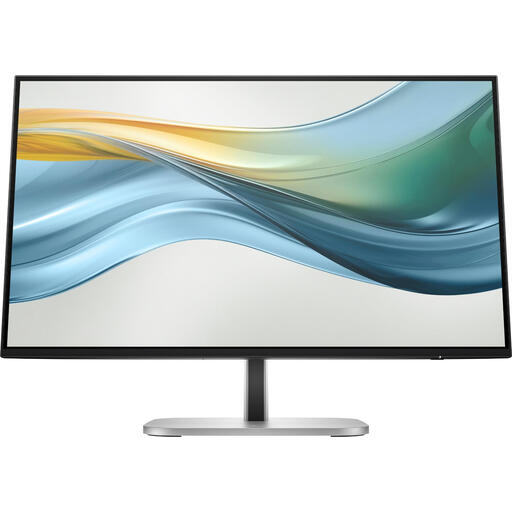 Image unavailable
A 23.8-inch option to consider if USB-C suits your setup; check the resolution against your needs for detail and workspace.
The product name lists Full HD and USB-C. The product description states that the charger is not included.
No, not for the merging itself: Adobe describes HDR photo merging as combining shots taken at different exposures. If you also want to view and edit the result using HDR optimisation, Adobe specifies a supported HDR screen and system; for Windows, Adobe recommends DisplayHDR 1000 or higher.
Use colour management and a suitable monitor profile. Adobe explains that this kind of profile describes how the screen displays colour; also check that your document and output profiles are suitable for the intended screen or print workflow.
For a standard online purchase by a consumer, the statutory cooling-off period generally lasts up to 14 days after delivery. ACM ConsuWijzer outlines exceptions and conditions, so check the returns policy for the specific order before buying.
No, your statutory rights apply alongside any seller or manufacturer’s warranty. According to ACM ConsuWijzer, the seller is responsible for providing an appropriate remedy at no cost if a product used normally doesn’t meet your reasonable expectations, subject to the applicable conditions.