What should you look for when choosing?
For a neighbourhood forum project, workspace, keyboard testing, positioning and computer connections are key. Operating the monitor’s settings is different from making the website accessible using a keyboard.
| What to consider |
What to look for |
Who is this important for? |
| Space for code and browser testing |
Compare screen size, resolution, aspect ratio and text size at your own scaling setting. BenQ lists the RD280U as 28,2 inches, with 3840 × 2560 pixels and a 3:2 aspect ratio; Dell lists the P2725QE as 27 inches, with 3840 × 2160 pixels. |
If you want to assess your code and the visible forum at the same time, look for a layout that fits your desk. Around 33% of consumers prioritise workspace for code and browser testing above all else. |
| Operation during keyboard testing |
For each model and operating system, check which monitor settings work through software or keyboard shortcuts, and whether physical buttons are needed for initial setup. Test keyboard operation and focus on the forum itself; the W3C Web Accessibility Initiative describes these website features. |
If you don’t want to reach for the monitor’s physical controls during a keyboard test, check these features separately from the forum. Around 25% of consumers make operation during keyboard testing their top priority. |
| Adjustability and positioning |
Check the height adjustment, tilt, available desk space and reflections where you plan to use it. Arboportaal outlines screen requirements for employee screen work where applicable. |
If you want to adjust your screen position to suit your workspace, consider the stand and the space you need for your keyboard too. Around 25% of consumers prioritise adjustability and positioning above all else. |
| Connecting a laptop and peripherals |
Compare your laptop’s video output and charging requirements with the monitor’s ports and stated charging power. Dell and LG list USB-C power delivery for specific models; also check that your keyboard works with your computer through the connection you plan to use. |
If you want to connect a laptop and peripherals to the monitor, check that both devices support the features you need. Around 17% of consumers make connectivity their top priority. |
Monitors at Joybuy
These Joybuy products are monitor options for a development and testing workspace. You’ll need to test the forum’s keyboard accessibility separately.
 No image available
INNOCN CB27U1 27-inch 4K UHD monitor
The adjustable stand and PIP/PBP viewing options may suit a workspace with multiple windows.
27 inches, 3840 × 2160 pixels and 120 Hz. USB-C Power Delivery: 90 W. The stand supports height adjustment, tilt, swivel and pivot.
View at Joybuy
 No image available
INNOCN 40C1U 40-inch ultrawide monitor
The ultrawide layout may suit anyone who wants to arrange several work windows side by side; check that the screen will fit on your desk first.
40 inches, 5120 × 2160 pixels and a 21:9 aspect ratio. USB-C Power Delivery: 65 W. The stand is height-adjustable.
View at Joybuy
 No image available
KTC M27P6 27-inch 4K MiniLED monitor
The 27-inch 4K layout may suit a desk setup for code and browser testing; check the text size with your own scaling setting.
4K: 160 Hz; FHD: 320 Hz. Type-C: 65 W. The stand is height-adjustable, tiltable and swivel-adjustable.
View at Joybuy
 No image available
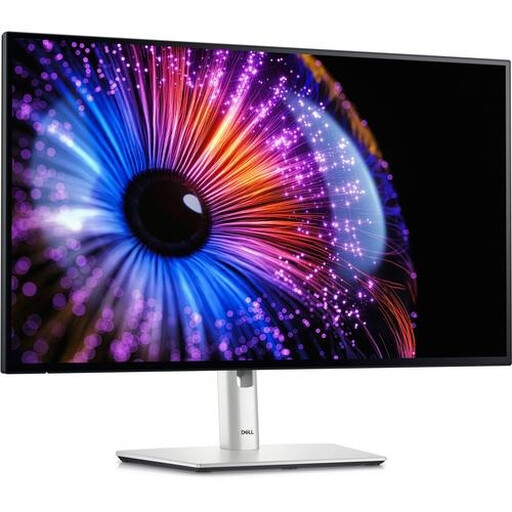
Dell UltraSharp U2724DE 27-inch QHD monitor
The USB hub and connectivity options may suit a laptop workspace with peripherals; check which features your computer supports.
27 inches and 2560 × 1440 pixels. The product description lists Thunderbolt 4, HDMI, DisplayPort, USB-C and a USB hub. The stand is height-adjustable, tiltable and swivel-adjustable.
View at Joybuy
 No image available
iiyama G-MASTER 44,5-inch Dual QHD monitor
The wide Dual QHD layout may suit anyone who wants several work windows side by side; bear in mind how much desk space you’ll need.
44,5 inches and 5120 × 1440 pixels. The product information lists KVM, a USB-C dock, RJ45 (LAN) and a height-adjustable stand. KVM does not prove that monitor settings can be fully operated using only a keyboard.
View at Joybuy
Frequently asked questions
Will a monitor automatically make my neighbourhood forum usable without a mouse?
No. Keyboard operation needs to work on the website itself. Check that you can reach features using the keyboard and move focus out of components such as dialogue boxes; the W3C Web Accessibility Initiative describes these criteria.
Can I always change monitor settings using only my keyboard?
This has not been confirmed for every model. Dell says DDC/CI is needed for software control of supported monitors and that you enable this setting through the monitor menu. BenQ describes keyboard control for certain Display Pilot 2 features under specific conditions. If physical buttons aren’t suitable for you, check the exact combination of model and operating system.
What should I consider when positioning and connecting the monitor?
Check adjustability, potential reflections and the space available on your desk, and compare the video and USB-C features with your computer. Dutch workplace requirements also apply to employee screen work within their scope; Arboportaal explains these requirements.
Who can help if my monitor develops a fault sooner than expected?
For consumer purchases in the Netherlands, the seller remains responsible under the statutory guarantee: the product must meet what you could reasonably expect with normal use. ACM ConsuWijzer explains that a manufacturer’s guarantee does not replace these statutory rights.
Does a neighbourhood forum in the Netherlands have to be digitally accessible by law?
That depends on the provider and the service. DigiToegankelijk says that the Dutch Digital Accessibility of Government Decree applies to Dutch public authorities. Dutch government information about the European Accessibility Act also mentions certain websites or apps where consumers communicate with each other, subject to conditions relating to the provider. Without details about the organisation and service, it isn’t possible to determine the forum’s legal status; keyboard accessibility remains an explicit design goal.


