Choose a monitor that you can position comfortably whether sitting or standing, and that keeps text and focus indicators clear with your test settings. QHD may be enough for a basic setup; choose a USB-C hub if it suits your laptop, or 4K if you specifically want to test at that resolution. The W3C guidelines assess keyboard operation and visible focus in the interface; a monitor cannot demonstrate these on its own.
Who is this setup suitable for?
Tester who changes working position
You spend long periods testing at a sit-stand desk and want to position the screen comfortably while sitting or standing, without distracting reflections. Arboportaal highlights adjustability and avoiding glare as considerations when working with screens.
Tester of focus and magnification
You assess keyboard focus, text legibility and pages at different zoom levels. The W3C guidelines cover keyboard operation, visible focus and reflow as features of the interface, not the monitor.
Laptop tester with a single workstation
You switch between a laptop and an external screen and want to check that the USB-C video connection, peripherals and power supply are compatible with your laptop. EIZO and Lenovo describe USB-C features for specific monitor models; check compatibility with your own laptop.
What should you look for when choosing?
Start with screen positioning and legibility in both working positions, then choose the resolution and connections based on what you actually want to test.
| What to consider |
What should you check? |
Who is this important for? |
| Screen position when sitting and standing |
Check the stand’s adjustment range or whether a suitable monitor arm will work, and see if the setup helps minimise reflections. |
If I switch between sitting and standing, I want to position the screen comfortably in both positions. Around 36% of consumers prioritise screen positioning. |
| Text and visible focus |
Assess text and focus indicators with the screen settings you use, and test zoom and viewport separately. |
When testing keyboard operation, I want to assess text and visible focus, including when I magnify the page. Around 29% of consumers give legibility and focus top priority. |
| Connections for a laptop and peripherals |
Check whether the laptop supports USB-C video and whether the stated power output is suitable; also check the HDMI and DisplayPort connections. |
If I connect a laptop and peripherals, I want to know that the required video, data and power connections are compatible. Around 21% of consumers start by checking the laptop connections. |
| Purchase and running costs |
Compare the energy label for the exact model and check which stand and cables your setup requires. |
I want to check in advance which components my setup needs and how its power consumption is rated. Around 14% of consumers prioritise the overall cost. |
Common buying mistakes
-
Assuming a sharp screen means an accessibility test has been passed
Keyboard operation, visible focus and reflow are assessed in the interface and with the test settings you use. The monitor itself cannot provide a result.
Test keyboard operation, focus and zoom separately on the website you are assessing.
-
Looking only for the words ‘height adjustable’
How well you can position the screen also depends on its adjustment range, desk height and reflections in the room.
Check the dimensions and adjustment range of the exact model for both sitting and standing positions.
If desk space is limited, you may still need a suitable monitor arm or a different workstation setup.
-
Assuming USB-C guarantees video and enough power for your laptop
USB-C features vary by model. For the EIZO FlexScan EV2781, EIZO specifies DisplayPort Alt Mode and power delivery of up to 70 W; your laptop must be compatible.
Compare your laptop’s USB-C features and power requirements with the specifications for the exact monitor model.
If the power supply is not suitable for your laptop, you may need a separate power adapter or another connection solution.
Monitor brands to consider
Dell
The Pro Plus P2725D and P2725DE offer a QHD option, with height adjustment on the former and a USB-C hub on the latter.
- Dell specifies a 27-inch screen with 2560 × 1440 pixels, 100 Hz and height adjustment for the P2725D; the P2725DE is a USB-C hub monitor.
- These specifications apply to the models mentioned and do not demonstrate that a website is accessible using a keyboard.
Philips
The 27E1N1800AE/00 offers a 4K option if you also want to assess how content looks at that resolution.
- Philips specifies a 27-inch screen with 3840 × 2160 pixels and a height-adjustable stand for this model.
- The resolution does not prove that a website works well when zoomed in or using keyboard controls.
EIZO
The FlexScan EV2781 is a QHD office monitor for a laptop setup where USB-C features are important.
- EIZO specifies USB-C with DisplayPort Alt Mode, power delivery of up to 70 W, and HDMI and DisplayPort connections.
- Charging performance and usability also depend on the connected laptop.
Lenovo
The ThinkVision T27h-30 is a QHD model with USB-C and an adjustable stand.
- Lenovo lists a 27-inch screen, 2560 × 1440 pixels, USB-C, ethernet and a 155 mm lift range for this model.
- Check that the connections and adjustment range suit your laptop and desk.
Monitors at Joybuy
This selection of Joybuy products includes adjustable screens for a sit-stand setup, with 4K display and USB-C connection options. Check that each model’s connections are compatible with your test computer.
 No image available
Dell Pro P3426WEV 34.1-inch curved WQHD USB-C monitor
Worth considering if you’re looking for an adjustable screen and a USB-C connection to your laptop.
Joybuy product information lists 3440 × 1440 pixels, USB-C with DisplayPort Alt Mode and up to 90 W Power Delivery. Check that these features and the power output are suitable for your laptop.
View at Joybuy
 No image available
Philips 27E1N1800AE/00 27-inch 4K UHD IPS monitor
A good fit for a test setup where you also want to assess how content looks on a 4K screen.
Joybuy product information lists 3840 × 2160 pixels, HDMI, DisplayPort and a height-adjustable stand. Test zoom and reflow separately from the physical screen resolution.
View at Joybuy
 No image available
INNOCN CB27U1 27-inch 4K UHD monitor, White
An option if you want to combine a 4K screen with an adjustable setup and USB-C.
Joybuy product information lists 3840 × 2160 pixels, USB-C with up to 90 W Power Delivery, 150 mm height adjustment and a matt screen surface. Check that the USB-C features are compatible with your laptop.
View at Joybuy
 No image available
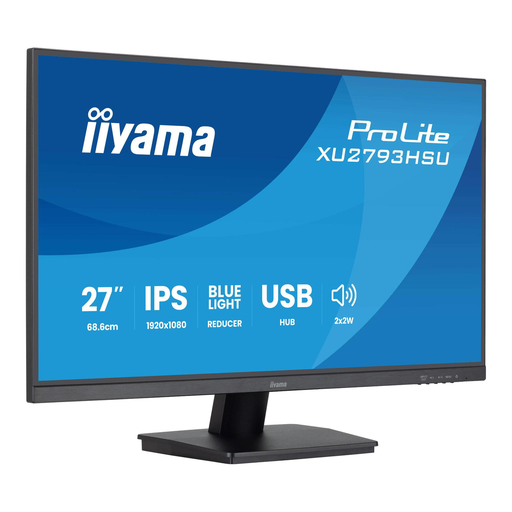
iiyama ProLite 27-inch IPS monitor with USB hub
A good fit if you’re looking for an adjustable monitor with a matt display and USB hub.
Joybuy product information lists 1920 × 1080 pixels, a matt screen surface and an adjustable stand. Check that the resolution suits your testing needs.
View at Joybuy
 No image available
ASUS ProArt PA278CV 27-inch QHD monitor
An option for a QHD setup with height adjustment and USB-C for a compatible laptop.
Joybuy product information lists 2560 × 1440 pixels, USB-C with 65 W Power Delivery, and HDMI and DisplayPort connections. The stand offers height and tilt adjustment; check compatibility with your laptop.
View at Joybuy
Frequently asked questions
Can a better monitor prove that a website works using only a keyboard?
No. Assess keyboard operation and visible focus on the website itself. The W3C guidelines describe these as features of the interface; a monitor cannot provide an accessibility assessment.
Do I need a 4K monitor to test zoomed-in pages?
No. The W3C describes reflow in terms of the effective viewport width, not just the number of physical pixels on the screen. Set up your test environment and assess the page at the intended zoom level.
What should I look for when switching between sitting and standing?
Check that the stand or a suitable monitor arm lets you position the screen comfortably in both working positions, and that reflections are not distracting. Look at the adjustment range of the exact model and consider your own desk setup.
What should I check when choosing a monitor with USB-C?
Check that your laptop supports the required USB-C video feature and that the stated power output is suitable. Also compare the available video inputs and connections for peripherals.
Is an energy label relevant for a computer monitor?
Yes. The European Commission states that electronic displays, including computer monitors, are covered by energy labelling. Compare the label for the exact model; don’t infer its energy class from the brand or resolution.


