What should you look for when choosing?
The percentages indicate which purchase priority may come first for consumers in this specific situation.
| What to consider |
What to look for |
Who is this important for? |
| Viewing focus and the interface |
Compare screen size and resolution with your viewing distance, and test the actual interface using the keyboard. W3C WCAG 2.2, criterion 2.4.7, concerns a visible focus indicator in keyboard-operable interfaces. |
I want to inspect focus, text and interface elements clearly during a test; around 33% of consumers put this first. |
| Connecting and switching between laptops |
For each laptop, check its video output, USB connections and required charging power, and whether peripherals switch over too. For example, BenQ specifies 65 W Power Delivery for the GW2790QT, while Philips lists Smart KVM for the 27B2U6903/00. |
If I switch between laptops and peripherals at the same desk, I want to know whether the connections will work with my devices; around 27% of consumers make this their main priority. |
| Adjustability for different users |
Check the height adjustment, tilt and adjustment options for the workstation as a whole. BenQ lists 110 mm of height adjustment for the GW2790QT. |
I want to be able to reposition the screen for each person who uses it; around 27% of consumers put adjustability first. |
| Balancing purchase and running costs |
Decide which connections and switching features you will actually use, and compare the energy label and product information sheet for specific models. Check cables and accessories separately. |
I don’t want to choose features I don’t need, and I also want to take energy consumption into account; around 13% of consumers put cost control first. |
Monitors at Joybuy
These monitors offer a range of screen sizes and resolutions to consider for keyboard testing. Check that each model’s adjustability and connections are suitable for your shared workspace.
 No image available
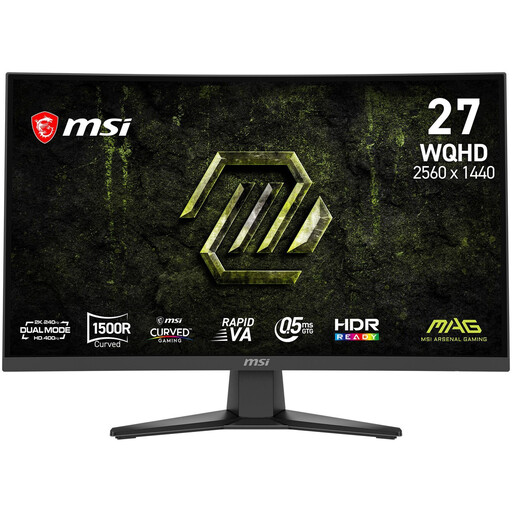
MSI MAG 275CQDF X24 27-inch WQHD Curved Gaming Monitor
The listed WQHD resolution may be useful if you want to inspect interface elements; resolution does not prove that focus indicators are visible. This model has a 2560 × 1440 resolution and tilt adjustment.
Joybuy
 No image available
CRUA 49-inch Curved Ultrawide Gaming Monitor
This wide screen could be a good fit if you’re considering a large workspace, but check that its size is suitable for your shared desk first. The product information lists a 32:9 aspect ratio, 5120 × 1440 resolution, 165 Hz and a height-adjustable stand. According to the product description, the desk or VESA mount must support at least 15 kg, and two-person installation is recommended.
Joybuy
 No image available
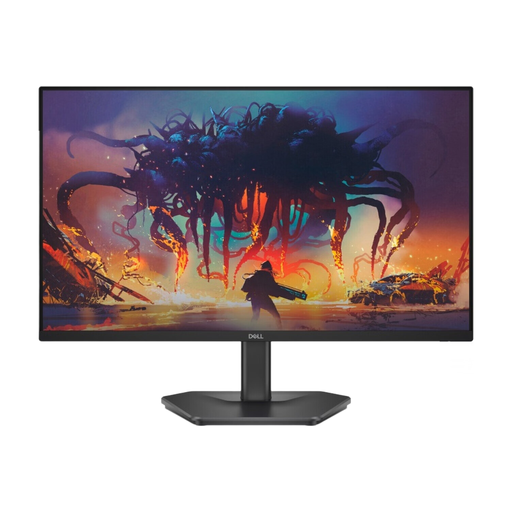
DELL 24 SE2425HG 200Hz Monitor
This 24-inch screen is one option for viewing web pages during keyboard tests; check the focus indicator on the interface itself. The product information lists Full HD resolution, an IPS panel, an anti-glare coating, and HDMI and DisplayPort connections.
Joybuy
 No image available
MSI Pro MP275Q 27-inch monitor
The listed QHD resolution may be suitable for viewing interface elements; assess focus and navigation on the website being tested. The product information lists a 2560 × 1440 resolution, an IPS panel and an anti-glare coating.
Joybuy
 No image available
INNOCN CB27U1 27-inch 4K UHD Monitor
This model may be worth considering if you want a 27-inch screen with an adjustable viewing position; also check that its connections suit your laptop. The product information lists a 3840 × 2160 resolution, an IPS panel, USB-C Power Delivery up to 90 W, and height, swivel and pivot adjustment.
Joybuy
Frequently asked questions
Does a high-resolution monitor automatically make keyboard navigation accessible?
No. Test the interface itself using the keyboard: according to the W3C’s guidance on WCAG 2.2, criterion 2.4.7, a visible focus indicator is important for keyboard-operable interfaces. Resolution does not prove that a website meets this criterion.
How should you set up a screen when several people use the desk?
Readjust the screen height and viewing position for each person, and assess the workstation as a whole. Arboportaal highlights these considerations for display screen work; the adjustability of a single monitor does not, by itself, determine whether the entire workstation is suitable.
Must an employer in the Netherlands always provide a separate monitor?
Not in every situation. According to Arboportaal, the stated requirements apply when an employee works with display screen equipment for more than two hours a day: the screen and keyboard must not be attached to each other. When using a laptop, it must be possible to use a separate screen or keyboard.
What if a monitor you buy as a consumer in the Netherlands breaks too soon?
If a product is faulty despite being used normally, the retailer is responsible for providing an appropriate solution, such as a free repair or replacement, or a refund in certain cases. ACM ConsuWijzer explains that the legal guarantee is not simply a fixed two-year period; what you could reasonably expect from the product is also taken into account.
Is an energy label relevant when choosing a monitor?
Yes, if you want to compare the energy consumption of specific models. EU rules cover energy labels and additional product information for electronic displays, with exceptions for certain types; EUR-Lex explains these rules. An energy label says nothing about the quality of keyboard testing.


