For coding and keyboard testing, an adjustable QHD monitor suits a workspace where you mainly check your code, page and visible focus; choose 4K if inspecting fine details in maps and layouts is more important. A QHD monitor with USB-C docking could work well with a laptop setup, provided your laptop and cable support the required video mode and power delivery. The W3C Web Accessibility Initiative stresses that features should be operable using a keyboard and that focus should be visible. A monitor’s resolution alone cannot prove that a location guide is accessible.
Who is this guide for?
Keyboard navigation developer
You want to see which element has focus while you build, and navigate through the whole guide using a keyboard. The W3C Web Accessibility Initiative identifies keyboard operation and visible focus as relevant accessibility criteria.
Maps and locations designer
You check text, maps and page layouts, and want to review the guide in different views. A monitor can support this visual work, but it cannot replace testing the page itself.
Laptop user with a permanent workspace
You regularly connect a laptop and peripherals, and want to check in advance that the monitor, cable and charging setup are suitable for your laptop. Check the specifications for the exact model and your computer’s connection options.
What should you consider when choosing?
QHD for coding and focus tests
Best suited when: you mainly check code, your browser and visible focus, and docking is not a key requirement.
Keep in mind: QHD has fewer pixels than the 4K model mentioned; USB-C alone does not guarantee both a picture and laptop power over one cable.
QHD with USB-C docking
Best suited when: you want to combine video, data and power through a compatible laptop connection. BenQ lists DisplayPort Alt Mode and 65 W Power Delivery for the GW2790QT.
Keep in mind: check that your laptop and cable support the video mode, and that the charging power is suitable for your laptop.
4K for checking fine details
Best suited when: you inspect small details in maps, images and layouts as well as code. LG lists a resolution of 3840 × 2160 pixels for the 27UP850K-W.
Keep in mind: check that your computer supports your chosen connection and 4K display; extra pixels do not replace testing with magnification and other screen layouts.
First decide whether keyboard and focus testing, checking fine details or connecting a laptop is most important for your work. Then check the ergonomics and connections of the exact model.
| What to consider |
What should you check? |
Who is this important for? |
| Visible focus and testing space |
Compare the screen size and resolution with your desk space, then navigate the guide using Tab and the other keys you need. |
If I want to review code and the page side by side while building, and track focus, I’ll choose a screen that suits my workspace. Around 31% of consumers give keyboard and focus testing top priority. |
| Readability and checking fine details |
Compare 2560 × 1440 with 3840 × 2160 pixels at the intended screen size, and test the page with adjusted display settings too. |
When I inspect small text, maps and icons, I want to assess them in the intended view. Around 31% of consumers prioritise visual detail and readability. |
| Screen adjustability |
Check the height adjustment and the space available for the stand or a suitable arm; consider your whole workspace too. |
If I work at a fixed desk for long periods, I want to position the screen appropriately and adjust my whole workspace. Around 23% of consumers give posture and positioning top priority. |
| Laptop connection and power |
Compare your laptop’s video mode, cable and charging requirements with the connections and power output of the exact monitor model. |
If I connect my laptop and peripherals in one place, I want to know in advance whether the connection and power I need will work together. Around 15% of consumers give suitable laptop docking top priority. |
Common buying mistakes
-
Assuming high resolution proves accessibility
A monitor displays the page, but it cannot fix a lack of keyboard operation or an invisible focus indicator.
Choose a screen that suits your workflow, then test the guide itself with a keyboard, including whether focus is visible.
-
Assuming USB-C always provides both a picture and laptop power
For the USB-C features BenQ lists for the GW2790QT, your laptop and cable must support the required video mode. Also check whether 65 W meets your charging needs.
Compare the video mode, cable and power output you need with the specifications of your laptop and the exact monitor model.
-
Confusing paid extended cover with your legal guarantee
According to the Dutch Government, there is no fixed statutory guarantee period in the Netherlands; if a product is faulty, the seller is responsible for providing a solution.
Compare the terms of any extra cover with the rights you already have before paying for it.
Relevant brands to consider
Dell
The UltraSharp U2724D is a 27-inch QHD option with height adjustment for an adjustable workspace.
- Dell specifies a resolution of 2560 × 1440 pixels and height adjustment for the U2724D.
- Check the connections on the exact model; don’t confuse it with a separate USB-C hub variant.
BenQ
The GW2790QT is a QHD option for anyone looking to combine laptop docking with adjustability.
- BenQ says this model has USB-C with DisplayPort Alt Mode, data and 65 W Power Delivery, plus 110 mm of height adjustment.
- For one-cable use, your laptop and cable must support the required video mode, and the power output must suit your laptop.
LG
The UltraFine 27UP850K-W is a 4K option for checking fine details alongside everyday development work.
- LG specifies 3840 × 2160 pixels, height adjustment and USB-C charging up to 96 W.
- These specifications do not show that a built page is accessible; test keyboard operation and visible focus separately.
Lenovo
The ThinkVision T27QD-40 is another 27-inch QHD docking option for a laptop workspace.
- Lenovo lists a USB hub and video, data and power over one cable, up to 100 W under the stated conditions.
- Check the conditions for the exact model and its compatibility with your laptop.
Philips
The 27E1N5600HE/01 is a QHD USB-C option that may also come in handy if you need a built-in webcam.
- Philips lists a 27-inch screen, 2560 × 1440 pixels, USB-C with power delivery and a 5 MP webcam for this model.
- A webcam is not essential for building a location guide or testing it with a keyboard.
Monitors for this task
These Joybuy products offer options for visually checking code, maps and page layouts, with models in QHD and 4K and a range of screen sizes. For each model, check which connections, adjustments and features are actually right for your workspace.
 No image available
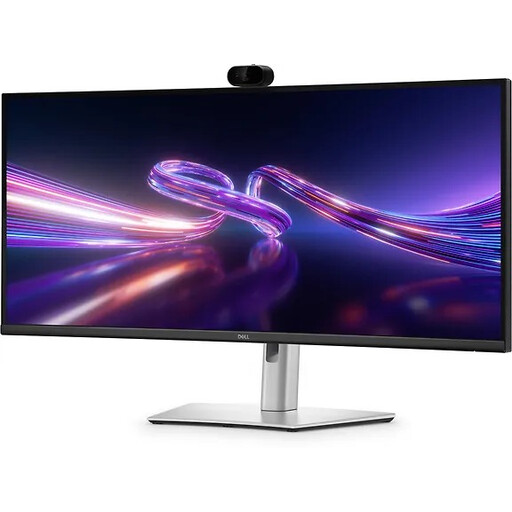
Dell Pro P3426WEV 34.1-inch curved WQHD IPS USB-C hub monitor
Suited to a permanent workspace where you want to review code and a location guide side by side.
34.1 inches, curved WQHD, IPS, USB-C hub, webcam, 100 Hz and 90 W Power Delivery.
USB-C video and charging require a compatible laptop that supports USB Power Delivery and DisplayPort Alt Mode; charging is up to 90 W.
View at Joybuy
 No image available
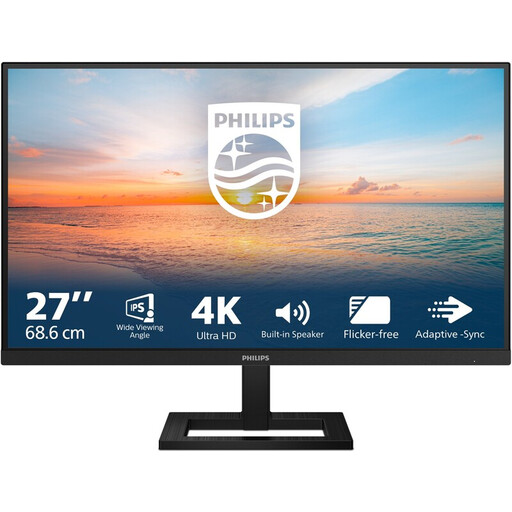
Philips 27E1N1800AE/00 27-inch 4K UHD IPS monitor
Suited to visually checking text, maps and page layouts on a 27-inch screen.
4K UHD, 3840 × 2160 pixels, 60 Hz, 4 ms, HDMI, DisplayPort and height-adjustable stand.
View at Joybuy
 No image available
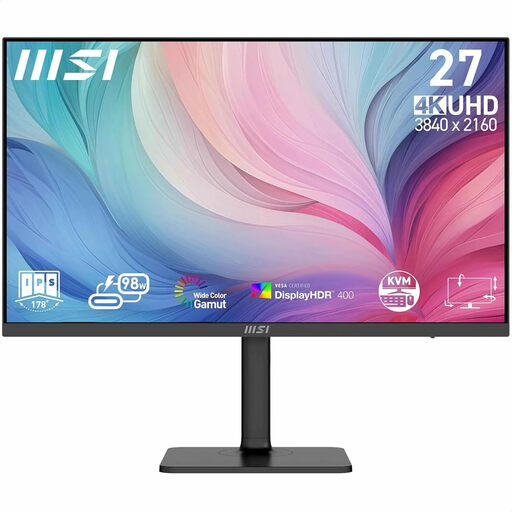
MSI Modern MD272UPHG 27-inch 4K UHD monitor
Suited to checking fine details in maps and layouts on a 27-inch 4K screen.
3840 × 2160 pixels and 4K UHD.
View at Joybuy
 No image available
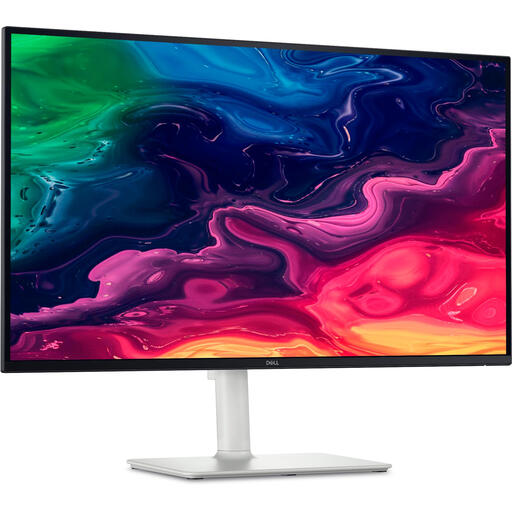
Dell Plus S2725QC 27-inch 4K UHD monitor
Suited to visually inspecting pages and maps on a 27-inch screen.
3840 × 2160 pixels, 4K UHD and LCD.
View at Joybuy
 No image available
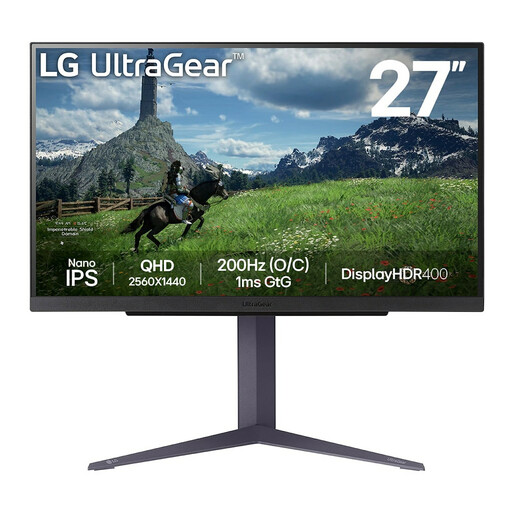
LG 27GS85Q-B 27-inch QHD monitor
Suited to building and visually reviewing a location guide at a permanent workspace.
2560 × 1440 pixels, Quad HD and height-adjustable stand.
View at Joybuy
Frequently asked questions
Will a sharper monitor make my location guide accessible to keyboard users?
No, a sharper monitor will not make a location guide accessible by itself. The W3C Web Accessibility Initiative highlights keyboard operation and visible focus as important considerations; check these features in the guide itself.
How should I set up my screen for everyday development work?
Position the screen to suit your workspace, and check the rest of your setup too. For employees who spend more than two hours a day working with screens, Arboportaal states that the screen and keyboard must not be attached to each other; this requirement does not automatically apply to every individual buyer.
Should I buy extra cover for my monitor?
Not necessarily. According to the Dutch Government, there is no fixed statutory guarantee period in the Netherlands; if a product is faulty, the seller is responsible for providing a solution. Compare the terms of any extra cover with the rights you already have.
Which accessibility rules apply to a location guide in the Netherlands?
That depends on the provider and the service. DigiToegankelijk outlines requirements for websites and apps run by government bodies that fall under the Digital Accessibility of Government Decree. The Dutch Government also lists accessibility rules that have applied since 28 June 2025 to certain products and services, including online shops, with some exceptions. The description ‘location guide’ alone does not determine which rules apply; keyboard operation remains an important design and testing consideration.


