What should you look for?
Compact Full HD screen
Choose this if: you mainly test one browser window and want to save desk space.
Trade-off: check that the screen and stand will fit, and that the connections are compatible with your laptop.
Adjustable 16:10 screen
Choose this if: extra vertical space for pages, tools or notes would be useful.
Trade-off: Dell specifies a resolution of 1920 × 1200 and height, swivel and pivot adjustment for the P2425. Its USB-C port is a downstream data port with a maximum of 15 W; this does not confirm video input or laptop charging.
QHD screen with USB-C hub
Choose this if: you often keep documentation or development tools open alongside the test page, and your laptop supports the required video connection.
Trade-off: Dell offers the P2425DE as a 23.8-inch QHD monitor with a USB-C hub. Check that your laptop, cable and charging requirements are compatible with your setup.
The visible focus indicator is part of the website interface, not a monitor specification; the W3C guidelines explain how focus is made visible. So choose a screen that displays your test work clearly, and assess keyboard controls on the website itself.
| What to consider |
What should you check? |
Who should pay particular attention? |
| Focus and readability |
Check the resolution and screen size at the display scale you use, then test the website with the keyboard. |
If I want to follow the page content and focus indicator clearly during a test, I consider readability; around 40% of consumers prioritise focus and readability. |
| Size and adjustability |
Measure the available space and compare the dimensions of both the screen and stand; check the adjustment options of the exact model. |
With a small desk in a student room, I need the screen and stand to fit without losing my workspace; around 23% of consumers prioritise a suitable size and adjustability. |
| Laptop connection and windows |
Compare your laptop's output, the monitor's video input and the cable you need; don't assume every USB-C port supports video or laptop charging. |
If I use the browser alongside notes or development tools, I need workspace and a suitable connection; around 22% of consumers prioritise this combination. |
| Total cost and warranty |
Check which cables are included and read the warranty terms; compare any extra cover with your existing rights. |
I want to connect my setup without unnecessary extra parts and know what warranty already applies; around 15% of consumers prioritise total cost and warranty. |
Monitors for study and testing
This selection of Joybuy products ranges from compact Full HD screens to QHD and 4K models for study and testing setups. Check that the dimensions, connections and any adjustment options suit your desk and laptop.
 No image available
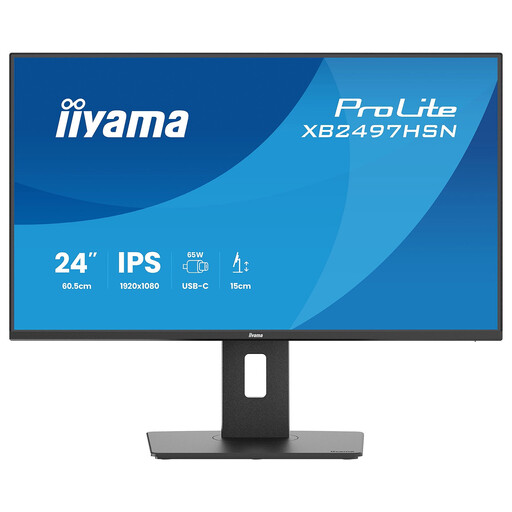
iiyama ProLite XB2497HSN-B1
The 23.8-inch Full HD format suits a compact browser and study setup; measure the available space, including the stand.
24-inch, Full HD, 100 Hz and IPS according to the product name. The product description lists height, tilt, swivel and pivot adjustment, as well as a USB-C docking station.
View at Joybuy
 No image available
Philips 27E1N1800AE/00
The 27-inch screen may suit a setup with room for page content and test materials; first check how much desk space you have.
4K UHD, 3840 × 2160, IPS and 60 Hz according to the product name. The product information lists a height-adjustable stand.
View at Joybuy
 No image available
INNOCN CB27U1
The 27-inch 4K screen is an option if you want to view test pages alongside other resources; bear in mind how much space the screen takes up.
3840 × 2160, IPS, 120 Hz and HDR500 according to the product name. It also lists USB-C 90 W PD, HDMI, DisplayPort, PIP and PBP. The product description lists an adjustable stand.
View at Joybuy
 No image available
Dell Pro Plus P2425DE
QHD on a 24-inch screen may suit a setup where you use test pages alongside documentation or tools.
2560 × 1440 pixels according to the product name. The product description lists a USB-C hub with video, data and 90 W Power Delivery; check compatibility with your laptop and cable.
View at Joybuy
 No image available
ASUS ProArt Display PA24ACRV
The 23.8-inch QHD format may suit a desk setup where you view pages alongside notes or development tools.
2560 × 1440 pixels according to the product name. The product description lists USB-C with 90 W Power Delivery, as well as height, tilt, swivel and pivot adjustment.
View at Joybuy
Frequently asked questions
Does a sharper monitor automatically make a website accessible by keyboard?
No. Assess keyboard controls and focus visibility on the website itself; a monitor specification doesn't show whether the interface meets an accessibility criterion.
Can I connect and charge my laptop with a single USB-C cable on any monitor?
No, it depends on the features of the ports on both your laptop and the exact monitor model. For example, Dell describes the P2425's USB-C port as a downstream data port with a maximum of 15 W; this does not confirm video input or laptop charging.
How should you set up your screen for longer testing sessions?
Position the screen so you can view the content clearly without distracting reflections, and adjust its position and the lighting. Arboportaal provides this workplace guidance in the context of screen-based work for employees; it is not a general legal requirement for every student in a private room.
Do I need to buy an extended warranty to be entitled to a repair?
No. When you buy as a consumer in the Netherlands, you have a statutory guarantee in addition to any commercial warranty. According to ACM ConsuWijzer, if a product breaks down sooner than you could reasonably expect under normal use, the seller must offer an appropriate solution at no cost.
Is WCAG 2.2 already the mandatory standard for every website you test in the Netherlands?
No. Digitoegankelijk states that government websites covered by the relevant decree must comply with WCAG 2.1 Level A and AA. On 8 September 2026, Digitoegankelijk reported that the new version of EN 301 549, which refers to WCAG 2.2, was still awaiting European harmonisation. Check which standard applies with the client and for the type of service, rather than relying on the monitor.


