
Student working on tricky selections
You check fine edges, such as hair against a busy background, and want to see your image and tools clearly. Adobe describes features for refining hair selections in Photoshop.


For checking mask edges precisely, choose a monitor that gives you enough screen space and works with your desk and laptop. Then weigh colour reproduction and resolution against the demands of your assignments. QHD, 4K, USB-C and specialist printing features meet different needs, but they won’t create the mask for you: you’ll need editing software for that. This advice is about masking in photos or other images, not hiding a room background during video calls.
You check fine edges, such as hair against a busy background, and want to see your image and tools clearly. Adobe describes features for refining hair selections in Photoshop.
You assess the colour of edited images or prepare them for printing. So look beyond resolution alone and work out which colour space your assignments require.
You’re looking for a screen that fits your available space and connects easily to your laptop. Measure the space and check what the USB-C ports on both devices support.
Start with the resolution and the space you need for your image and editing panels. Then check the colour requirements of your assignments and how the monitor connects to your laptop.
| What to consider | What to look for | Who is this important for? |
|---|---|---|
| Fine mask edges | Compare the native resolution and screen size; check that your image and editing panels fit comfortably side by side. | If I want to check fine transitions without losing sight of my masking work, I prioritise detail and usable workspace. Around 33% of consumers put checking edge detail ahead of other needs. |
| Colour in the finished image | Check the colour space and distinguish between a manufacturer’s specification and an independent measurement. | When the colour of my edited image or print matters, I look beyond the pixel count. Around 25% of consumers make colour assessment their top priority. |
| Features that suit the way you work | Match the features of the exact model to your assignments; soft proofing is mainly relevant to a print workflow. | If my work is mainly viewed online, I don’t want to choose printing features that my assignments don’t call for. Around 25% of consumers want to avoid unnecessary features. |
| Space and connectivity | Measure your desk and check that your laptop can output video through the port you’ve chosen and provide enough power. | If I have limited desk space or want to connect my study laptop, I check the dimensions and compatibility first. Around 17% of consumers make space and connectivity their top priority. |
A screen helps you view the result, but selecting and refining tricky edges is done in editing software.
Choose screen features that help you assess your work, and use your software’s selection tools to create the mask.
Colour gamut and accuracy are different things. A manufacturer’s specification alone doesn’t tell you how your individual monitor or complete setup will perform.
Check which colour space you need, and distinguish manufacturer claims from independent measurements and any calibration.
A USB-C port on the monitor doesn’t guarantee that every laptop can output video through it or receive enough power to charge.
Compare your laptop’s video output and charging requirements with the specifications of the exact monitor variant. Also check which cable or adapter your setup needs.
The ProArt PA278QV is a QHD option worth comparing if sRGB and factory calibration matter to you.
The UltraFine 27UP850K-W is a 4K option with USB-C for anyone looking for plenty of image detail and a single connection.
The 27E1N5600AE/00 combines QHD with USB-C for a compatible study laptop.
The SW272QN is worth comparing if print preparation and soft proofing are part of your workflow.
The S2725DC combines QHD and USB-C for studying and image editing on a single screen.
These Joybuy models are designed for assessing images and details. The selection includes QHD and 4K screens, including a compact 15.6-inch model.
 No image available
The 27-inch 4K resolution could suit you if you want to assess images in detail. The height-adjustable stand lets you set the screen to a comfortable height.
3840 × 2160; IPS; 60 Hz; 4 ms; HDMI and DisplayPort; height-adjustable stand.
 No image available
The 27-inch 4K resolution is suited to viewing fine image details. The product information also lists features for colour-critical creative work.
3840 × 2160; 4K Ultra HD; 27 inch. MSI lists factory calibration and 97% DCI-P3 coverage in the product information; coverage isn’t the same as colour accuracy.
 No image available
The 27-inch 4K resolution offers plenty of pixels for assessing detail. Check the screen layout and connections against your own laptop and desk.
3840 × 2160; 4K Ultra HD. The product information lists 99% DCI-P3 and Display P3; a stated colour gamut isn’t a measurement of colour accuracy.
 No image available
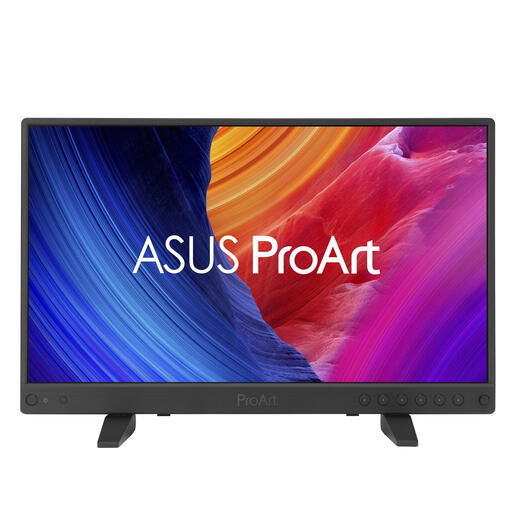
QHD could suit you if you want to assess your image alongside your editing panels. Check that the USB-C connection is compatible with your laptop before buying.
2560 × 1440; QHD; USB-C. ASUS lists 100% sRGB, factory calibration and Calman verification; these aren’t independent measurements of your individual monitor.
 No image available
The 15.6-inch size could be a good fit if you have limited desk space and want a compact screen for viewing image details.
3840 × 2160; 4K Ultra HD; USB-C. The product information lists 100% sRGB and 100% Rec.709 with factory calibration; these are specifications, not a measurement of your individual monitor.
No, you select and refine the mask in editing software. Adobe describes features for refining hair selections, among other tools; the monitor is there to display and help you assess the result.
Not necessarily: choose based on how much screen space you need and how your image and editing panels fit on screen. 4K offers more pixels than QHD, but you’ll also need a display scaling setting and computer that work comfortably for you. More pixels won’t make a mask more accurate by themselves.
That depends on your assignments’ colour requirements and your complete setup. Check which colour space you need, and treat a factory specification as a model specification, not a measurement of every unit sold.
No, you can’t tell from the shape of the connection alone. Philips describes single-cable operation with a compatible device; check your laptop’s video output and charging requirements against the specifications of the exact monitor variant.
For online consumer purchases, you generally have up to 14 days after delivery to change your mind, subject to legal exceptions; ACM ConsuWijzer explains this period. You’re also entitled to a legal guarantee if a product used normally doesn’t do what you could reasonably expect of it. This isn’t the same as a fixed guarantee period for every monitor.