
Illustrators with a small desk
You draw alongside paper or reference images and want to leave enough room for your keyboard, monitor stand and artwork. ASUS and BenQ model information can help you factor dimensions and stand depth into your choice.


First, measure the clear width and depth of your desk, leaving room for paper and drawing materials. A compact 16:10 screen can work well for tall façades, while QHD gives you more pixels for fine linework. For prints, colour management and suitable document and output profiles also matter.
You draw alongside paper or reference images and want to leave enough room for your keyboard, monitor stand and artwork. ASUS and BenQ model information can help you factor dimensions and stand depth into your choice.
You want to assess façade details and fine lines, so you’re looking at the resolution and aspect ratio of a compact screen. ASUS, BenQ and Dell specifications give you specific models to compare.
You prepare illustrations for print, so you look beyond the screen to document profiles and your intended output workflow. EIZO describes monitor features, while Adobe explains why printer and paper profiles matter too.
Good for: keeping a tall façade and drawing panels in view at the same time. ASUS and Dell list a resolution of 1920 × 1200 for the PA248QV and P2425.
Keep in mind: compare the monitor’s dimensions with the stand fitted against your desk space; these models have fewer pixels than the QHD screens mentioned here.
Good for: prioritising fine lines and multiple software panels. BenQ and Dell list a resolution of 2560 × 1440 for the PD2506Q and P2425DE respectively.
Keep in mind: BenQ says the PD2506Q is 256,9 mm deep with the stand fitted; check that you’ll still have room for paper and drawing materials.
Good for: creating illustrations for a colour-managed print workflow. EIZO lists hardware calibration and more than 99% AdobeRGB for the CS2400S.
Keep in mind: EIZO lists a resolution of 1920 × 1200 for the CS2400S. A wide colour gamut is no substitute for suitable document and printer profiles.
| Consideration | What to check | Who it matters to |
|---|---|---|
| Desk space | Measure the available width and depth, then compare them with the monitor dimensions including the stand. If you’re using a monitor arm, check that the mount and load capacity are suitable. | If I want to keep paper and drawing materials beside my screen, I need to know how much space the stand takes up. Around 36% of consumers rank desk space as their top priority. |
| Fine lines and façade details | Compare 1920 × 1200 on the ASUS and Dell 16:10 models with 2560 × 1440 on the BenQ and Dell QHD models. | When I want to assess small details accurately, I focus on the available pixels. Around 29% of consumers prioritise line detail. |
| Colour in print | Check the colour gamut of the exact model and match your document and output profiles to your intended print workflow. Adobe points out that the printer, ink and paper all help determine the printed colour. | If my illustration needs to look right on paper, I look beyond how colours appear on screen. Around 21% of consumers give print colour top priority. |
| Connecting to your computer | Check that your computer supports video through the port you’ve chosen and that the power delivery is sufficient. BenQ lists USB-C video and 65 W Power Delivery for the PD2506Q; Dell describes the P2425’s USB-C port as a data port. | If I want to connect my laptop with as few cables as possible, I check for both video support and charging power. Around 14% of consumers prioritise connectivity and a straightforward laptop setup. |
The screen diagonal doesn’t tell you how much desk depth the stand takes up. Compact models vary in size; ASUS and BenQ list dimensions for their models.
Measure the available depth and compare it with the dimensions including the stand. If you’re using a monitor arm, check the mount and load capacity too.
You may need a monitor arm if the stand takes up too much drawing space; check in advance that the arm and desk clamp will work with your setup.
Dell says the USB-C port on the P2425 is for downstream data, while BenQ lists USB-C video and Power Delivery for the PD2506Q.
Check the full model code, your computer’s video output and the charging power you need. You may need a different cable, an adapter or a separate laptop charger.
A monitor’s wide colour gamut alone doesn’t determine how a print will look. Adobe explains that the printer profile and combinations of ink and paper also affect the output.
Match your document and output profiles to the printer or print workflow you’re preparing the illustration for.
The ProArt PA248QV is a 24,1-inch 16:10 option for illustration work.
The PD2506Q combines a 25-inch QHD screen with specified colour features and USB-C video.
The ColorEdge CS2400S is worth considering for a colour-managed print workflow.
The P2425 offers a 16:10 option; the P2425DE is a separate QHD model with a USB-C hub.
The 24BA560-B is a 23,8-inch Full HD option to compare if an adjustable stand is important.
This Joybuy selection includes compact screens for illustration work, from portable 16-inch models to 24-inch Full HD monitors. Compare the listed features with your drawing space, preferred aspect ratio and connection requirements.
 No image available
The 16:10 aspect ratio suits a vertical façade composition; check that a portable screen works with your desk setup.
The product name lists 2560 × 1600, a QLED screen, Mini HDMI and Type-C connections. VESA compatibility is also listed.
 No image available
The portable 16-inch size and 16:10 aspect ratio could suit a compact workspace and a vertical composition.
The product name lists a FHD IPS screen, 144 Hz, two USB-C connections and Mini HDMI. FHD has fewer pixels than the QHD option mentioned here.
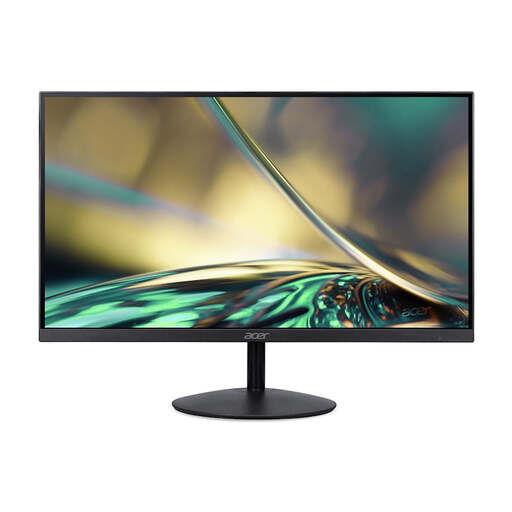 No image available
A 24-inch Full HD screen is worth comparing if you’re looking for a conventional monitor for digital illustration work.
The product name lists 100 Hz and an ultra-slim design.
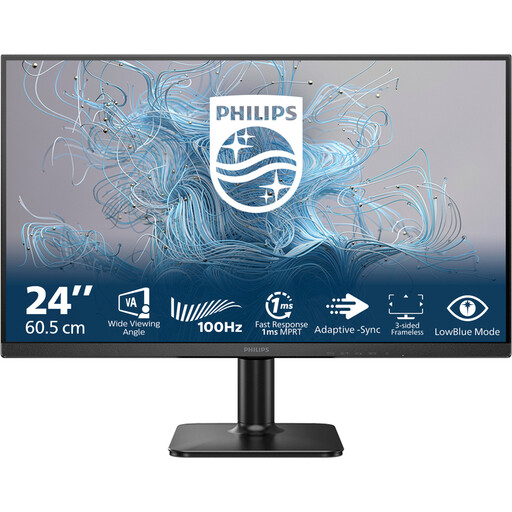 No image available
This 24-inch Full HD model is worth comparing with other compact screens if desk space is limited.
The product name lists 100 Hz and a VA screen.
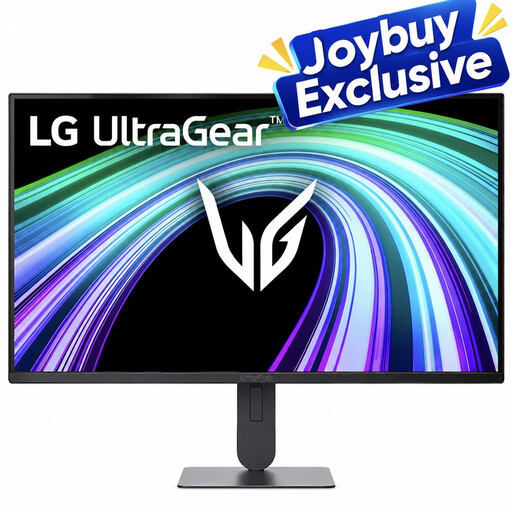 No image available
The product name identifies this as a 24-inch Full HD monitor to compare for digital drawing.
The name lists the UltraGear series and describes it as a gaming monitor; consider whether this model suits your drawing work and connection requirements.
Compare the available space with the monitor’s dimensions including the stand, not just the screen diagonal. ASUS lists a depth of 21,10 cm for the PA248QV; BenQ lists 256,9 mm for the PD2506Q. Leave room for paper and your keyboard too.
Only if your computer supports video through the USB-C connection you’re using and the power delivery is suitable for your laptop. BenQ lists DisplayPort Alt Mode and 65 W Power Delivery for the PD2506Q; Dell describes the P2425’s USB-C port as a downstream data port.
No. A wide colour gamut alone doesn’t determine how a print will look. Adobe recommends a workflow with suitable document and output profiles; the printer, ink and paper also affect the printed colour.
When you buy online as a consumer, you’ll generally have a 14-day cooling-off period, which ends 14 days after delivery, subject to legal exceptions. ACM ConsuWijzer also explains that your statutory guarantee applies alongside any guarantee from the seller or manufacturer if a product, under normal use, doesn’t do what you could reasonably expect.