
Illustrator with a small desk
You want to fit your screen and drawing tools into the same workspace. So compare the monitor’s overall dimensions, stand and adjustment options. ASUS and LG list adjustable stands for the models used as examples here.


Start by considering your desk space and colour workflow. An adjustable monitor of around 24 inches keeps your physical set-up more compact, while a 27-inch QHD screen offers more pixels if you have room for it. For print work, don’t mistake colour coverage for a properly calibrated workflow; also consider calibration and how your paper and print settings work together. If you use a laptop, check that the video and charging capabilities of both the monitor and laptop are compatible.
You want to fit your screen and drawing tools into the same workspace. So compare the monitor’s overall dimensions, stand and adjustment options. ASUS and LG list adjustable stands for the models used as examples here.
You create illustrations where predictable colours matter, possibly for print too. Look beyond the colour gamut and consider calibration and the rest of your workflow. Adobe highlights the combined importance of monitor settings, ambient light and paper.
You want to connect your laptop and peripherals in the same workspace. Check that your laptop’s video connection works with the monitor and that the charging power is sufficient. EIZO lists up to 70 W through the EV2495’s upstream USB-C port.
| What to consider | What should you check? | Who should consider this? |
|---|---|---|
| Colour reproduction | Check the stated sRGB coverage for the exact model and whether you can calibrate the monitor. For print work, also make sure your lighting, paper and print settings are aligned. | If I want colours to look consistent, especially in illustrations that will be printed, I look beyond the colour gamut alone. Around 36% of consumers say colour reproduction is their top priority. |
| Desk space | Measure the available width and depth, allowing for the stand and your drawing tools. Check the dimensions and adjustment options of the exact model. | If I draw at a small desk, the monitor needs to fit without taking away the space I need for my tools. Around 29% of consumers prioritise the physical set-up. |
| Detail and screen space | ASUS lists 1920 × 1200 for the PA248QV; BenQ lists 2560 × 1440 for the PD2705Q. Compare the resolution and screen size with the space you have available. | If I want to see fine details and software panels at the same time, I consider the available screen space and the size of the display. Around 21% of consumers say room for detail is their top priority. |
| Laptop and peripherals | Check the video output and charging power requirements of your laptop and monitor. Also see whether the available ports suit your computer and drawing tablet. | If I work with a laptop, I want to know whether the connection can handle both my screen and peripherals. Around 14% of consumers prioritise convenient connectivity. |
A stated colour gamut alone won’t tell you whether the print will match what you see on screen. Calibration, ambient light, paper and your print workflow settings all play a part too.
Ask your printer about the recommended colour workflow and check whether you can calibrate the monitor. Treat manufacturers’ claims as specifications, not independent measurements.
Calibration and test prints can take extra time.
The stand and how you position the monitor also affect how much room you’ll have left for your drawing tools.
Measure the space available and compare it with the overall dimensions, stand and adjustment options of the exact model.
USB-C capabilities vary between monitors and laptops. A port with the right shape doesn’t guarantee support for the video output and power delivery you need.
Compare the video and charging requirements of both devices before choosing a monitor.
Depending on the connections available, you may need a separate laptop charger or connection solution.
The ProArt PA248QV is an example of an adjustable 24.1-inch monitor for a smaller workspace.
The DesignVue PD2705Q is a 27-inch QHD example for anyone with room for a larger screen.
The UltraSharp U2424HE is a 24-inch example with hub features for a workspace with a laptop and peripherals.
The FlexScan EV2495 is a 24.1-inch example for anyone who also wants to factor USB-C docking and laptop use into their choice.
The 24BA550-B is an example of a 23.8-inch Full HD IPS monitor with an adjustable stand.
This selection includes portable and compact monitors, as well as larger QHD options, for illustration work with different requirements for desk space, detail and laptop connectivity. Check the dimensions and connections of the exact model against your workspace and computer.
 No image available
The portable design may suit a flexible workspace; check that the screen size works with the desk space you have available.
According to the product name: 16 inches, 16:10, 2.5K, IPS, 100% sRGB, 144 Hz, two USB-C ports and Mini HDMI.
 No image available
A 24-inch QHD display may suit a compact workspace where you also want room for illustrative detail. Check that the connections work with your laptop and peripherals.
According to the product name: 61 cm (24 inches) and 2560 × 1440 pixels.
 No image available
The 23.8-inch size and QHD resolution may suit a compact workspace where you need screen space for detail. Measure the space for the monitor and check your computer’s connection.
According to the product name: 60.5 cm (23.8 inches) and 2560 × 1440 pixels.
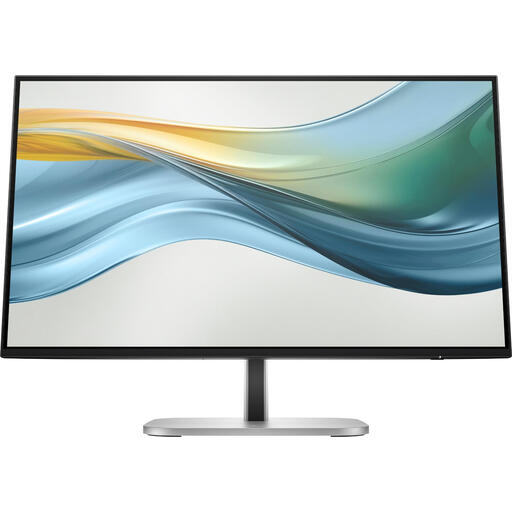 No image available
A 23.8-inch monitor may suit a smaller workspace; compare Full HD with the level of detail and number of panels you want to see at once.
According to the product name: 23.8 inches, Full HD and USB-C.
 No image available
The 27-inch size gives you a larger physical screen; choose it only if your desk has enough room.
According to the product name: 68.6 cm (27 inches) and 2560 × 1440 pixels.
No, not on its own. Stated colour gamut coverage doesn’t mean a print will match what you see on screen. Adobe points out that calibration, ambient light and paper are also part of a colour workflow for print; agree the settings with the company printing your illustrations.
Only if your laptop supports video through its USB-C port and the monitor provides enough charging power. EIZO lists up to 70 W through the EV2495’s upstream USB-C port; check your laptop’s requirements.
Use settings that suit your colour workflow and calibrate the monitor when you need to assess colour accurately. Adobe also notes that ambient light and paper matter for print work.
For online consumer purchases, you generally have a statutory cooling-off period of up to 14 days after delivery, subject to applicable exceptions, as explained by ACM ConsuWijzer. You’re also covered by the statutory guarantee: if a product doesn’t meet what you could reasonably expect under normal use, the seller is responsible for providing an appropriate solution free of charge. There isn’t one fixed statutory guarantee period for every monitor.
The energy label helps you compare information about the energy use of electronic displays under EU rules for this product group. Don’t use the energy rating to decide whether a monitor is suitable for colour-critical work.