
Illustrators working on fine landscape details
If you’re checking outlines, vegetation and textures, a screen with enough detail and space for your tools and reference images can be important.


For fine details, the right resolution and enough usable workspace are important. For print, you’ll also need a colour workflow that includes a screen profile and soft proofing. A USB-C hub can make a laptop setup simpler, but check the connections and power delivery you need. A new monitor won’t automatically speed up large source files.
If you’re checking outlines, vegetation and textures, a screen with enough detail and space for your tools and reference images can be important.
If you want to assess colours for a particular print process, factor screen profiling and soft proofing into your workflow.
If you want to connect an external screen to your laptop, video compatibility, charging power and your desk setup are all important considerations.
Choose this if: you prepare illustrations for colour-critical print and work with the profile for your intended output process. EIZO and BenQ list 4K, 99% Adobe RGB and hardware calibration for the models mentioned.
The trade-off: a wide colour gamut doesn’t guarantee a match with a print. Profiling and soft proofing are still part of the workflow. Also check that the laptop’s power requirements are met.
Choose this if: you want to view fine details and connect your laptop via USB-C. ASUS lists a 27-inch screen, 3840 × 2160 pixels, 99% Adobe RGB and 96 W USB-C Power Delivery for the PA279CRV.
The trade-off: check that your laptop supports video through that connection and that the charging power is right for it. The stated colour specifications alone don’t guarantee print results.
Choose this if: convenient connections and a versatile workspace matter more to you than a clearly specified Adobe RGB print workflow. Dell lists a 27-inch 4K screen, Thunderbolt hub, IPS Black and 120 Hz among the U2725QE’s features.
The trade-off: don’t assume that resolution, contrast or refresh rate make a monitor suitable for colour-critical print checks. Assess colour coverage and colour management separately.
| Consideration | What to look for | Who should consider this? |
|---|---|---|
| Colour for the finished work | Decide whether you’re creating work for screen or print; check colour modes, calibration and the available output profile. | If I’m illustrating for print, I want to be able to align the screen display with the intended output process. Around 31% of consumers say colour assessment is their top purchase priority. |
| Fine detail and workspace | Compare screen size, resolution and desk space; check readability at the display scaling you intend to use. | When I’m checking fine outlines and textures, I want enough detail and room for tools and reference images. Around 31% of consumers prioritise detail and workspace. |
| Laptop connection and power | Check video support through your laptop’s port, the charging power required and the connections available for peripherals. | If I want to connect my laptop to an external screen, I need to know whether the chosen connection can carry both the picture and power. Around 23% of consumers make this their top priority. |
| Positioning and reflections | Check the model’s screen coating and adjustment options, and consider the windows and lamps around your workspace. | If I’m drawing for long periods, I want to position the screen comfortably and minimise distracting light. Around 15% of consumers make workspace comfort and reflections their top priority. |
How a print looks also depends on the colour profile and the intended output process.
First decide what your illustration is for, then set up colour management and soft proofing. Don’t choose based on a single colour coverage percentage alone.
Profiling and checking proofs can take extra time or resources.
A monitor doesn’t change your computer’s resources. Adobe lists computer settings and scratch disks among the factors that affect Photoshop’s speed and stability.
First find out what’s causing the slowdown. Choose a monitor for its display and workspace, not as a substitute for upgrading your computer.
The models mentioned have different stated maximum USB-C power outputs, and the power your laptop needs will vary.
Compare the port functions and maximum charging power of the exact monitor with your laptop’s requirements.
You may still need a separate laptop charger, so check before setting up your workspace around a single cable.
The features listed apply to the specific product ranges and models below. Check that they suit your colour workflow and laptop.
The ColorEdge CS2740 is designed for a 4K workspace with colour management features.
According to BenQ, the PhotoVue SW272U combines a 27-inch 4K screen with features for colour-focused visual work.
The ProArt PA279CRV is a 27-inch 4K model whose colour modes and USB-C connection may be useful.
The UltraSharp U2725QE is designed for a 27-inch 4K workspace with a Thunderbolt hub.
This selection features 4K monitors for detail-focused illustration. Check the specifications of each model to find the right fit for your colour workflow and laptop.
 No image available
May suit illustration work if you’re looking for a 4K screen.
Product name: 27-inch, 4K and IPS.
 No image available
May suit you if you’re looking for a 27-inch 4K monitor for detailed work.
Product name: 27-inch and 3840 × 2160 pixels.
 No image available
May suit a detail-focused illustration workflow if you’re looking for a 27-inch 4K screen.
Product name: 3840 × 2160 pixels, IPS and 120 Hz.
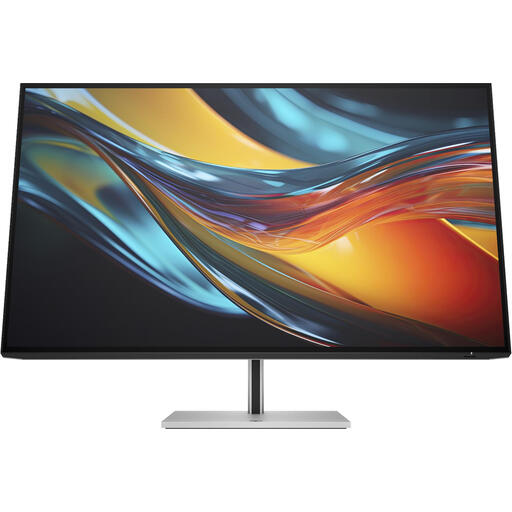 No image available
May suit you if you’re looking for a larger screen and Thunderbolt 4 for your workspace.
Product name: 31.5-inch, 4K and Thunderbolt 4.
According to the product information, a charger is not included as standard.
 No image available
May suit you if you’re looking for a 32-inch 4K screen for detailed work.
Product name: 32-inch and 3840 × 2160 pixels.
No, not by itself. A higher screen resolution doesn’t change the computer resources available. Adobe lists computer resources and scratch disks among the factors affecting Photoshop’s speed and stability. The cause of a slowdown depends on your computer and software.
Use colour management with a suitable screen profile, then soft-proof with the profile for your intended output process. A stated Adobe RGB percentage alone doesn’t guarantee a match between screen and print.
Check that your laptop supports video through the relevant connection and how much charging power it needs. The EIZO CS2740, BenQ SW272U and ASUS PA279CRV list maximum outputs of 60 W, 90 W and 96 W respectively. Check these against your laptop’s requirements.
The EU energy label for electronic displays uses a scale from A to G. The European Commission also provides data for comparing displays, including screen size and resolution. Check the label for the exact models; 4K isn’t an energy rating in itself.
Not in every case. According to the Dutch government, consumers buying remotely from a business often have a 14-day cooling-off period, but whether it applies depends on the purchase. Don’t assume that consumer rights apply to a business purchase.