
Illustrator for digital publishing
You draw market stalls for online use and want to assess colours and source photos alongside your illustration.


Choose a monitor based on how you use your illustrations. For digital publishing, suitable sRGB coverage matters, while colour-critical print work also calls for calibration and the right output profile. A 4K screen has more pixels than QHD, but that doesn’t guarantee that a print will match the colours on screen. Also check that the resolution, window layout and connections suit your workspace.
You draw market stalls for online use and want to assess colours and source photos alongside your illustration.
You work with scans or photos alongside your drawing area and need a layout where details and work windows remain easy to use.
You also supply work for print and need to match your monitor and its calibration to the printer’s output profile.
Start with the end product. Then decide whether you mainly need sRGB coverage, extra pixels for source images or colour management features.
| What to consider | What should you check? | Who is this important for? |
|---|---|---|
| Colour for the end product | Decide whether you mainly publish on screen or also produce colour-critical print work. Compare the stated colour gamut and calibration options of the exact model. | If I want to assess source colours for digital publishing, suitable sRGB coverage comes first; around 36% of consumers give colour for the end product top priority. |
| Detail and workspace | Compare screen size and resolution together. Consider whether you want to display a source image, drawing area and tools at a readable size all at once. | When I’m viewing scans, reference photos and my canvas at the same time, I want enough space and detail without making text hard to read; around 29% of consumers put detail and workspace first. |
| Preparing for print | Ask the printer which output profile it uses and check that the monitor supports calibration and the colour gamut you need. | When I print illustrations, I want to match my screen settings to the output profile; around 21% of consumers prioritise colour-critical print preparation. |
| Connections and workspace | Check your laptop’s video output and power requirements, as well as the cable and monitor features. Also see whether the adjustability suits your setup. | When I work on a laptop for long periods, I want to know in advance whether the chosen connection will handle both the picture and power, and whether I can position the screen comfortably; around 14% of consumers start with connections and workspace. |
A stated gamut percentage doesn’t mean that a printer can reproduce every colour on screen. Adobe points out that the printer, ink and paper all affect the output colours.
Start with the intended end product and match the calibration and output profile to your print workflow, rather than choosing on the basis of a gamut percentage alone.
Colour management and assessing proofs can take extra time.
Stadsarchief Amsterdam distinguishes between images that can be downloaded directly and material subject to third-party rights.
Check the terms for each image and include any required credit or permission process before you publish.
Checking image rights or arranging permission can take extra time.
USB-C alone doesn’t guarantee that a laptop will receive a picture and enough charging power through the same connection. BenQ and ASUS each list 65 W Power Delivery for the models discussed here; your laptop’s requirements still determine what you need.
Before buying, compare your laptop’s video output and power requirements with the monitor’s features and the cable you’ll use.
According to the Dutch government, the Netherlands has no fixed statutory warranty period. If a product is faulty, the retailer is your point of contact; any manufacturer’s warranty is a separate promise.
Check the retailer’s terms and distinguish between your statutory rights and any manufacturer’s or additional warranty.
BenQ positions the 27-inch PD2705U 4K monitor for design work. It has stated 99% sRGB coverage and USB-C with 65 W Power Delivery.
The ProArt PA278CV is a 27-inch QHD model for anyone who has enough workspace with 2560 × 1440 pixels.
The ColorEdge CG2700S is designed for colour-critical work. EIZO lists 99% Adobe RGB coverage and a built-in calibration sensor.
According to LG, the 27-inch UltraFine 27UP850K-W 4K model has a typical DCI-P3 colour gamut of 95%.
Dell describes the UltraSharp U2725QE as a 27-inch 4K Thunderbolt hub monitor for anyone who wants extensive laptop connectivity as well as a screen for illustration work.
This selection focuses on 4K monitors for viewing source images and creative work, including a few models with stated colour features that may also be worth assessing for print.
 No image available
The product description lists graphic design and photography among the uses for this 32-inch 4K screen.
32 inches; VA panel; 3840 × 2160 pixels; 60 Hz; 300 cd/m²; 2× HDMI and DisplayPort; tiltable; speakers.
 No image available
The product description lists photo editing and design among the uses for this 27-inch 4K screen.
27 inches; IPS panel; 3840 × 2160 pixels; 60 Hz.
 No image available
The product description lists creative and visual work; its stated colour features may be worth comparing with the requirements of your print workflow.
31.5 inches; 3840 × 2160 pixels; 100% sRGB and 94% Adobe RGB according to the product description; integrated colour meter. For print, the output profile and the capabilities of the printer, ink and paper still matter.
 No image available
The product description lists graphic design, photo editing and video editing among the uses for this 27-inch 4K screen.
27 inches; 3840 × 2160 pixels; factory calibration and 94% Adobe RGB according to the product description; USB-C with 98 W Power Delivery. For print, the output profile and the capabilities of the printer, ink and paper still matter.
 No image available
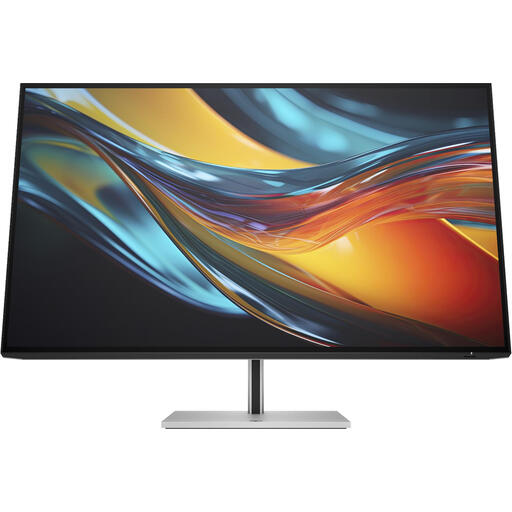
This 31.5-inch 4K screen could suit a workspace where you want to view source images and drawing work on a large display.
31.5 inches; 4K; Thunderbolt 4; IPS Black; up to 100 W laptop power delivery according to the product description.
No, 4K isn’t essential for that. Compare your source files and preferred window layout at a readable scale: the models discussed include 27-inch QHD with 2560 × 1440 pixels and 27-inch 4K with 3840 × 2160 pixels. More screen pixels can’t restore details that aren’t in the source file.
Calibrate and profile your screen, and use the right output profile for print. Adobe explains that the printer, ink and paper all play a part, and that not all screen colours can be reproduced exactly in print.
Only if your laptop and cable support the required video connection and the power delivery is sufficient. BenQ lists USB-C with DisplayPort Alt Mode, data and 65 W Power Delivery for the PD2705U; check that these meet your laptop’s requirements.
Check the terms for the specific image. Stadsarchief Amsterdam says images that can be downloaded directly from its image bank may be used free of charge for publication with the requested credit; third-party rights may require permission or be subject to other terms. According to the Dutch government, you must not publish other people’s copyright-protected photos without permission.
When you buy as a consumer in the Netherlands, you’re entitled to a product that works properly and can contact the retailer if it’s faulty. According to the Dutch government, there is no fixed statutory warranty period; any manufacturer’s warranty is separate.