
Icon designer with limited desk space
You need to fit your screen, stand and input devices on a small work surface, and want to position the screen comfortably.


Start by checking the screen and stand dimensions to make sure they’ll fit on your desk. Then choose according to your work: look for stated colour specifications, extra pixels for fine detail or a suitable laptop connection. Also check the adjustment options and compatibility of the exact model.
You need to fit your screen, stand and input devices on a small work surface, and want to position the screen comfortably.
You create digital icons and want to compare the stated colour gamut and calibration of a particular screen.
You want to view pixels and tool panels on a compact screen, ideally with a suitable connection for your laptop.
| What to consider | What should you check? | Who should prioritise this? |
|---|---|---|
| Desk space | Measure the available width and depth, then compare them with the monitor’s external dimensions, including the stand. Leave room for your hands and input devices too. | If I need to fit a screen, stand and input devices on a small work surface, I want to know how much room the complete setup will take up first. Around 25% of consumers give desk space their top priority. |
| Colour reproduction | Compare the stated sRGB coverage and calibration for each model; don’t treat manufacturer specifications as independent measurements. | When colour accuracy matters for my icons, I compare the specifications for the exact model rather than relying on a general claim about colour. Around 25% of consumers put colour reproduction first. |
| Detail and design panels | Compare the resolution and screen size. Check on your own computer that the selected display scaling keeps the controls easy to read. | If I want to see fine details and tool panels at the same time, I look at both the pixel count and the physical screen size. Around 20% of consumers make detail display their top buying priority. |
| Adjustable positioning | Check the height and tilt adjustments, and make sure the complete setup can sit directly in front of you. Arboportaal recommends positioning the top of the screen slightly below eye level. | If you want to position the screen comfortably throughout the working day, consider the adjustment options alongside the space available. Around 15% of consumers make comfortable positioning their main priority. |
| Connecting and charging a laptop | Check that your laptop can output video through the intended port, which features the monitor port supports and whether the charging power is sufficient. | If I want to use the monitor with my laptop, the connection needs to work with both the available ports and the laptop’s charging requirements. Around 15% of consumers give laptop connectivity their top priority. |
The screen size doesn’t tell you how much room the stand takes up. The stated depth of the BenQ PD2506Q is 256,9 mm including the stand, so measure the depth of your available desk space.
Before buying, compare the external dimensions, including the stand, with your work surface, and leave room for your input devices.
If the stand doesn’t fit, you may need a different mounting solution.
Resolution and panel type answer a different question from stated colour gamut and calibration.
For colour-critical work, check the specifications for the exact model and bear in mind that manufacturer claims aren’t independent measurements.
A USB-C connection alone doesn’t guarantee that your laptop will receive a video signal and enough power to charge through a single cable.
Compare the port features of your laptop and monitor, the cable you’ll use and the charging power you need.
You may also need a separate video connection or power supply.
The ProArt PA248QV is a 24,1-inch option for digital colour work on a compact screen.
According to BenQ, the PD2506Q combines QHD resolution with stated colour gamuts for design work.
The Pro 24 Plus P2425DE is a compact QHD monitor with a laptop hub.
The Business Monitor 24B2U3601/00 is a 23,8-inch QHD option.
The FlexScan EV2485 is a 24,1-inch 16:10 option for anyone weighing up workspace positioning and connectivity.
A selection of Joybuy monitors for small desks and digital icon design.
 Image unavailable
Its portable 16-inch size and built-in stand make it a good fit for a workspace with limited room.
The product name lists 2560 × 1600, 16:10, 100% sRGB, two USB-C ports and Mini HDMI. Check that the resolution, colour specifications and connections suit your laptop and workflow.
 Image unavailable
This portable screen could be a good choice if you’re looking for a compact monitor with a built-in stand.
The product name lists 2560 × 1600, an IPS panel, USB-C and HDMI. The stated colour gamut is 123% sRGB; check that this specification suits your colour workflow.
 Image unavailable
This 23,8-inch model could be a good fit if you’re looking for QHD resolution on a compact screen.
The product name lists 2560 × 1440 pixels. Check the colour specifications, connections and adjustment options for the exact version before using it for icon design.
 Image unavailable
This 24-inch Full HD monitor could suit you if you’re looking for a compact screen and don’t need as many extra pixels for design panels.
The product name lists Full HD. Compare the resolution with your needs to see whether you can keep details and controls on screen at the same time.
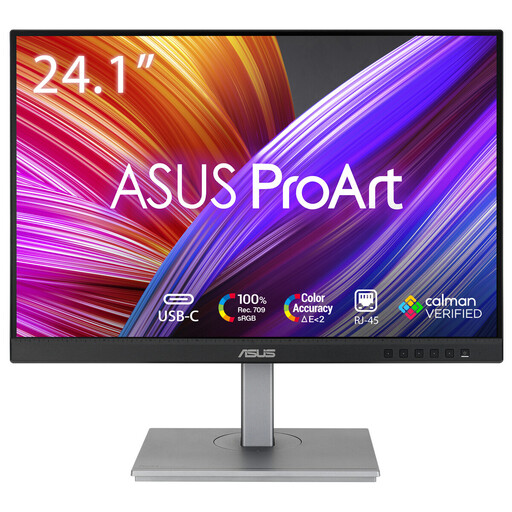 Image unavailable
This 24,1-inch model could suit you if you’re looking for a compact monitor with a 16:10 aspect ratio.
The product name lists 1920 × 1200 pixels. Consider whether that resolution is enough for your icon details, and check which connections you need.
No, QHD isn’t automatically necessary. Among the compact models reviewed, QHD gives you more pixels than 1920 × 1200, but that doesn’t automatically determine colour accuracy or how much room the stand takes up. Choose according to your needs for detail, colour specifications and display scaling, as well as the desk space available.
Place the monitor directly in front of you, with the top of the screen slightly below eye level, as recommended by Arboportaal. Measure beforehand to make sure the screen, stand and input devices will all fit on your work surface.
No, check compatibility first. Make sure your laptop can output video through the intended port, check which features the monitor port supports, and confirm that its charging power is suitable for your laptop.
According to the Dutch government (Rijksoverheid), the seller must provide a solution if a consumer product is faulty; there is no fixed statutory guarantee period in the Netherlands. Many distance-selling agreements come with a 14-day cooling-off period. This is separate from your rights if a product is faulty.
No. Arboportaal describes employers’ obligations regarding safe and healthy screen-based work, but its guidance doesn’t specify any of the consumer models mentioned here. How you set up your workspace and which model you choose are separate considerations.