What should you look for?
Compact 16:10 screen
Choose this if: you usually work on one document and value extra vertical space.
Trade-off: a more compact screen offers less physical width for placing the document and source material side by side.
27-inch QHD screen
Choose this if: you often want to view a photo, floor plan or property information alongside your text.
Trade-off: bear in mind how much desk space a larger screen takes up.
Screen with more adjustment options
Choose this if: you want to fine-tune the screen position to suit your workspace.
Trade-off: if it has a C-clamp, check that it fits your desk; adjustability alone doesn’t guarantee a suitable workspace.
| What to consider |
What should you look for? |
Who is this important for? |
| Keeping track of a long document |
Compare the aspect ratio, resolution and usable screen space. Test whether the document and Navigation pane fit side by side. |
When I work in one long document, I want to see the text and heading structure at a glance. This is the top priority for around 36% of consumers. |
| Viewing a document and property information side by side |
Assess the layout using your preferred text size and the desk space available. |
When I refer to photos or instructions while writing, I want to view them alongside my text. Around 29% of consumers prioritise this combination. |
| Adjusting the screen position |
Check the height adjustment and swivel; if it has a clamp stand, also check that your desk edge is suitable. |
For longer writing sessions, I want to be able to adjust the screen position to suit my workspace. This is the main concern for around 21% of consumers. |
| Connecting a laptop |
Check the video input, the cable required and the power output against your laptop’s specifications. |
When I connect my laptop, I want to know whether the monitor supports video and, if needed, supplies enough power. Around 14% of consumers put this connection first. |
Microsoft Support explains that in Word, the heading styles you use determine which headings appear in the Navigation pane. A different monitor won’t change how this feature works.
Brands to consider
The features mentioned apply to the specific models below; they aren’t general characteristics of every monitor from the same brand.
Dell
The P2425E and P2425H models reviewed here offer different sizes and connectivity options for writing tasks.
- Dell says the P2425E has a 16:10 WUXGA screen, height adjustment and USB-C power delivery up to 90 W.
- According to Dell, the P2425H’s USB-C downstream port is for data only; don’t assume the P2425E’s power delivery is available on this model.
Philips
The 27E1N1600AE/00 reviewed here is a 27-inch QHD model to consider when assessing a layout with a document and source material.
- Philips lists a resolution of 2560 × 1440, an IPS screen and USB-C with power delivery.
- These specifications don’t prove that the monitor reduces eye strain or boosts productivity.
LG
The 27BA45QB-B and 27QN880-B reviewed here pair QHD with different stand and mounting options.
- According to LG, the 27BA45QB-B has an adjustable stand, while the 27QN880-B has a movable stand with a C-clamp.
- Check that the 27QN880-B’s clamp fits your desk. The 60 W USB-C power delivery belongs to the 27QN880-B, not the 27BA45QB-B.
Lenovo
Lenovo positions the ThinkVision T24v-30 reviewed here as a collaboration monitor, with a built-in webcam and microphone.
- Lenovo lists a 23.8-inch Full HD screen for this model.
- A webcam and microphone won’t necessarily add value if you mainly write text; consider whether you need these features.
Joybuy monitors
The Joybuy products below are 27-inch monitors to consider when assessing space for a document and, potentially, a second window. Check each model’s connections and adjustment options.
 No image available
AOC Gaming Q27G42XNE, 27-inch QHD
The 27-inch size and QHD resolution are worth considering when assessing whether you can view the document and source window on one screen.
Resolution: 2560 × 1440. Connections listed in the product name: 2 × HDMI 2.0 and 1 × DisplayPort 1.4.
Joybuy
 No image available
Philips 27E1N1800AE/00, 27-inch 4K UHD IPS
This 27-inch model offers 4K resolution to consider when assessing how to arrange text and source material on screen.
Resolution: 3840 × 2160. The product name lists 60 Hz, 4 ms, HDMI, DisplayPort and a height-adjustable stand.
Joybuy
 No image available
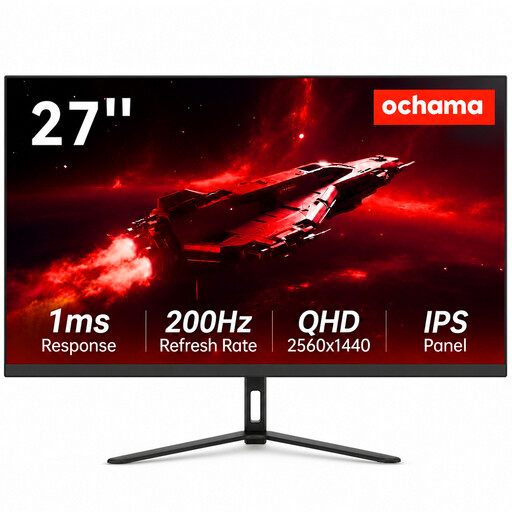
Ochama 27-inch Gaming & Office Monitor, 2K Ultra HD
The product name mentions both office and gaming use; the 27-inch size is worth considering when arranging your document and source window.
The product name lists 2K Ultra HD and a 200 Hz refresh rate.
Joybuy
 No image available
LG UltraGear 27GX704A-B.AEU, 27-inch OLED QHD
The 27-inch QHD format is worth considering if you want to assess how much room your text and a source window will take up together.
Resolution: 2560 × 1440. The product description lists OLED, 240 Hz and an adjustable stand.
Joybuy
 No image available
INNOCN CB27U1, 27-inch 4K UHD IPS
This model lists PIP and PBP display modes for viewing content from multiple sources; check whether these features suit the way you want to view your material.
Resolution: 3840 × 2160. The product name lists 120 Hz, USB-C 90 W PD, HDMI, DisplayPort and a height-adjustable stand. Check that the USB-C connection and power delivery are compatible with your laptop.
Joybuy
Frequently asked questions
Do I need a special monitor to view nested headings in Word?
No, you don’t need a special monitor. Apply heading styles and open the Navigation pane; Microsoft Support explains that Word displays headings from the main body of the document there. Headings in places such as text boxes and tables don’t always appear in the pane.
How should I set up my screen if I’m working on the guide for a long time?
Choose a setup that lets you adjust the screen and limit distracting reflections. For employees covered by the Dutch rules on display screen work, Arboportaal highlights considerations including height adjustment and reflections. The rules that apply depend on the working situation.
Can I connect any USB-C monitor to my laptop with one cable?
No. Check the ports and cable on both devices. Dell lists the P2425H as having a USB-C downstream port for data only, while the P2425E offers USB-C power delivery up to 90 W. For the model you choose, also check the video input and the amount of power your laptop needs.
What can I do if my monitor breaks sooner than I would reasonably expect?
When you buy as a consumer in the Netherlands, you have statutory rights in addition to any commercial warranty. According to ACM ConsuWijzer, the seller must put right a problem that occurs unexpectedly early under normal use, at no cost to you. This could mean a repair, replacement or refund. The assessment depends on what you could reasonably expect from the product.
Do the Dutch rules on display screen work also apply if I’m writing a guide in my personal time?
Not simply because you’re doing this as a personal project. Arboportaal explains the obligations for employers and the conditions for employees who work with display screens. Check these rules separately if you’re buying the monitor for that kind of workplace.


