
Newspaper scan reviewer
You compare printed letters, page layouts and OCR text, and need to inspect details in scans. The KB describes Delpher as a dataset containing scans, OCR and word coordinates.


Start by considering how much detail you need to see in scans and how many windows you want open at once. A 27-inch 4K monitor, a 27-inch QHD model and a more compact 24-inch 16:10 screen each offer a different balance of screen space and resolution. Then check that the stand, video connection and any laptop charging support suit your workspace and computer. Linking source files is still a job for your archive or indexing software.
You compare printed letters, page layouts and OCR text, and need to inspect details in scans. The KB describes Delpher as a dataset containing scans, OCR and word coordinates.
You want to view a scan, index fields and source details side by side. The KB lists searchable PDFs alongside scans and OCR; the monitor itself does not link these files.
You spend long periods working at a screen and pay attention to adjustability and your workspace set-up. Getting the monitor height right is one consideration also highlighted by Arboportaal, Rijksoverheid for the work situation described.
First compare the resolution and screen size with your scans and window layout, then check the adjustment options and connections.
With Delpher, scans, OCR and searchable PDFs can all be part of the same workflow, as the KB explains. The percentages below link the main buying priority to the relevant need.
| What to consider | What to check before buying | Who is this important for? |
|---|---|---|
| Detail in scans and OCR | Compare the native resolution and screen size, then view your usual scans at the text size you plan to use. | If I need to check small details in newspaper scans and OCR extracts, I want to be able to assess the text clearly. Around 36% of consumers put scan detail first. |
| Multiple windows side by side | Try your own layout of the scan, index fields and source details at the intended screen size and resolution. | When I need the scan, index and source information at the same time, I want to be able to arrange the windows clearly. Around 29% of consumers prioritise this kind of workspace. |
| Adjustability | Check the height, tilt and swivel adjustments, and consider reflections in your workspace. | If I work at a screen for long periods, I want to be able to set the monitor up to suit my workspace. Around 21% of consumers name adjustability as their top priority. |
| Connections and desk space | Check separately whether your computer supports video through the monitor connection and whether its power delivery is sufficient. Also measure the space available. | If my desk space is limited or I want to connect my laptop through the monitor, the size and connections need to suit my set-up. Around 14% of consumers start with this combination. |
USB-C can support data, video and power in different ways depending on the model. Dell describes the P2425’s USB-C port as a data downstream port of up to 15 W; EIZO specifies USB-C video via DisplayPort Alt Mode and up to 94 W power delivery for the EV2740X.
Check video support and charging capacity for the exact model before relying on a single cable.
If the monitor does not offer the functions you need, you may need another cable, an adapter or a dock.
A higher resolution does not change how scans, OCR, metadata and source files are linked. That organisation is handled by your archive or indexing software.
Try your own sample files and manage source references in your indexing workflow.
For a monitor, the model code and resolution can be crucial to your choice. LG specifies a resolution of 2560 × 1440 pixels for the 27BA65QB-B.
When comparing an offer, check the full model code and the key specifications against the manufacturer’s information.
The models mentioned range from a 27-inch 4K hub monitor to a more compact 24-inch 16:10 screen.
EIZO describes the FlexScan EV2740X as a 27-inch 4K office monitor.
The 27BA65QB-B is a 27-inch QHD work monitor with connection and adjustment options that should be checked for each version.
The Business Monitor 27B2U6903/00 mentioned here is a 27-inch 4K model with Thunderbolt 4 and Smart KVM.
These monitors are options to compare for reading newspaper scans and arranging index and source windows. The list includes 4K, QHD and ultra-wide models.
 No image available
Worth comparing if you want to view high-resolution scans and have image and text windows open side by side.
27 inches; 3840 × 2160 pixels; IPS; 120 Hz; HDR500; FreeSync; PIP and PBP; USB-C 90 W PD; HDMI and DisplayPort; height-adjustable.
 No image available
An option to compare if scan detail on a 27-inch desktop screen is important to you.
27 inches; 3840 × 2160 pixels; 4K UHD; LCD.
 No image available
Worth comparing for viewing scan details on a 27-inch screen; Dell lists 4K resolution and Thunderbolt for this model.
27 inches; 3840 × 2160 pixels; 4K UHD; LCD.
Check which connections and charging features are compatible with your computer.
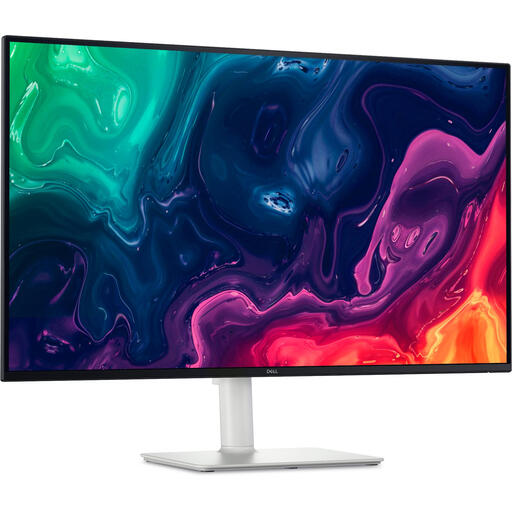 No image available
Compare this larger desktop screen if you want to weigh extra screen space for viewing scans against the room you have available.
31.5 inches; 3840 × 2160 pixels; 4K UHD; LCD.
 No image available
An ultra-wide screen to compare if you want to arrange a scan, index fields and source details at the same time.
34.1 inches; 3440 × 1440 pixels; Wide Quad HD; LCD.
The listed resolution differs from that of the 4K models mentioned. Consider which balance of detail and window space best suits your work.
No. A monitor displays files but does not link them together. The KB describes scans, OCR, metadata and searchable PDFs as parts of the newspaper dataset. Manage the links in your archive or indexing workflow.
Check video support and charging capacity separately. EIZO specifies USB-C video via DisplayPort Alt Mode and up to 94 W power delivery for the EV2740X; Dell describes the P2425’s USB-C port as supporting data downstream up to 15 W.
Compare the EU energy labels for the models. The European Commission states that the energy labelling rules for electronic displays also cover computer monitors; an energy label does not tell you how easy historical scans are to read on a screen.