
People reading maps together
You’re discussing the same heat map with someone sitting beside you and want the legend and colour areas to remain visible from both seats.


Start by considering where people will sit: IPS monitors generally have wider viewing angles than VA monitors, but that doesn’t prove that map colours will look the same to everyone. RTINGS.com explains this difference at panel level. Then choose QHD or 4K based on the smallest labels you need to read, and check the display scaling, table layout and laptop connections.
You’re discussing the same heat map with someone sitting beside you and want the legend and colour areas to remain visible from both seats.
You switch between map layers, boundaries and small labels, so resolution and practical display scaling matter to you.
You set the screen up among other things or switch between laptops. Adjustability, reflections and suitable connections all affect whether the setup works for you.
Start by checking visibility from both seats, then check the smallest labels and see whether the stand, lighting and laptop connections suit the table.
| What to consider | What should you check? | Who is this important for? |
|---|---|---|
| Seeing colours and the legend together | Check the panel type and view a map with its legend from the seats you’ll actually use. A stated viewing angle doesn’t prove that colours will look identical from every seat. | When we discuss the same heat map side by side, I want to be able to read the legend from both seats. Around 26% of consumers put viewing together first. |
| Reading small labels and boundaries | View the map at a normal sitting distance in the application you use, and check that your laptop can output the desired resolution through the port you’ve chosen. | I want to compare small labels and boundaries without the map becoming uncomfortably small. Around 26% of consumers put map detail first. |
| Setting up on a shared table | Measure the space available for the screen and stand, check the height and swivel adjustment, and consider windows and lights. A matt finish can reduce mirror-like reflections, but won’t prevent every distracting glare. | At a table we share, I want to be able to position the screen to fit and limit reflections. Around 21% of consumers put the table setup first. |
| Connecting different laptops | Check video support on the laptop port, the power delivery required, the monitor port and which cable is supplied with the monitor. | When we switch between laptops, I want to know whether the chosen connection will handle both the picture and any required power. Around 16% of consumers put connectivity first. |
| Choosing features to suit the map task | Check whether QHD makes labels readable before opting for 4K. Also check the display scaling and which features you’ll actually use. | I want to choose based on the details I need for neighbourhood maps, not just a higher number in the specifications. Around 11% of consumers put choosing only the features they need first. |
More pixels won’t automatically fix an awkward viewing position or distracting reflections. The display scaling can also make small map labels difficult to read.
View the map and legend from the seats you’ll actually use, then assess QHD or 4K in the application you work with. RTINGS.com explains differences in viewing angles between IPS and VA, and in reflections between matt and glossy screens.
A USB-C connection on the monitor doesn’t guarantee that the laptop can send video through it or charge at the available power level. BenQ Netherlands lists DisplayPort Alt Mode and 65 W Power Delivery for the GW2790QT; these aren’t specifications for other monitors.
Check the laptop port, monitor connection, cable and charging capacity of both devices.
Depending on the laptop, you may still need a separate power adapter or a different video cable.
General differences in viewing angles between IPS and VA don’t tell you how a particular heat map will look on your screen. The legend and settings also affect how you interpret the map categories.
Check how the map actually looks, and don’t rely on colour alone to distinguish between categories.
An additional warranty isn’t the same as your statutory right to a product of satisfactory quality. The Dutch Government states that there is no fixed general statutory warranty period in the Netherlands.
Check what the additional warranty covers. If a product is faulty, contact the seller.
Philips Netherlands lists the 27E1N1600AE/00 as a QHD monitor with USB-C power delivery. It’s an option if QHD and connecting your laptop via USB-C suit your needs.
BenQ describes the GW2790QT as a 27-inch QHD monitor with a USB-C hub and adjustable stand, designed for flexible table setups.
Dell lists the Pro P2725QE as a 27-inch 4K USB-C hub monitor for anyone looking to combine map detail with a range of connection options.
LG describes the 27UP850K-W as a 27-inch 4K IPS monitor with USB-C and a stand adjustable for height, tilt and pivot.
Samsung lists the 27-inch ViewFinity S7 S70D, model LS27D706EAUXEN, with a resolution of 3840 × 2160 for those who value detail.
These Joybuy products are 27-inch 4K monitors whose product information highlights map detail and shared viewing. Check that your laptop, connection and display scaling suit your setup.
 No image available
The stated 27-inch 4K resolution and IPS panel are suited to anyone who wants to view map details and share the screen with others.
 No image available
The product name specifies a 27-inch 4K IPS screen, USB-C with 90 W Power Delivery and a height-adjustable stand. Check that the connection and charging capacity suit your laptop.
Video and charging over USB-C also depend on the connected laptop.
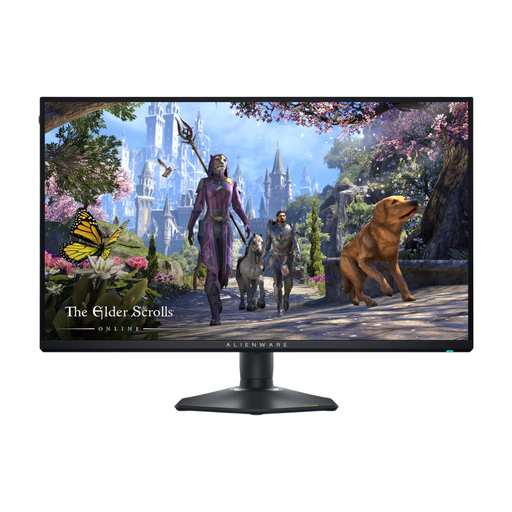 No image available
The product information lists 4K and a separate Full HD mode. Bear in mind the difference between these two display modes when viewing maps.
 No image available
The product name specifies a 27-inch 4K monitor. Compare the display scaling in your map application and check that the connections suit the laptops used at the table.
 No image available
The product name specifies a 27-inch 4K monitor. Check that the scaling in your mapping software is comfortable to use and that the connections suit the laptops you use.
No. IPS monitors generally have wider viewing angles than VA monitors, so they can be a useful starting point when people are sitting side by side. Also consider the actual seating positions and light levels. RTINGS.com describes general panel differences, not measurements for every individual model.
No. Check that the laptop port supports video in the required mode and that the monitor’s power delivery is sufficient. For example, BenQ Netherlands specifies DisplayPort Alt Mode and 65 W Power Delivery for the GW2790QT; this doesn’t automatically apply to other monitors.
Position the screen so everyone can see the legend, and reduce distracting reflections by adjusting the setup and lighting or, if needed, using blinds. Arboportaal recommends adjustability and avoiding reflections for applicable screen-based work by employees; these workplace rules aren’t a general purchase requirement for every student.
For eligible distance purchases by consumers, a 14-day cooling-off period applies in many cases, according to the Dutch Government. There is also a statutory right in the Netherlands to a product of satisfactory quality, with no fixed general warranty period. If a product is faulty, contact the seller. Check which terms and exceptions apply to your purchase.
Not simply because people are studying together. The information from Arboportaal cited here relates to employees and applicable screen-based work; whether those rules apply depends on the actual working relationship and workplace.