
People comparing maps and sources
You want to read a map, its legend and a research article side by side. The layout on screen and the desk space available will therefore affect your choice.


A 27-inch QHD monitor with an adjustable stand is a useful starting point if you usually view a map and an article at the same time. Check, though, that both fit at a text size you’re comfortable with. An ultrawide screen could suit you if you often want to see more windows side by side and have enough desk space. 4K is worth considering when fine detail matters most, provided the display scaling makes text comfortable to read. Compare colour reproduction and connections to suit your needs, too. Dell Netherlands lists both 27-inch QHD and 4K models, while Philips Netherlands describes a 34-inch ultrawide model.
You want to read a map, its legend and a research article side by side. The layout on screen and the desk space available will therefore affect your choice.
You read for long periods and want to adjust the text size, lighting and screen position to suit your workspace. Arboportaal notes that factors such as small symbols, glare and ambient light can affect legibility.
You assess subtle colour differences and want to check the colour mode of the exact model as well as its resolution.
Start with the layout you actually use when reading maps, then compare text size, workspace and connections. The table summarises the main considerations for this combination of map research and a long reading list.
| What to consider | What should you check? | Who should pay particular attention? |
|---|---|---|
| Map, legend and sources side by side | Try your own map and PDF layout at a text size you find comfortable. Dell Netherlands lists a 27-inch QHD model, while Philips Netherlands describes the 346E2CUAE/00 as a 34-inch screen with 3440 × 1440 pixels and a 21:9 aspect ratio. | I want to view the map, legend and source at the same time without making the text smaller than I find comfortable. Consumers who prioritise window layout make up around 36% of consumers in this decision context. |
| Comfort during long reading sessions | Check whether you can adjust the screen position and text size to suit your workspace, and look out for changes in lighting and glare. Arboportaal highlights legibility and recommends regularly changing your posture and viewing direction when working at a screen. | When I have a long reading list, I want the text to be easy to read and to be able to adjust my workspace to suit me. Consumers who prioritise long reading sessions make up around 29% of consumers in this decision context. |
| Colour differences and fine detail | Compare QHD and 4K with display scaling that you find easy to read. Dell Netherlands lists 3840 × 2160 pixels for the P2725QE; ASUS gives its own colour reproduction specifications for the PA278CV. | When I’m assessing small map labels or subtle colour differences, I want to view them using my usual settings. Around 21% of consumers prioritise colour assessment. |
| Connecting a laptop | Check that your laptop can output video through the connection you’ve chosen and find out what charging wattage you need. A USB-C port on the monitor alone doesn’t confirm that the laptop can output video or charge at the available wattage. | I want to connect my laptop easily and check that video and charging work through the connection I plan to use. Consumers who prioritise connecting a laptop make up around 14% of consumers in this decision context. |
The 27-inch QHD and 4K models considered are physically the same size. So a higher resolution doesn’t automatically mean you can fit more windows on screen at a readable size.
Try viewing your map and an article side by side at the text size you actually use, then compare the resolutions.
Both the monitor and laptop need to support the video output and charging wattage you require.
Check the port specifications on both devices and make sure your cable is compatible with the connection you want to use.
Depending on the combination, you may need a different cable, an adapter or a separate laptop charger.
The extra horizontal space of a 34-inch screen is only useful if it fits on your desk and your windows remain readable at your preferred text size.
Measure the space available and test your map, legend and PDF layout before choosing a screen size.
The stated length of a manufacturer’s warranty doesn’t, by itself, tell you which statutory rights apply. The Dutch government (Rijksoverheid) states that the Netherlands has no fixed statutory two-year warranty period, and that you should contact the seller if a product is faulty.
Read exactly what the manufacturer’s warranty covers, and consider any additional cover alongside your statutory rights.
Dell Netherlands describes a 27-inch QHD model and a 27-inch 4K model, both as USB-C hub monitors.
The Philips E Line 346E2CUAE/00 is a 34-inch ultrawide model to compare if you often want to view several windows side by side.
The ProArt PA278CV is a 27-inch QHD model to consider if colour settings matter for the way you use maps.
According to BenQ, the GW2790QT combines a 27-inch QHD screen with an adjustable stand and USB-C.
These monitors suit different ways of viewing neighbourhood maps and reading material: 27-inch QHD or 4K, an ultrawide format, and a QHD model for those who also want to compare colour reproduction.
 No image available
An option to compare if you want to view map details and can still read text comfortably at your chosen display scaling.
27 inches; 3840 × 2160 pixels; IPS; 60 Hz; 4 ms.
HDMI and DisplayPort; the product name specifies a height-adjustable stand.
 No image available
A model to compare if you want to place your map and article side by side and both fit at your preferred reading size.
27 inches; 2560 × 1440 pixels; Wide Quad HD.
 No image available
An option to compare with QHD if fine map details matter to you. Also check that text remains comfortable to read at your chosen display scaling.
27 inches; 3840 × 2160 pixels; 4K Ultra HD.
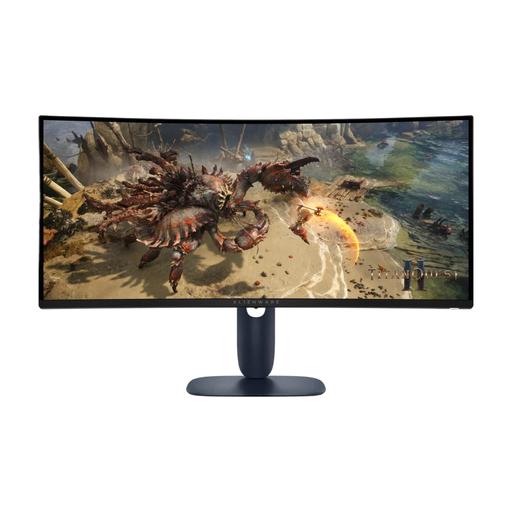 No image available
A 34-inch option to compare if you want to view several windows side by side and have enough desk space.
34 inches; 3440 × 1440 pixels; Wide Quad HD.
Measure the available width beforehand and check that your windows remain readable at your preferred text size.
 No image available
A model to compare if you want to assess colour differences carefully as well as viewing maps and reading material.
27 inches; 2560 × 1440 pixels; Quad HD.
Assess the colour reproduction of the exact model and your map settings; the product name alone doesn’t provide an independent colour measurement.
No, 4K isn’t automatically necessary for small labels. The 27-inch Dell 4K model considered has more pixels than the 27-inch QHD model considered, but check that labels and articles are readable at your display scaling. More pixels don’t automatically give you more usable space for readable windows.
Adjust the text size, screen position and ambient light so that text is easy to read and the screen doesn’t reflect light. Arboportaal recommends varying your working posture and regularly looking away when working at a screen. This doesn’t guarantee that a particular monitor model will prevent discomfort.
For monitors within its scope, the European Commission describes the energy label and EPREL product information as tools for comparing energy data. If a product is faulty in the Netherlands, contact the seller; according to the Dutch government (Rijksoverheid), there is no fixed statutory two-year warranty period.
According to the Dutch government (Rijksoverheid), online purchases from a business generally come with a 14-day cooling-off period. Check who the seller is and what returns conditions apply; a purchase from a private seller isn’t necessarily covered by the same rules.
No, the statutory obligations described for screen work apply to employers and employees; they aren’t automatically legal requirements for a private study space. However, Arboportaal’s practical advice on legibility and posture may help you set one up.