What should you consider when choosing?
First, measure the space for the monitor stand and your work materials. Then compare the screen space, adjustability and connections you need to create and review handouts.
| What to consider |
What should you check? |
Who should prioritise this? |
| Desk space |
Measure the available width and depth, then compare them with the dimensions of the exact model, including its stand. |
If you want to use your keyboard and paper alongside the monitor, the key question is whether the whole setup will fit. Around 33% of consumers prioritise a monitor setup that fits within the space available on their desk. |
| Document space |
Compare 1920 × 1080, 1920 × 1200 and 2560 × 1440, and check how readable the text is at your chosen display scaling. |
If you want to refer to source material while writing, the space available for text and sources is crucial. Around 27% of consumers put document space first. |
| Screen position |
Check the height adjustment and how the monitor can be positioned in your workspace. Also consider the stand or a suitable monitor arm. |
If you want to adjust the screen position to suit your workspace, adjustability and placement matter more than extra pixels. Around 20% of consumers prioritise an adjustable workspace setup. |
| Connecting a laptop |
Check whether USB-C supports video, what Power Delivery is available and whether the cable is suitable for your laptop. |
If you want to use a laptop with as few separate connections as possible, the monitor port needs to meet your laptop’s video and charging requirements. Around 20% of consumers prioritise this connection. |
Monitors on Joybuy
This selection focuses on monitors for creating handouts at a small desk, with options for extra document space, an adjustable screen position or a laptop connection.
 No image available
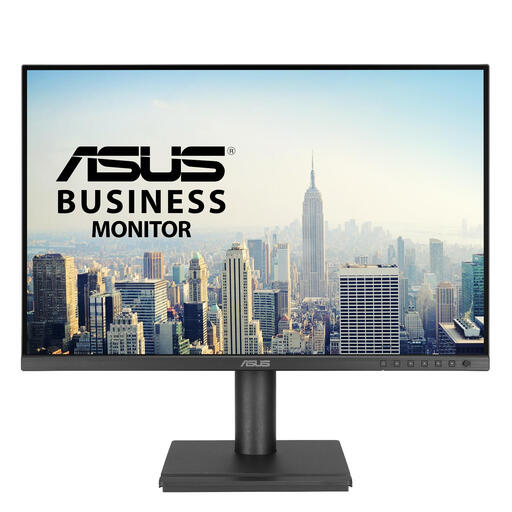
ASUS BE248CFN, 24.1-inch WUXGA monitor
Worth considering if you want extra vertical document space when creating handouts.
Product name: 24.1 inches, 1920 × 1200 pixels, WUXGA.
Joybuy
 No image available
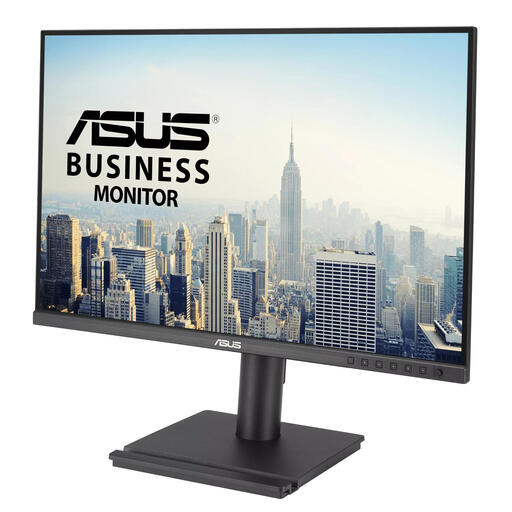
ASUS BE248QF, 24.1-inch WUXGA monitor
Worth comparing if you want extra vertical document space when creating handouts.
Product name: 24.1 inches, 1920 × 1200 pixels, WUXGA.
Joybuy
 No image available
Dell Pro Plus P2425DE, 24-inch Quad HD monitor
Worth considering if you want QHD and a USB-C hub for viewing source material alongside your handout. Check that the charging function and ports are suitable for your laptop.
Product name: 24 inches, 2560 × 1440 pixels, Quad HD.
Joybuy
 No image available
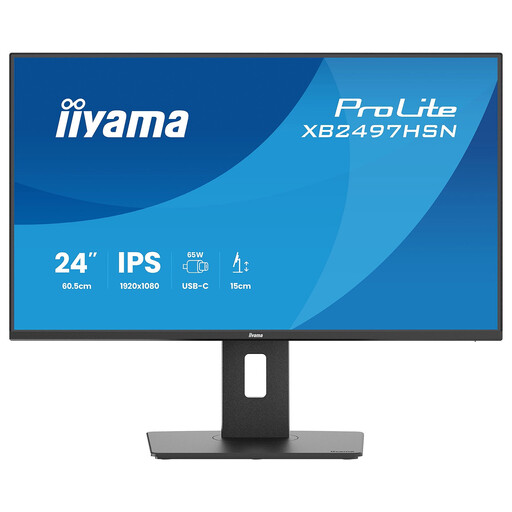
iiyama ProLite XB2497HSN-B1, 24-inch Full HD 100Hz IPS monitor
Worth considering if you want to combine a laptop dock with an adjustable screen position. Check that the USB-C functions listed are compatible with your laptop.
Product name: Full HD, 100 Hz, IPS.
Full HD 1920 × 1080 has fewer vertical pixels than WUXGA 1920 × 1200 and fewer pixels overall than QHD.
Joybuy
 No image available
Dell Pro Plus P2425D, 24-inch Quad HD monitor
Worth considering if you want more room for text and source material when creating handouts. Check that the display scaling you prefer keeps text comfortable to read.
Product name: 24 inches, 2560 × 1440 pixels, Quad HD.
Joybuy
Frequently asked questions
Is a 24-inch monitor automatically suitable for a small desk?
No. The diagonal doesn’t tell you how much room the stand, cables and work materials will take up. Measure the available space and compare it with the dimensions of the exact model.
Will every USB-C monitor charge my laptop?
No. USB-C ports can differ in function and charging power. Dell lists a USB-C downstream port of up to 15 W for the P2425 and a USB-C hub with 90 W for the separate P2425DE. Check what your laptop requires too.
How should I position a monitor if I also use printed sources?
Position the screen and paper so you can use them comfortably and minimise distracting reflections. Arboportaal lists suitable screen positioning, lighting and a document holder among the elements of a computer workstation. For work as an employee, your employer must assess the applicable conditions.
What are my rights when I buy a monitor online?
For a distance purchase by a consumer, a 14-day cooling-off period applies in many cases, according to the Dutch government. Check the terms of your specific purchase. ACM ConsuWijzer explains that statutory warranty in the Netherlands doesn’t have a fixed term of just two years: what you could reasonably expect from the product with normal use is what matters.
Are there Dutch rules for working at a monitor for long periods?
There are requirements for computer workstations used by employees. Arboportaal states that if you work at a screen for more than 2 hours a day, the screen and keyboard must not be attached to each other, and the screen must be height-adjustable. Your employer must assess which requirements apply to your workplace.


