
Collection registrar
If you enter details for lots of objects, you’ll want to see fields and reference photos clearly side by side. The Digital Heritage Network stresses the importance of consistent cataloguing terms.


For recording fossils with custom fields, an adjustable QHD monitor is a sensible starting point if you mainly view text and reference photos. If you regularly assess fine photographic details, also consider 4K resolution and colour management features. You set up custom fields in your collection software; also check that the text scaling and connections suit your computer.
If you enter details for lots of objects, you’ll want to see fields and reference photos clearly side by side. The Digital Heritage Network stresses the importance of consistent cataloguing terms.
You regularly assess detail and colour in fossil photographs, so your priorities differ from those of someone who mainly enters text. BenQ lists 100% sRGB for the PD2705Q; EIZO lists hardware calibration and 99% Adobe RGB coverage for the CS2740. These are model specifications, not a guarantee of how every photo will look.
For long cataloguing sessions, you’ll want to adjust the monitor to suit your workspace. Arboportaal advises taking regular breaks from screen work to do other tasks or have a break.
Start by setting your collection software to a text size that’s comfortable to read. Then decide whether assessing photos calls for colour features, and check that the monitor can be adjusted to suit your workspace and connect to your computer.
| What to consider | What to look for when buying | Who is this important for? |
|---|---|---|
| Clear overview of records | Compare screen size and resolution, and test your software at a text size you find comfortable. | If I want to see object numbers, descriptions and custom fields at the same time, the layout of my software is the deciding factor. Around 40% of consumers prioritise having a clear overview of their records. |
| Photo detail and colour | Check which colour space and calibration options are listed for the exact model, and whether they suit the way you work with photos. | When I assess detail and colour in fossil photos, I want to know which display features suit my workflow. Around 30% of consumers prioritise photo assessment. |
| Working posture | Check the height and tilt adjustment options, and set up the monitor to suit your workspace. | For longer data-entry sessions, I want to adjust the screen to suit my workspace and take breaks from screen work. Around 20% of consumers mainly want to tailor their setup to their working posture. |
| Connecting a laptop | Compare the video connections and any USB-C power delivery with your laptop’s ports and power requirements. | If I want to connect and charge my laptop through the monitor, both devices need to support the required features. Around 10% of consumers prioritise a simple laptop connection. |
More screen space won’t change what your collection software can do. Custom fields need to be available and set up in the software itself.
First check what fields your software supports, then decide how much screen space you need for its interface.
A colour space specification doesn’t tell you how the colours in your own images will look. Your photography and calibration workflow also play a part.
Choose extra colour features only if you’re also prepared to manage the corresponding steps in your photo workflow.
For hardware calibration, EIZO lists a measuring device as an optional accessory for the CS2740. Bear in mind that you’ll need this extra item if you choose this workflow.
The video connection and charging function you need must be supported by both the monitor and the laptop.
Compare your laptop’s ports and power requirements with the specifications for the exact monitor model.
The UltraSharp U2724D is a 27-inch QHD monitor worth considering if a clear overview of records and adjustability matter to you.
The PD2705Q is a 27-inch QHD model with a manufacturer-stated colour coverage specification.
The UltraFine 27UP850K-W combines a 27-inch 4K screen with USB-C and an adjustable stand.
The 27E1N5600AE/00 is a QHD model worth considering if you want to connect a compatible notebook via USB-C.
The ColorEdge CS2740 is a 4K model for workflows where colour management plays an important role.
This Joybuy selection includes QHD and 4K monitors for viewing collection records and fossil photos. Compare each model’s screen size, connections and features with your own software and workspace.
 No image available
Worth considering if you want to view collection records and reference photos on a 32-inch screen.
32 inch; 4K UHD; 120Hz; QD-OLED.
 No image available
A QHD option to compare if you mainly enter collection records and view reference photos on the same screen.
Dell lists a 27-inch screen, 2560 × 1440 pixels, IPS Black and an adjustable stand.
 No image available
An option if you want to view collection records and photos on a 27-inch 4K screen.
27 inch; 3840 × 2160 pixels; 4K Ultra HD; LCD.
 No image available
An option to compare if you’re looking for a 27-inch 4K screen for collection records and photos.
27 inch; 3840 × 2160 pixels; 4K Ultra HD; LCD.
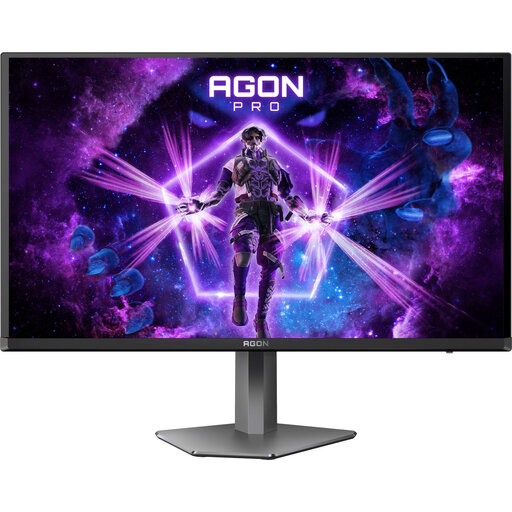 No image available
A QHD option to include in your comparison if you want to view collection records and fossil photos on one screen.
27 inch; 2560 × 1440 pixels; DisplayPort: 240 Hz; HDMI: 144 Hz; 250 cd/m²; 2 HDMI and 2 DisplayPort connections; height, pivot, swivel and tilt adjustment.
No, custom fields are a feature of your collection software. Check which fields you can create there; the monitor determines how you see the software and photos.
Adjust the monitor to suit your workspace and take breaks from screen work. Arboportaal advises taking regular breaks to do other tasks or have a rest; these workplace guidelines aren’t automatically a purchasing standard for every private collector.
It depends on your workflow and the model. EIZO lists a measuring device for hardware calibration as an optional accessory for the CS2740; LG states that the accompanying software for the calibration options mentioned isn’t included. Before buying, check what you’ll need for the exact model.
According to the European Commission, computer monitors are covered by the EU energy label, with classes from A to G. Compare the labels for the exact models; resolution and colour specifications don’t replace this energy information.
No. The Dutch Government states that the Netherlands has no fixed statutory warranty period: you’re entitled to a product that works properly, and its reasonable expected lifespan is taken into account. If something goes wrong, contact the seller; if you’re buying on behalf of an organisation, check the contract terms too.