
Writer with plot notes
You want to view your manuscript, a timeline and clues at the same time. Microsoft explains how to snap windows into position; your screen width determines how much room you have to do this.


For writing a detective novella, a 27-inch QHD monitor is a practical choice if you want to place your manuscript alongside clues or reference material. A 24-inch 16:10 screen is better suited to working on a single document at a smaller desk. An ultrawide is worth considering if you want to view several windows at once and have enough desk space. Keyboard shortcuts depend on your operating system and writing app, not your monitor; also check adjustability, text size and connections.
You want to view your manuscript, a timeline and clues at the same time. Microsoft explains how to snap windows into position; your screen width determines how much room you have to do this.
You want to make text easy to read and position the screen comfortably while writing and editing. The Arboportaal and TNO also highlight the importance of a well-set-up workstation and varying your activities.
You would rather have a clear view of your manuscript in a limited space than a wider setup. The Dell P2425 is a document-focused 24-inch model with an adjustable stand.
First decide whether you’ll mainly read a single manuscript or often have notes and reference material open alongside it. Then compare the screen position and connections with your workspace and laptop.
| What to consider | What to look for | Who should pay extra attention? |
|---|---|---|
| Manuscript and clues side by side | Compare the screen layout and resolution with the number of windows you want to use at once. Microsoft explains how to snap windows in Windows. | If I want to keep a timeline or reference material beside my manuscript while writing, I’d rather switch between windows less often. Around 36% of consumers prioritise having windows side by side. |
| Readability and adjustability | Check the height adjustment, screen reflections and text size you find easy to read; take breaks from screen work. | During long writing and editing sessions, I want to be able to read the text and position the screen comfortably. Around 29% of consumers prioritise an adjustable reading position. |
| Document space on a small desk | Measure the available space, including the monitor stand, and compare the vertical resolution with your preferred text scaling. | If my desk space is limited and I usually have one document open, a compact setup matters more than having lots of windows open at once. Around 21% of consumers choose a monitor primarily to meet this need for a compact document workspace. |
| Connecting a laptop and peripherals | Check whether your laptop supports video output through the monitor port and whether the power delivery is sufficient. Also check the connections for peripherals. | If I want to use my laptop and peripherals with as few separate connections as possible, the monitor needs to match my laptop’s video output and power requirements. Around 14% of consumers prioritise a suitable laptop connection. |
Keyboard shortcuts for editing text and arranging windows depend on your operating system or application. Microsoft notes that how they work can vary between applications.
Try out your writing and window layout before choosing a wider screen.
The Dell P2425 lists a USB-C downstream port for data, with a maximum output of 15 W. The BenQ GW2790QT specifies USB-C with DisplayPort Alt Mode, data and 65 W Power Delivery; video and charging also depend on your laptop.
Check the exact monitor model to make sure your laptop can output video via USB-C and that the power delivery matches your laptop’s requirements.
Depending on the connections, you may still need a different video cable or your existing laptop power supply.
The models reviewed include a document-focused 24-inch 16:10 screen and a 27-inch QHD screen.
The ProLite XB2797QSU-B1 is a 27-inch QHD model for viewing documents side by side.
The GW2790QT combines a 27-inch QHD screen with USB-C connections for a compatible laptop setup.
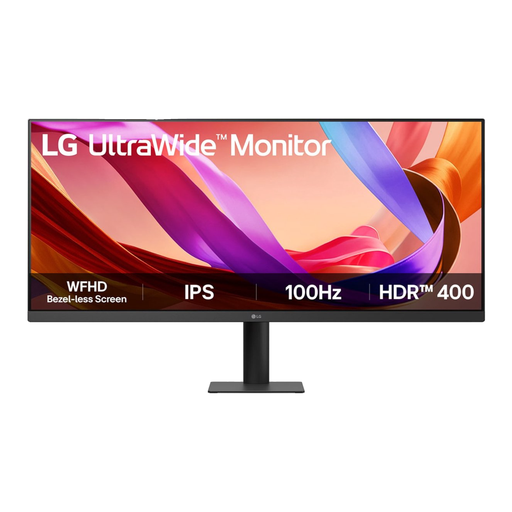
The LG 34WQ73A-B is an ultrawide model for a setup with several windows visible at once.
The Business Monitor 24B2G5200/00 is a 23.8-inch Full HD option for a workspace centred around a single document.
This selection includes screens for viewing your manuscript and notes side by side, as well as an ultrawide option and models with an adjustable stand or USB-C connection.
 No image available
A good choice if you want a 27-inch high-resolution screen for your manuscript and notes.
3840 × 2160 pixels; 60 Hz; 4 ms; HDMI and DisplayPort; height-adjustable stand.
 No image available
Well suited to a writing setup where you want your manuscript and plot notes side by side.
2560 × 1440 pixels; stand with height, tilt, swivel and pivot adjustment.
 No image available
A good choice if you want to view your manuscript and research at the same time; bear in mind how much desk width you’ll need.
34 inches; 21:9; 3440 × 1440 pixels; the description lists Picture-by-Picture.
 No image available
Well suited to a laptop workspace where you want to place your manuscript and notes side by side and use USB-C for video, data and charging.
2560 × 1440 pixels; USB-C with DisplayPort Alt Mode, data and up to 90 W Power Delivery. Check that your laptop supports this and needs that level of power delivery.
 No image available
A good choice if you’re looking for a 27-inch screen to view your manuscript and plot notes side by side.
2560 × 1440 pixels; stand with height, tilt, swivel and pivot adjustment.
No. Keyboard shortcuts depend on your operating system and writing app. Microsoft explains keyboard shortcuts for editing text and arranging windows; how they work can vary between applications. Choose a monitor based on your preferred window layout and readability.
Set the text size and screen position so the text is easy for you to read and the screen doesn’t reflect light. The Arboportaal offers advice on setting up a screen-based workstation; TNO also highlights the importance of varying your activities and taking breaks. A monitor can’t guarantee that you’ll avoid discomfort.
Compare the EU energy labels of specific models on the same basis. According to the Dutch government, statutory guarantees apply in the Netherlands without a fixed legal guarantee period; if a product is faulty, the seller must provide a solution. For a typical online consumer purchase, you generally have 14 days to change your mind, subject to statutory exceptions.
The obligations cited in the Working Conditions Decree apply to employers and employees; writing in your own time doesn’t automatically make you an employee in that situation. The Arboportaal’s workstation tips may also be useful outside working hours. For employees who work at a screen for more than two hours a day, the Arboportaal sets out specific workstation requirements.