
Writers who work on their manuscript every day
If you write and reread long chapters, look for a screen that you can adjust to suit your regular workspace. Arboportaal describes the static strain that can come with screen-based work.


Choose a monitor that you can adjust to suit your workspace and that makes your manuscript comfortable to read. More pixels or USB-C are most useful if you want to view notes and other documents at the same time, or connect a compatible laptop. A monitor doesn’t make backups: keep a separate copy of your story on external storage.
If you write and reread long chapters, look for a screen that you can adjust to suit your regular workspace. Arboportaal describes the static strain that can come with screen-based work.
If you want to view scenes, timelines and notes at the same time, consider screen space and resolution. The AOC and LG models covered here have 27-inch screens.
The right connection can make your laptop workspace simpler. You’ll need to arrange chapter backups separately; VeiligInternetten lists an external hard drive or USB stick as options.
Start with readability and adjustability for your usual writing space. Then consider whether you need more screen space or a particular laptop connection. Keep offline copies separate from your monitor.
| What to consider | What should you look for? | Who might find this more important? |
|---|---|---|
| Readability | Compare your preferred text size with the number of lines you can see from your usual viewing distance. More pixels don’t automatically mean larger text. | If I read long passages in a single manuscript, I want to balance text size with the number of visible lines. Around 29% of consumers put readability first. |
| Working posture | Check the height and tilt adjustments, and whether you can position the screen directly in front of you at your workspace. An adjustable monitor doesn’t replace changing your posture. | If I have long writing sessions at my regular desk, I want to be able to position the monitor comfortably. Around 24% of consumers prioritise working posture. |
| Manuscript and reference materials | Consider whether you really use several windows at once, and check the desk space and text scaling you’ll need. | If I want to see a timeline or world-building notes while I write, I look for enough space to place windows side by side. Around 18% of consumers put having an overview first. |
| Laptop connection | Check that your laptop output, monitor connection and cable support video, and that the charging power is suitable for your laptop. | If I want to use my laptop with as few separate connections as possible, I check video support and charging power in advance. Around 18% of consumers prioritise the laptop connection. |
| Offline backups | Arrange separate storage and regularly save an up-to-date copy to it. A USB hub on a monitor won’t copy your files automatically. | If I want to keep offline copies of my chapters too, I want to be able to make a separate copy on external storage. Around 11% of consumers put their backup method first. |
The Dell P2425H lists a USB-C downstream port for data, with up to 15 W. AOC specifies DP Alt Mode and Power Delivery up to 90 W for the Q27P3CW, so connectivity varies by model.
Check the full model specifications to see whether the USB-C port supports video and whether its power output is suitable for your laptop.
You may need a separate charger, cable or adapter to get the right set-up.
A monitor displays files, but a USB hub is not a backup method in itself. VeiligInternetten describes backups as separate copies of files, for example on an external hard drive or USB stick.
Plan to keep a separate, regularly updated copy of your manuscript on external storage.
You may need separate storage and will have to set aside time to update the copy.
Joybuy lists the Philips 24E1N1100A as 100 Hz, while Philips specifies a maximum of 120 Hz for the 24E1N1100A/00. A matching model name alone doesn’t confirm that every listing refers to the same version.
Before buying, compare the full model variant and the latest product specifications.
According to Dell Netherlands, the P2425 and P2425H are two compact office options with different aspect ratios.
The LG 27UP850K-W is a 27-inch 4K model to consider if you want to view your manuscript and reference materials side by side.
According to AOC, the AOC Q27P3CW combines a 27-inch QHD screen with USB-C.
According to Philips, the Philips 24E1N1100A/00 is a 23.8-inch Full HD IPS monitor.
These monitors at Joybuy are options for working on your manuscript, with screen sizes and connections that may also suit viewing notes alongside your text. Always arrange offline backups separately.
 No image available
The 27-inch screen may suit a workspace where you want to view your manuscript and reference materials side by side.
3840 × 2160 pixels; IPS panel; 60 Hz; 4 ms; HDMI and DisplayPort; height-adjustable stand.
 No image available
The 27-inch 4K format may suit you if you want to view your manuscript and other documents on one screen.
The product title lists USB-C 65 W, KVM and a stand with height, swivel and tilt adjustment.
 No image available
The 31.5-inch screen may suit a regular workspace where you want room for your manuscript and reference materials.
2560 × 1440 pixels; the description lists height, tilt, swivel and pivot adjustment.
 No image available
The compact size may suit a regular writing space if you’re looking for extra resolution without moving to a larger screen.
IPS panel; USB-C for data and video with Power Delivery up to 90 W; RJ45 connection; fully adjustable stand. Check that the charging power is suitable for your laptop.
 No image available
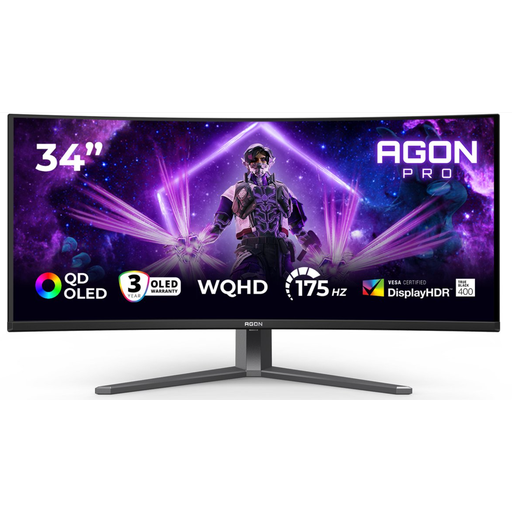
The wide screen may suit you if you want to position your manuscript and reference materials side by side and have enough desk space.
The product title lists DisplayPort 175 Hz, HDMI 100 Hz, two HDMI connections and DisplayPort. The description mentions height, swivel and tilt adjustment.
Not necessarily. If you mainly use one document, first compare the legibility of the text size and the working position on a compact screen. A larger screen with more pixels can be useful for several windows, but text scaling and available space matter too.
Arboportaal recommends placing the screen directly in front of you, with the top just below eye level so that you look slightly downwards. Check that your desk, chair and monitor stand allow you to do this.
No, a monitor connection isn’t the same as a backup. Keep a recent copy of your files separately, for example on an external hard drive or USB stick, and update it regularly.
According to the Dutch government, if a product has a fault, you can ask for it to be repaired or replaced at no extra cost. When buying online, you’ll also usually have a 14-day cooling-off period; check the terms that apply to your purchase.
For employees working from home, the Dutch government describes an employer’s duty of care and the need for an ergonomically responsible home workspace. This guidance only applies if you work from home as an employee.