What should you consider when choosing?
First decide whether you’ll be viewing one document or want to see navigation and sources alongside it. Then check how the monitor will fit on your desk and which connections your laptop needs.
| What to consider |
What to look for |
Who is this important for? |
| Text and sources at the same time |
Compare screen size and resolution. Use heading styles if you want a navigable heading structure in Word. |
I want to view the text, heading structure and sources side by side while editing. Around 36% of consumers prioritise having space to view documents together. |
| An adjustable workspace |
Check how adjustable the screen is and whether you can position it to suit your desk and viewing angle. |
During longer writing sessions, I want to be able to adjust the screen position to suit my workspace and vary my tasks. Around 29% of consumers put an adjustable workspace first. |
| Connecting a laptop |
Compare your laptop’s video connection and charging requirements with the inputs and stated power delivery of the exact model. |
I want to connect my laptop easily, so I check whether one suitable connection will work with my device. Around 21% of consumers prioritise connecting their laptop. |
| A size to suit a small desk |
Measure the available space and compare it with the dimensions of the screen and stand. |
If my desk space is limited, I want to know whether the monitor will fit before prioritising extra screen space. Around 14% of consumers prioritise a compact setup. |
Monitors on Joybuy for document work
These monitors are suited to document work that calls for extra screen space, working with multiple windows or adjusting the screen position. With models that have USB-C, power delivery is only useful if it meets your laptop’s requirements.
 Image unavailable
MSI Pro MP275Q 27-inch monitor
A good fit if you’re looking for a 27-inch QHD screen for document work, with space for a navigation pane alongside your text.
2560 × 1440 pixels, IPS panel and 100 Hz.
Joybuy
 Image unavailable
INNOCN CB27U1 27-inch 4K UHD monitor
A good fit if you’re looking for an adjustable screen and want to display multiple sources using PIP or PBP.
3840 × 2160 pixels, IPS panel, 120 Hz, USB-C with 90 W Power Delivery and height adjustment. Check that the connection and power delivery are suitable for your laptop.
Joybuy
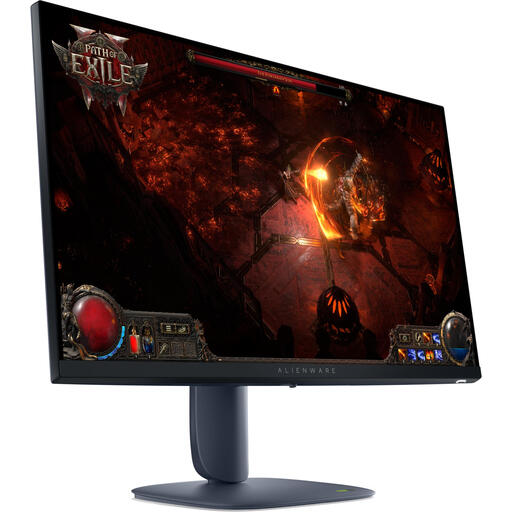 Image unavailable
Alienware AW2725DM 27-inch monitor
A good fit if you’re looking for a 27-inch QHD screen with an adjustable position for editing documents.
2560 × 1440 pixels, IPS panel and a stand with height and tilt adjustment.
Joybuy
 Image unavailable
Dell Pro Plus P3425WE 34.1-inch monitor
A good fit if you want to view several documents or windows side by side and have enough desk space for a large, curved screen.
3440 × 1440 pixels, USB-C hub with 90 W Power Delivery, RJ45 and height and tilt adjustment.
Joybuy
 Image unavailable
Dell Plus S2725QC 27-inch 4K monitor
A good fit if you’re looking for a 27-inch 4K screen for document work and want a height-adjustable setup.
3840 × 2160 pixels and USB-C with 65 W Power Delivery. Check that this power delivery is suitable for your laptop.
Joybuy
Frequently asked questions
Do I need a special monitor to create nested headings?
No. If you use Word, apply heading styles in your document. Microsoft Support says these headings help with navigation and creating a table of contents; the monitor mainly determines how much you can view at once.
How should I set up a monitor for longer writing sessions?
Position the screen directly in front of you and adjust it to suit your workspace. Arboportaal recommends setting up the screen appropriately and varying your tasks; a monitor feature is no substitute for paying attention to your workspace.
Can any monitor with USB-C connect to and charge my laptop with one cable?
No. Dell specifies that the P2425’s USB-C downstream port is for data only. Dell lists 90 W power delivery for the P2725DE, while LG lists up to 65 W Power Delivery for the 27BA65QB-B. Also check your own laptop’s video connection and charging requirements.
What if my monitor breaks down too soon during normal use?
For a consumer purchase in the Netherlands, statutory rights may apply alongside any manufacturer’s warranty. ACM ConsuWijzer explains that, subject to the applicable conditions, the seller must repair or replace a product free of charge, or sometimes refund you, if it does not meet what you could reasonably expect. There is no single fixed statutory warranty period for every monitor.
Do Dutch workplace health and safety rules apply to my screen work?
Employees are covered by obligations relating to screen work, subject to the applicable conditions. Arboportaal states that if you work at a screen for more than two hours a day, the screen and keyboard must not be attached to each other. These rules for employers should not automatically be applied to every private buyer or self-employed situation.


