Who should consider these monitors?

Working with lots of windows

When building a gardening advice website, for example, you might have a draft, reference material and a preview open at the same time. A practical window layout matters more than simply having a high pixel count. Microsoft Support explains how to arrange windows using Snap.

Checking text and photos

You assess the readability of text, images and page elements. Choose a resolution that works well with the scaling you prefer; LG Nederland lists the 27UP850K-W as a 27-inch 4K screen.

Laptop user with a permanent workspace

You may be looking for an adjustable screen and a tidy connection setup. Check separately that your laptop’s port supports video and that the power delivery suits your device; Dell Nederland lists USB-C power delivery for the P2725DE, among other features.

What should you look for when choosing?

27-inch QHD

Choose this option: if you usually read a draft page alongside one source and are looking for height adjustment or a USB-C hub. Dell Nederland lists 2560 × 1440 pixels, height adjustment and 90 W USB-C power delivery for the P2725DE.

Bear in mind: it has fewer horizontal pixels than the 34-inch ultrawide option mentioned here. Check that your windows remain easy to read at your preferred text size.

27-inch 4K

Choose this option: if viewing photos, small text and page elements in detail is important to you. LG Nederland lists 3840 × 2160 pixels for the 27UP850K-W.

Bear in mind: more pixels do not guarantee that you can fit extra windows on screen while keeping them at a readable scale.

34-inch ultrawide

Choose this option: if you want to keep a website, reference material and editorial notes on screen at the same time, for example. Philips Nederland specifies 3440 × 1440 pixels in a 21:9 format for the 34B1U5600CH/00.

Bear in mind: a wider screen needs enough desk space. Also check that your windows remain readable from your usual viewing distance.

Two separate screens

Choose this option: if you already have a suitable screen and want to keep your editor separate from your preview page or reference material. Microsoft Support explains how to arrange connected screens in Windows.

Bear in mind: check that your computer supports your preferred screen setup and connections, and that you have room for both screens.

What to consider What should you look for? Who should pay extra attention?
Room for windows Test your preferred layout at the native resolution and at a scale you can read comfortably. If I want to see a draft, a source and a preview at the same time, I need the windows to remain usable. Around 36% of consumers prioritise space for multiple windows.
Readability and detail View a preview page and photos from your usual viewing distance and at your normal scaling setting. When I check text, photos and small page elements, I want to make sure the level of detail remains easy to read. Around 29% of consumers prioritise checking detail.
Laptop connection Check video support through your laptop’s port, the power delivery required and the right cable for your setup. If I want to use my laptop with as few separate connections as possible, the connection needs to support both video and power. Around 21% of consumers give laptop connectivity top priority.
Positioning and adjustability Compare the model’s adjustment options and stand dimensions with your desk. When I work at a permanent desk for long periods, I want to be able to position and adjust the screen to suit me. Around 14% of consumers prioritise positioning and adjustability.

Pitfalls to avoid when buying

  • Comparing only the number of pixels

    A 27-inch 4K screen has more pixels than the QHD monitor we looked at, but the usable space for side-by-side windows also depends on the screen’s width and the scaling you choose.

    Before choosing 4K or ultrawide, test your draft page, source and any preview at a scale that is comfortable to read.

  • Assuming every USB-C port supports video and provides enough power

    The USB-C features and stated power delivery apply to specific models; they do not confirm that every laptop will work through the same connection.

    Before buying, check your laptop’s port, video support, required power delivery and the cable needed for your exact setup.

    Your setup may need a different compatible cable or connection.

  • Taking a shop category as confirmation of a panel specification

    Philips Nederland lists a VA screen for the Philips 34B1U5600CH/00, while the product category on the Joybuy page used a different panel description.

    Check the full model number and panel type in the manufacturer’s specifications; do not infer the panel type from a category label.

Brands to compare

Dell

The P2725DE is a specific 27-inch QHD option for anyone looking for a USB-C hub and an adjustable screen.

  • Dell Nederland lists 2560 × 1440 pixels, an IPS panel, height adjustment and 90 W USB-C power delivery for this model.
  • Check that the connection and power delivery suit your laptop; these specifications apply to this model, not all Dell monitors.

LG

The 27UP850K-W is a 27-inch 4K option for anyone who wants to view detail on a standard widescreen display.

  • LG Nederland lists 3840 × 2160 pixels and height, tilt and pivot adjustment for this model.
  • More pixels do not automatically determine which scaling setting will make your text comfortable to read.

Philips

The 34B1U5600CH/00 is an ultrawide option for anyone who wants to combine multiple windows and, potentially, video calls.

  • For this specific model, Philips Nederland lists 3440 × 1440 pixels, a 21:9 format, a USB-C dock and a VA screen.
  • The extra width needs enough desk space; check the specifications using the full model number.

AOC

AOC lists models for both a 27-inch QHD hub setup and an ultrawide workspace.

  • For the Q27P3CW, AOC lists USB-C with DP Alt Mode and up to 90 W power delivery; for the CU34E4CV, AOC lists a 34-inch screen with 90 W docking.
  • These specifications apply to individual models; check the connection and power delivery for your laptop.

Joybuy monitors for this workspace

This Joybuy selection includes 34-inch ultrawide models for extra window space, 27-inch 4K models for checking detail and a 27-inch QHD model for a more compact setup.

Philips 34B2U5900C/00 34-inch curved Dual-Mode monitor

Philips 34B2U5900C/00 34-inch Curved Dual-Mode Business Monitor

Consider this 34-inch curved model if you’re looking for an ultrawide workspace for multiple windows; first check that your desk has enough room.

Joybuy
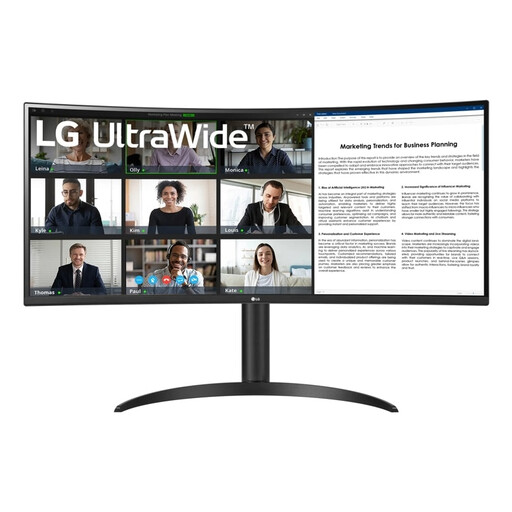
LG 34WR55QK-B 34-inch Wide Quad HD monitor

LG 34WR55QK-B 34-inch Wide Quad HD monitor

This 34-inch ultrawide model suits anyone who wants to view multiple windows side by side; bear in mind that it needs a wider desk.

34 inches; 3440 × 1440 pixels; Wide Quad HD.

Joybuy

MSI Modern MD272UPHG 27-inch 4K UHD monitor

MSI Modern MD272UPHG 27-inch 4K UHD monitor

This 27-inch 4K option suits anyone who wants to view text, photos and page elements in detail; check that your usual scaling setting remains comfortable to read.

27 inches; 3840 × 2160 pixels; 4K UHD.

Joybuy

Dell UltraSharp U2725QE 27-inch 4K UHD monitor

Dell UltraSharp U2725QE 27-inch 4K UHD monitor

A 27-inch 4K screen can be a good fit for checking images and page elements in detail; choose a scaling setting that keeps everything easy to read.

27 inches; 3840 × 2160 pixels; 4K UHD; LCD.

Joybuy

Dell Pro Plus P2725DE 27-inch QHD monitor

Dell Pro Plus P2725DE 27-inch QHD monitor

This adjustable 27-inch QHD monitor suits a compact setup for viewing a draft page alongside a source. Dell Nederland lists 2560 × 1440 pixels and 90 W USB-C power delivery for the P2725DE; check that your laptop supports the connection you plan to use.

27 inches; 2560 × 1440 pixels; QHD.

Joybuy

Frequently asked questions

How do you arrange multiple browser windows side by side?

In Windows, you can drag windows to an edge or corner using Snap, or choose a layout. Microsoft Support explains how this feature works. Test the layout using the text size you actually use when editing your site, as the usable window width also depends on your screen setup.

Can you use a second screen instead of one ultrawide screen?

Yes, if your computer supports the screen setup you want. Windows has settings for identifying and arranging connected screens; check your computer’s connections and make sure you have room for both screens beforehand.

Will video and laptop power always work through a single USB-C cable?

No, the presence of USB-C alone does not guarantee this. Check whether your laptop’s port supports video, how much power your laptop needs and which cable is suitable for your setup.

What can you do if a monitor you bought online isn’t suitable or develops a fault?

For many consumer purchases made online, you have a 14-day cooling-off period; the Dutch government explains the conditions. If a product is faulty, you are also entitled to a product that works properly and can ask the seller to put things right. There is no single fixed statutory guarantee period that applies to all products in the Netherlands.

Are there rules for your computer workstation?

Employers have obligations relating to healthy computer work. Arboportaal states, among other things, that if you work at a screen for more than two hours a day, the screen and keyboard must not be attached to one another. These workplace rules do not determine which monitor a private buyer should choose.
