
Writer of step-by-step guides
Wants to read and compare instructions alongside printer menus or screenshots. The examples mentioned include models from Dell and Philips, as well as Windows advice from Microsoft Support.


First, choose a monitor that lets you view instructions and reference images side by side comfortably. Then check that its connections and stand suit your computer and workspace. If you need to assess digital images accurately, compare the stated colour settings for each model, but don’t expect a monitor specification to guarantee that a print will reproduce the same colours.
Wants to read and compare instructions alongside printer menus or screenshots. The examples mentioned include models from Dell and Philips, as well as Windows advice from Microsoft Support.
Looks at photos, icons and other images as well as text, and wants to compare the stated colour gamut and colour settings for each model. ASUS, BenQ and LG publish specifications for their models.
Needs a suitable connection, possibly with laptop charging via USB-C, and wants to adjust the screen to suit their workspace. Check the capabilities of both your laptop and the specific monitor model.
| What to consider | What should you check? | Who is this important for? |
|---|---|---|
| Readability and workspace | Compare the screen size and resolution with your desk, and see how text and images fit side by side. Dell, ASUS and Philips list 27 inches and 2560 × 1440 pixels for the models mentioned; Microsoft Support generally recommends using the recommended resolution in Windows and adjusting scaling separately. | If you want to view printer menus and screenshots side by side while writing, clear text is a major consideration. Around 33% of consumers prioritise readability and viewing documents at the same time above all else. |
| Assessing reference images | Compare colour data for the exact model: ASUS lists 100% sRGB and ΔE < 2 for the PA278CV; BenQ lists 100% sRGB and average ΔE ≤ 3 for the PD2705Q. These manufacturer specifications don’t prove a match with a particular printer or print. | If you want to check images and colours while creating guides, stated colour settings may be worth considering. Around 27% of consumers prioritise assessing reference images over connection convenience or general workspace setup. |
| Connecting and charging a laptop | Check that your laptop supports video through the USB-C port you plan to use, and compare the charging power with your laptop’s requirements. Dell lists up to 90 W for the P2725DE; ASUS and BenQ list 65 W for the PA278CV and PD2705Q. | If you use the monitor with a laptop, you’ll want to know whether one connection is enough for your display and charging needs. Around 20% of consumers prioritise suitable laptop connectivity above all else. |
| Adjusting the screen position | Check the height and pivot adjustments on the specific model, and make sure the stand fits on your desk. LG lists height and pivot adjustment for the 27UP850K-W; ASUS lists 0–150 mm of height adjustment and pivot for the PA278CV. Arboportaal also outlines workplace advice and requirements for employees in certain circumstances. | If you work on guides for long periods, you’ll want to position the screen comfortably for your workspace. Around 20% of consumers prioritise adjustability above all else. |
Resolution and text size are separate settings. Microsoft Support generally recommends using the recommended screen resolution; a lower output resolution can make text look blurry.
Check the recommended resolution and, if needed, adjust the scaling for text and apps separately.
Your laptop must support video through the relevant connection, and the monitor’s charging power must be suitable for your laptop. Dell lists up to 90 W for the P2725DE, while ASUS lists 65 W for the PA278CV and BenQ lists 65 W for the PD2705Q.
Before buying, check what your laptop port supports and how much charging power your laptop needs. Depending on your equipment, you may need a different suitable connection or charging solution.
sRGB, DCI-P3 and ΔE data describe stated characteristics of specific monitors; they don’t prove that a screen and a particular printer will display the same colours.
Decide whether you mainly assess digital images or also compare prints. Use monitor specifications only for the features that are actually listed.
These examples show the features manufacturers list for specific monitors. They don’t apply to every model from the brand, or indicate that the screen will match a print.
The P2725DE is an example of a QHD screen with USB-C hub features for a laptop workspace.
The ProArt PA278CV is a QHD example for anyone looking to compare stated colour settings and an adjustable stand.
The PD2705Q is a QHD model whose stated sRGB and colour settings you can compare with those of other specific models.
The UltraFine 27UP850K-W is a 27-inch 4K example for viewing detailed image references.
The 27E2N2500/00 is a QHD example for viewing text and screenshots side by side.
The Joybuy monitors below include QHD, 4K and ultrawide models for viewing instructions and reference images. Compare the listed specifications with your screen space, computer and workspace requirements.
 No image available
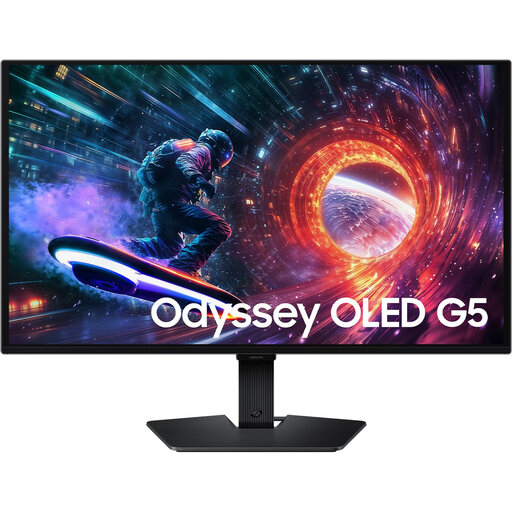
The 27-inch Quad HD format may suit a workspace where you want to view instructions and screenshots on a single desktop screen.
Specifications in the product name: 27 inches, Quad HD, OLED and 180 Hz.
 No image available
The 32-inch 4K format may suit anyone who needs a large desktop screen for instructions and image references.
Specifications in the product name: 32 inches, VA panel, 3840 × 2160 pixels, 60 Hz and 300 cd/m². Also listed: 2 × HDMI, DisplayPort, tilt adjustment and speakers.
 No image available
The listed 27-inch size and 4K resolution may suit you if you want to view detailed reference images on a desktop monitor.
Listed specifications: 27 inches, 3840 × 2160 pixels and IPS.
 No image available
A 32-inch 4K screen may suit you if you want to assess instructions and reference images on a large display.
Specifications in the product name: 32 inches, curved design, 3000R, VA panel, 3840 × 2160 pixels, HDR10, Adaptive Sync and 100% sRGB. A stated colour gamut doesn’t guarantee a match with prints.
 No image available
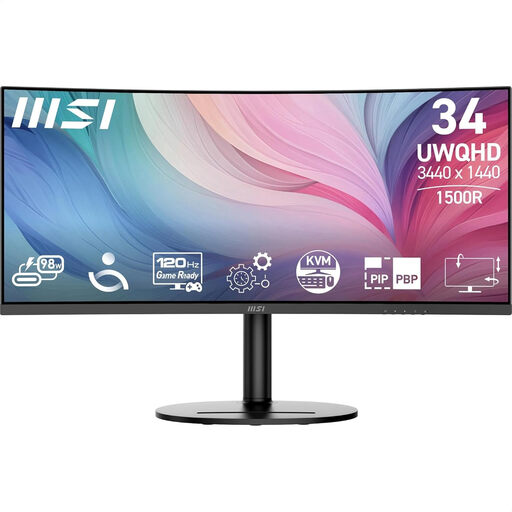
The 34-inch UltraWide format may suit you if you want to view instructions and images side by side.
Listed specifications: 34 inches, 3440 × 1440 pixels and LCD. Please note: this model is curved (1500R).
No. Start with the resolution Windows marks as recommended. Microsoft Support advises adjusting the size of text and apps under Scale and layout; a lower resolution can make text look blurry.
Not just to take a screenshot. Microsoft Support explains that, on supported versions of Windows, Snipping Tool can capture a window or an area, and lets you edit and save the capture. Choose your monitor based on readability and your other work needs too.
Arboportaal recommends placing the screen directly in front of you, with the top just below eye level, and varying your working posture. Check that the monitor’s adjustability and your workspace suit your needs.
It isn’t a general purchasing requirement for every private user. Arboportaal outlines requirements for employees who work at a screen for more than 2 hours a day, including screen adjustability. Employers may only make exceptions under certain conditions, and safety and health must still be ensured.
The European Commission describes EPREL as a database of energy-labelled models sold in the EU, including electronic displays. Compare the information for the exact model, not just the product range.