What should you look for when choosing?
First, decide which windows need to be visible at the same time. Then consider the space available on your desk, screen positioning and connections. Resolution and colour modes matter most if you’ll also be assessing video footage.
| What to consider |
What should you check? |
Who should pay particular attention? |
| Readability |
Check transcripts and footnotes at your preferred text size. Also look out for reflections and height adjustment. |
If I need to read long references, I want the text to be easy to make out at my chosen size. For around 36% of consumers, readability is their top priority. |
| Timeline space |
Decide which windows need to sit side by side and measure whether the screen will fit on your desk. |
If I want to see the timeline, transcript and references at the same time, the available workspace is my main consideration. Around 29% of consumers put workspace first. |
| Laptop connection |
Check whether your laptop port supports video over USB-C, which cable you need and whether the charging power is suitable for your laptop. |
If I want to use one cable for video and, potentially, laptop power, I check that my laptop, cable and monitor are all compatible. For around 21% of consumers, the laptop connection comes first. |
| Video footage |
Decide whether you’ll be assessing video and whether you need colour modes or extra image detail. |
If I also edit video, I want to know whether the detail and colour reproduction suit my work. Around 14% of consumers put video footage first. |
Joybuy monitors for text, timelines and video
This selection of Joybuy products includes 27-inch QHD and 4K models, plus 34-inch ultrawide options for text, timelines and video editing where needed.
 No image available
Philips 27E1N1800AE/00 27-inch 4K monitor
An option to compare if you read lots of transcripts and references and want an adjustable screen position.
27 inches, 3840 × 2160 pixels, 60 Hz and 4 ms. The product description mentions EasyRead, an anti-glare screen, height adjustment, HDMI and DisplayPort.
View at Joybuy
 No image available
Philips 34B2U5900C/00 34-inch curved Dual-Mode monitor
An option to compare if you want to arrange your timeline, text and references side by side and have room for a wide screen.
34 inches, curved and 21:9. The product description lists WUHD resolution, USB-C with up to 140 W Power Delivery and a stand with height, swivel and tilt adjustment.
View at Joybuy
 No image available
MSI Modern MD272UPHG 27-inch 4K monitor
An option to compare if your recording also includes video and you want to assess extra image detail or colour features.
27 inches and 3840 × 2160 pixels. The product description mentions colour gamut, USB-C with DisplayPort Alternate Mode, an adjustable stand, PIP/PBP and KVM.
View at Joybuy
 No image available
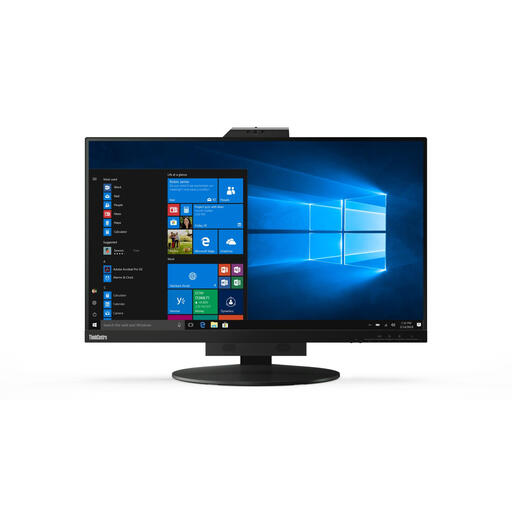
Lenovo ThinkCentre Tiny-In-One 27 QHD monitor
An option to compare if you want to view text, references and an editing timeline on one 27-inch screen.
The description lists QHD resolution at 2560 × 1440 pixels, an anti-glare screen, height and tilt adjustment, HDMI and DisplayPort.
View at Joybuy
 No image available
Philips E Line 346E2CUAE/00 34-inch ultrawide monitor
An option to compare if you want your timeline, transcript and references all visible at the same time.
34 inches, 3440 × 1440 pixels and 21:9. The product description mentions USB-C with up to 65 W Power Delivery, a USB hub, height adjustment and MultiView.
View at Joybuy
Frequently asked questions
Do I need a colour-critical 4K monitor for a spoken-word poetry recording with no video?
Not for audio editing itself. Focus first on readability and space for your timeline and references. If you’ll also be assessing video, image detail and suitable colour modes become useful extra considerations.
How do I set up a second screen for editing?
First check that your computer and editing software support a second screen. In Adobe Premiere, you can move panels to the second screen and save the layout as a workspace. For other programmes, check their own capabilities.
What should I consider when reading and editing for long periods?
Adjust the screen so text is easy to read, and pay attention to small symbols, reflections and the lighting around your workspace. Arboportaal states that for employees who work at a screen for more than two hours a day, the screen and keyboard must not be attached to each other, and the screen must be height-adjustable.
What are my rights if a monitor I bought online disappoints or develops a fault?
For eligible online consumer purchases, you generally have a statutory cooling-off period of up to 14 days after delivery, according to ACM ConsuWijzer. This is separate from your statutory rights if a product has a problem: there is no fixed statutory guarantee period in the Netherlands, and the retailer is your point of contact for a solution, as explained by the Dutch government.
Can I return an old monitor when I buy a new one?
According to Milieu Centraal, you can hand in an old or broken appliance free of charge when you buy a new, similar one. The old-for-new scheme also applies to online purchases.


