
Digital portfolio illustrator
You mainly show your harbour illustration on screen and want to assess lines and colours using a suitable colour profile.


If you mainly present your portfolio digitally, a suitable sRGB display and a correctly configured colour profile are important starting points. For colour-critical print work, a wider colour gamut and a managed print workflow become more relevant, but a high coverage percentage alone does not guarantee a match between screen and print. Then compare the resolution, workspace and connection with your laptop.
You mainly show your harbour illustration on screen and want to assess lines and colours using a suitable colour profile.
You also prepare prints and want to factor colour management into your workflow, rather than relying solely on a quoted colour gamut.
You regularly connect a laptop and want to check in advance that the video signal, connections and charging power are compatible with your computer.
First decide whether you’ll mainly present the illustration on screen or also assess it for print; then compare resolution and laptop connectivity.
| What to consider | What should you check? | Who should give this more weight? |
|---|---|---|
| Colour for on-screen presentation | Check the sRGB mode, exact model, document profile and whether you can profile the monitor. | If I mainly present my illustration digitally, I want to assess colours within the profile being used. Around 33% of consumers prioritise digital colour. |
| Colour for print | Ask which profile the printer uses, and check the calibration options and whether a measurement device is included. | If I also make prints, I want to assess screen and print as part of a single colour workflow. Around 27% of consumers prioritise print colour. |
| Fine detail and drawing space | Compare 27-inch QHD with 27-inch 4K at your usual viewing distance and with the display scaling you use. | If I want to see fine lines and software panels at the same time, I consider both the pixel count and the space taken up by the interface. Around 20% of consumers prioritise illustration detail. |
| Laptop connectivity and workspace | Check video support over USB-C, the power your laptop needs, the cable and how adjustable the stand is. | If I want to connect my laptop to the monitor, I want to know whether that combination provides a picture and enough power. Around 20% of consumers prioritise a laptop setup. |
A screen and paper can display different colours. Adobe explains that colour profiles, paper and lighting are among the factors involved in colour management.
Ask the printer which print profile they use and check what calibration equipment is included with the monitor.
Hardware calibration may require a separate measurement device: EIZO lists the device for the CS2740 as an optional accessory.
The 27-inch models mentioned have different resolutions: 2560 × 1440 pixels for QHD and 3840 × 2160 pixels for 4K. Your display scaling settings also affect the size of interface elements.
View your illustration and drawing software using the display scaling you actually plan to use.
The stated charging power varies by model and needs to suit your laptop. A USB-C port alone does not confirm that your laptop can send video through it or receive enough power.
Before deciding, check your laptop’s specifications, video mode over USB-C, power requirements and cable.
If the monitor cannot provide enough power for your laptop, you may still need a separate power supply or dock.
The DesignVue PD2705Q and PD2705U offer 27-inch QHD and 27-inch 4K options for digital illustration work.
The ProArt PA279CRV is a 27-inch 4K model to consider if you also want to compare its stated Adobe RGB or DCI-P3 coverage alongside digital presentation.
The ColorEdge CS2740 is designed for colour-critical assessment, with a wide colour gamut and hardware calibration.
The UltraSharp U2725QE is a 27-inch 4K hub monitor for anyone looking for a flexible workspace with plenty of connectivity.
The E32k G5 is a 31.5-inch 4K docking monitor for anyone who values space for illustrations and panels.
These models range from portable 15.6-inch screens to 32-inch 4K monitors for a permanent drawing setup.
 No image available
A 27-inch 4K model to consider if you want to assess fine detail on a desktop screen.
The product information lists a resolution of 3840 × 2160 pixels. For print work, it also states 94% Adobe RGB coverage.
 No image available
A 32-inch 4K model to consider if you want a larger physical workspace for your illustration and software panels.
The product name lists a resolution of 3840 × 2160 pixels.
 No image available
A 27-inch 4K model to include in your comparison if you want to assess fine illustration detail on a desktop screen.
The product name lists a resolution of 3840 × 2160 pixels.
 No image available
A 31.5-inch 4K model to compare if a larger screen area matters for your drawing work.
The product name lists a resolution of 3840 × 2160 pixels.
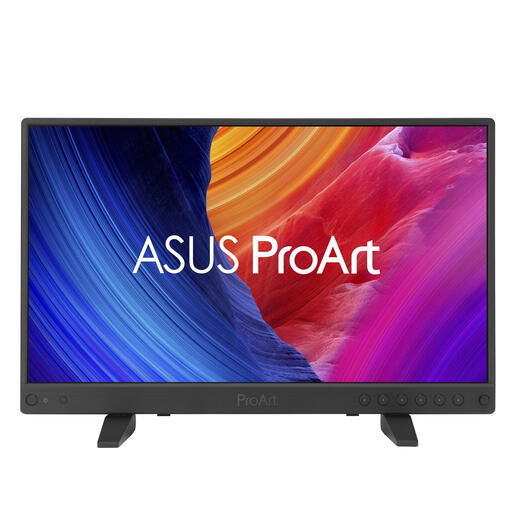 No image available
A 15.6-inch 4K model to consider if you need a portable setup; it offers less physical screen space than a larger desktop monitor.
The product name lists a resolution of 3840 × 2160 pixels.
No. First, ask your printer which files and profiles the workflow requires. A monitor with a wider colour gamut may play a part, but Adobe also explains how the monitor profile, printer profile, paper and ambient light affect the match between screen and print.
Set the appropriate colour mode and monitor profile, and calibrate or profile the monitor when colour assessment is critical. Also consider the lighting in your workspace; a factory calibration report does not automatically describe the current state of your setup.
No. Check both video signal support and the charging power of the exact model. BenQ lists 65 W Power Delivery for the PD2705U, while ASUS specifies 96 W for the PA279CRV; compare those figures with your laptop’s requirements.
For an applicable online purchase from a business, you generally have a 14-day cooling-off period, according to the Dutch Government. You are also entitled to a product that is fit for purpose; there is no fixed statutory guarantee period, and the retailer is your point of contact if a product is faulty.
The European Commission describes energy labels for electronic displays on a scale from A to G, with exceptions and different provisions for certain types of screen. When buying, compare the applicable EU energy label and the product information sheet.