If you often compare two timetables at once, first check whether they fit comfortably side by side with your preferred text settings. A 27-inch QHD screen gives you a different starting point from a compact Full HD screen. If you have a smaller desk, a 24-inch screen may be a better fit, perhaps with extra vertical space from a 16:10 aspect ratio. Also check adjustability, reflections and connections: USB-C doesn’t automatically mean a monitor can provide both a picture and enough power for your laptop.
Who is this guide for?
People comparing multiple timetables
You keep departure and arrival times open in several windows and need enough room to read them comfortably. The resolutions listed for Dell and Philips give you specific options to compare with your text settings.
Students with limited desk space
You need room for your screen, keyboard and study materials, so it’s worth considering not just the screen size but also the stand and how adjustable it is.
People who spend long hours at a screen
You want to position your screen comfortably and reduce distracting reflections. Additional requirements may apply to employees, depending on their working conditions; Arboportaal explains the rules for applicable display screen work.
What should you look for?
First decide how much space you need to read timetables side by side. Then choose a screen size and stand to suit your desk, and finally check that the connections work with your computer.
Compact 24-inch monitor with 16:10 aspect ratio
A good fit for: a smaller desk and anyone who wants to see more rows at once. Dell lists the P2425 as having a resolution of 1920 × 1200 pixels on a screen of around 24 inches.
Bear in mind: it has fewer horizontal pixels than the 27-inch QHD option reviewed here. Check that the windows are still easy to read side by side at your chosen text size.
27-inch QHD monitor
A good fit for: frequently comparing several tables or websites, if you have enough desk space. Philips lists the 27E1N5600AE/00 as having 2560 × 1440 pixels.
Bear in mind: the larger screen needs more room. If you’re using USB-C, check your laptop, cable and the power capacity you need too.
24-inch Full HD for separate windows
A good fit for: mainly reading one timetable at a time and occasionally switching between windows. LG lists the 24BA560-B as having a stand that adjusts in several directions.
Bear in mind: Full HD offers fewer pixels than the 16:10 and QHD options mentioned here. BenQ lists the GW2490 as having an anti-glare coating and a tilting stand.
| What to consider |
What to look for |
Who should pay particular attention? |
| Room for side-by-side windows |
Try viewing the timetables side by side using the text size you find comfortable. |
If I want to read two timetables at once, the columns need to fit side by side with my text settings. Around 36% of consumers give reading space for multiple windows top priority. |
| An adjustable viewing position |
Check which ways the stand adjusts and consider how the screen position relates to your windows. |
I want to be able to position the screen comfortably and reduce reflections, even if that means placing less emphasis on having a larger screen. Around 29% of consumers prioritise adjustability and a comfortable viewing position. |
| A size that suits your desk |
Compare the external dimensions of the screen and stand with the space you actually have available. |
If I also need room for my keyboard and study materials, the whole setup needs to fit. Around 21% of consumers say available desk space is their main buying priority. |
| Connecting to your computer |
Check the video connection, cable and whether your laptop needs to be charged. |
I want to connect my computer without unnecessary equipment taking up space on my study desk, so the monitor, laptop and cable all need to work together. Around 14% of consumers give ease of connection top priority. |
Common buying pitfalls
-
Assuming a USB-C port makes a complete laptop dock
According to Dell, the P2425 has a USB-C downstream port for data, with a maximum output of 15 W. That’s not the same as a confirmed video and charging connection for a laptop. Philips describes the 27E1N5600AE/00 as providing video, data and power via USB-C for a compatible device.
Check the exact model to see whether the monitor supports video, how much power it provides, and whether your laptop and cable are compatible.
-
Assuming all 24-inch screens offer the same amount of space
According to Dell, the P2425 has 1920 × 1200 pixels in a 16:10 aspect ratio; the LG and BenQ models mentioned here have 1920 × 1080 pixels in 16:9. Screen size alone doesn’t tell you how many pixels you’ll get.
Compare the resolution and aspect ratio using your usual text settings, rather than looking only at the screen size.
-
Assuming an adjustable stand always adjusts in height
BenQ specifies a tilting stand for the GW2490, while Dell also lists height adjustment for the P2425. The range of movement varies by model.
Check which adjustments the included stand offers, and whether a suitable VESA mount would work better for your setup.
Brands to consider
Dell
The P2425 reviewed here is a 24.07-inch office monitor with a 16:10 aspect ratio and an adjustable stand.
- Dell lists 1920 × 1200 pixels, giving you more vertical pixels than the Full HD models mentioned here.
- According to Dell, the USB-C port is downstream, intended for data and provides a maximum of 15 W; it is not a confirmed laptop dock.
Philips
The 27E1N5600AE/00 reviewed here is a 27-inch QHD monitor with USB-C.
- Philips describes video, data and power delivery through a single cable for a compatible device.
- Check that the connection and cable are suitable for your laptop and that the monitor can provide enough power. A larger screen also needs more desk space.
LG
The 24BA560-B reviewed here is a 23.8-inch Full HD IPS monitor.
- LG lists a stand that adjusts in several directions and a reading mode.
- Full HD has fewer pixels than the QHD option mentioned here. A product name referring to flicker is no proof that individual symptoms will go away.
BenQ
The GW2490 reviewed here is a 23.8-inch Full HD IPS monitor.
- BenQ lists an anti-glare coating, two HDMI inputs and a tilting stand.
- The specifications don’t mention height adjustment for the supplied stand. Manufacturer claims about eye comfort don’t prove that symptoms will go away.
Lenovo
According to Lenovo, the ThinkVision T27h-30 reviewed here is a 27-inch QHD office monitor with USB-C and Ethernet.
- The listed connections may suit a more extensive workstation with several devices to connect.
- These connections may be unnecessary if you use one laptop and one screen. Compare them with what you actually need.
Monitors at Joybuy
This selection includes compact Full HD monitors and screens with higher resolutions or larger sizes, for anyone who wants to view timetables side by side. Check each model’s dimensions, adjustability and connections to make sure they suit your desk and computer.
 No image available
KTC H27T27 27-inch QHD monitor
The resolution may be useful if you want to view several timetables side by side; check that the screen fits on your desk.
Joybuy lists 2560 × 1440 pixels, Fast IPS and 120 Hz OC. The description mentions a tilting stand and 100 × 100 mm VESA mounting.
View at Joybuy
 No image available
Philips 27E1N1800AE/00 27-inch 4K UHD IPS monitor
The 27-inch screen may suit a setup where you want to view several windows side by side; measure your available space first.
Joybuy lists 3840 × 2160 pixels, an IPS panel, 60 Hz, and HDMI and DisplayPort connections. The product name mentions a height-adjustable stand.
View at Joybuy
 No image available
Dell Pro Plus P2425DE 24-inch QHD monitor
This 24-inch screen may suit a smaller workspace if you’re looking for a higher resolution too; check the stand and the space available on your desk.
Joybuy lists 2560 × 1440 pixels and USB-C with 90 W Power Delivery. Check that the connection and charging capacity are suitable for your laptop.
View at Joybuy
 No image available
Dell Pro Plus P3425WE 34.1-inch ultrawide monitor
The ultrawide design may work well for viewing several windows side by side, provided you have enough room on your desk.
Joybuy lists 3440 × 1440 pixels, USB-C with 90 W power delivery and an RJ45 connection. The description also mentions a KVM switch.
View at Joybuy
 No image available
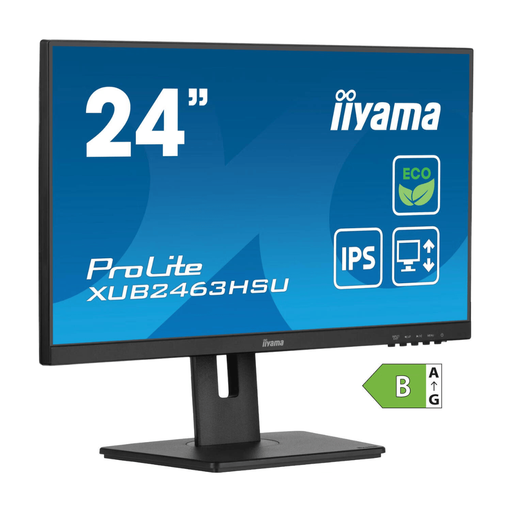
iiyama ProLite 24-inch IPS Full HD monitor
A 24-inch Full HD screen may suit you if you usually read one window at a time and switch between timetables.
Joybuy lists 1920 × 1080 pixels and a stand with 150 mm of height adjustment. Full HD offers fewer pixels than QHD for viewing windows side by side.
View at Joybuy
Frequently asked questions
Do I always need a 27-inch monitor to view two timetables side by side?
No, it depends on the width of the windows and the text magnification you use. Dell lists the P2425 reviewed here as having 1920 × 1200 pixels; Philips lists the 27E1N5600AE/00 as having 2560 × 1440 pixels. Compare them using your own settings.
How should I position my screen if I’m bothered by reflections?
Try adjusting the screen’s position in relation to windows and lighting, and check whether you can set the height comfortably. For applicable display screen work by employees, Arboportaal specifies requirements for a height-adjustable, non-reflective screen and suitable contrast. These rules aren’t general buying requirements for every home study space.
Will every monitor with USB-C charge my laptop?
No. Dell specifies the P2425’s USB-C port as downstream and for data only, while Philips describes the 27E1N5600AE/00 as providing power via USB-C for a compatible device. Check your laptop, cable and the charging capacity you need.
What can I do if a monitor I bought online is faulty?
According to the Dutch Government, if a product is faulty, the retailer is responsible for finding a solution, such as a free repair or replacement. When consumers buy online from a business, they also usually have a 14-day cooling-off period; this is a separate right from making a complaint about a faulty product.
Does a monitor need an energy label in the Netherlands?
The European Commission states that computer displays are covered by EU energy labelling rules for electronic displays, subject to the exceptions set out in those rules. For a specific model, check its energy label and the accompanying model information.


